
A non-responsive Logitech mouse can be a frustrating experience, whether you're trying to work, browse the web, or game. One of the primary reasons for a mouse becoming unresponsive is driver-related issues. Drivers are essential for allowing your mouse to communicate with your computer, and when they're outdated, corrupted, or not functioning properly, your mouse might stop responding. In this guide, we will walk you through common causes of this issue and offer step-by-step instructions on how to fix it. From updating drivers to troubleshooting hardware, we've got you covered.
Reconnect the Logitech Mouse
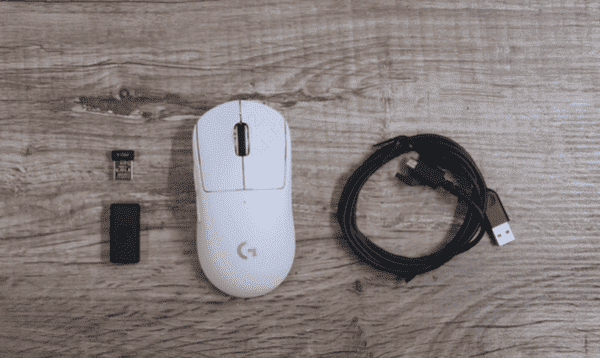
Unplug and Replug: Disconnect the mouse and plug it back into the USB port. Try a different port if necessary
Wireless Mice: For wireless mice, try using a different USB receiver port or re-pair the mouse with your computer via Bluetooth
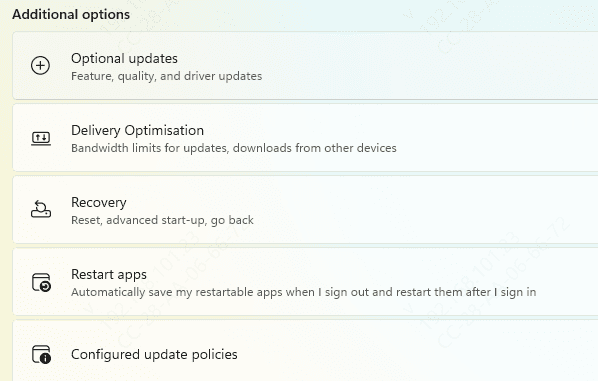
Check for Windows
Open Settings and go to Update & Security
Click Check for Updates and install any available updates
After updating, check if the mouse works correctly
Update Logitech Mouse Drivers Using Device Manager
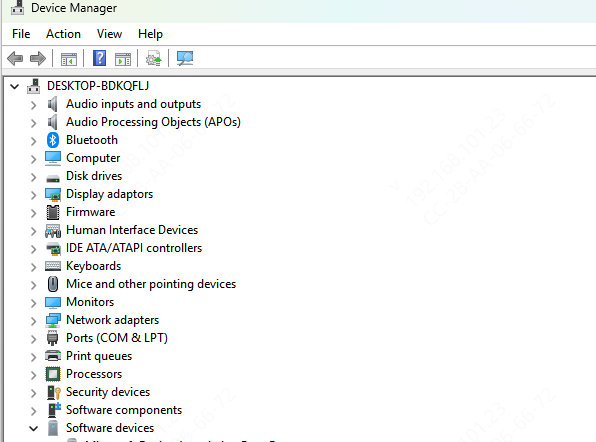
Open Device Manager: Right-click on the Start Menu and select Device Manager
Find Your Mouse: Expand the "Mice and other pointing devices" section
Update Driver: Right-click on your Logitech mouse and choose Update Driver
Select Search automatically for updated driver software. If an update is found, it will be installed.
Once the update completes, test the mouse again to check if the issue is resolved
Using Driver Talent X for Automated Driver Updates (Recommended)
If you prefer a more automated solution, Driver Talent X is an excellent tool to quickly update and fix Logitech mouse drivers
Download Driver Talent X
Visit the Driver Talent website and download the installer
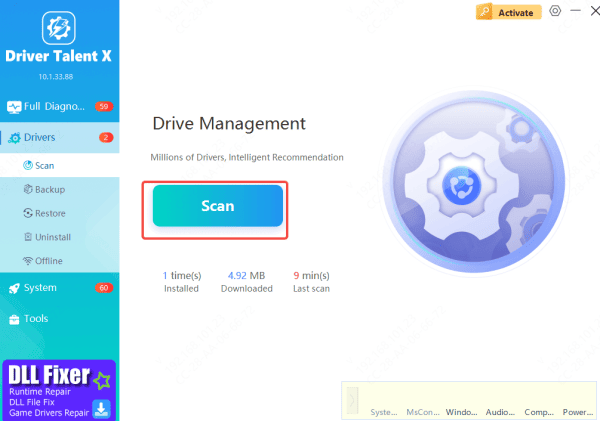
Scan
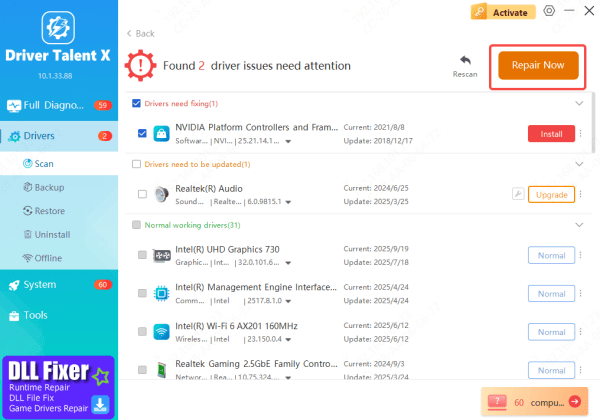
Launch the Driver Talent X software and run a system scan to detect outdated or missing drivers
Update
The software will show any issues with the Logitech mouse driver, and you can select Repair Now to automatically update it
Restart the Computer
Once the update is complete, restart your computer to apply the changes. Then, test the mouse functionality
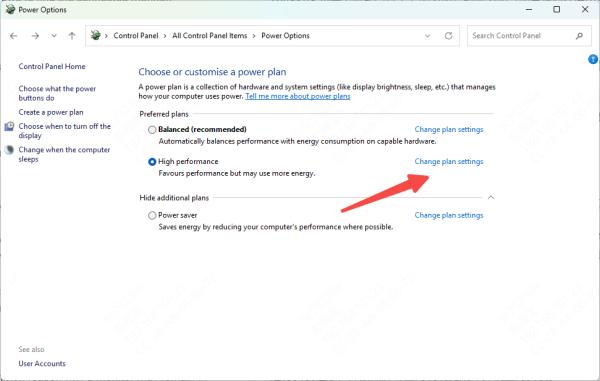
Power Management Settings That Could Affect Logitech Mice
Open Device Manager, right-click your Logitech mouse, and select Properties
Go to the Power Management tab.
Uncheck Allow the computer to turn off this device to save power
Check for Hardware Issues
If none of the above solutions work, it could be due to a hardware issue
Physical Damage: Inspect your mouse for physical damage, such as a frayed cable or damaged USB receiver
Test with Another Computer: Plug your Logitech mouse into another computer. If it works on the second computer, the issue is likely with the original system. If it doesn't work, the problem may be with the mouse itself
.png "check-connection-port")
Common Causes of Logitech Mouse Not Responding
Several factors can contribute to your Logitech mouse not responding:
Outdated or Corrupted Drivers: If your mouse drivers are outdated, they may not be compatible with your system, leading to input issues or complete failure
Driver Conflicts: If other devices or software are using conflicting drivers, your mouse might stop functioning correctly
USB Port Issues: If there's a problem with the USB port (e.g., physical damage or insufficient power), the mouse may not be detected properly
System Conflicts: Recent software or system updates may have disrupted the driver communication with the mouse
Power Management Settings: Power-saving settings on your system may cause your USB devices, including your mouse, to turn off
Conclusion
Driver issues are one of the most common causes of a non-responsive Logitech mouse. By following the steps outlined in this guide, you should be able to resolve most driver-related problems. From updating drivers through Device Manager or Logitech's software to using automated tools like Driver Talent X, you have several options to get your mouse working again. Keeping your drivers up-to-date will help ensure your mouse operates smoothly and efficiently for years to come.









