
When your Logitech mouse software fails to detect your device, it can prevent you from configuring buttons, adjusting DPI settings, updating firmware, or using advanced features such as Logitech G Hub or Logitech Options. This issue often occurs due to outdated drivers, USB power settings, software corruption, or connection conflicts.
Before trying advanced fixes, it is recommended to update your mouse and USB drivers to eliminate driver-related issues. This guide provides complete troubleshooting steps, starting with Driver Talent X, followed by multiple proven methods to fix Logitech mouse detection issues on Windows.
Update Mouse and USB Drivers With Driver Talent X
Outdated or missing drivers are one of the most common causes of Logitech mouse detection problems. Updating your system drivers ensures that both Logitech G Hub or Logitech Options can correctly recognize your mouse.
Download and Install:
Click the "Download" button to download the software package.
Run the installation file and follow the on-screen setup instructions.
Run a Full System Scan:
Launch the application and go to "Drivers" > "Scan", click "Scan".
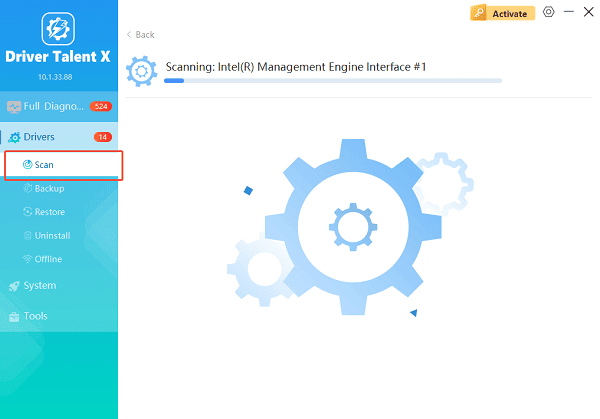
Driver Talent X will check your USB controllers, mouse drivers, and system components for outdated or corrupted drivers.
Update All Required Drivers:
After the scan is complete, the software will display a list of all drivers that need attention. Select the necessary drivers and click the "Repair Now" button.

Driver Talent X will download the latest, certified versions specific to your mouse and Windows version, crucial for minimizing latency.
Reboot Your Computer:
Restart your PC after updating to allow Windows and Logitech software to properly reload driver configurations.
Once your drivers are updated, proceed with the additional fixes below.
Causes of Logitech Mouse Software Not Detecting Devices
Several factors can cause Logitech G Hub, Logitech Options, or Logitech Options+ to fail in detecting your mouse:
Outdated or corrupted drivers
Faulty USB port or loose connection
Logitech software installation errors
Conflicts with Windows HID services
USB power management limitations
Firmware issues in the Logitech mouse
Background apps interfering with detection
Fixes for Logitech Mouse Software Not Detecting Device
Fix 1. Restart Logitech G Hub or Logitech Options
A temporary software issue may cause detection failure.
Press Ctrl + Shift + Esc to open Task Manager.
Find "Logitech G Hub" or "Logitech Options".
Right-click and select "End Task".
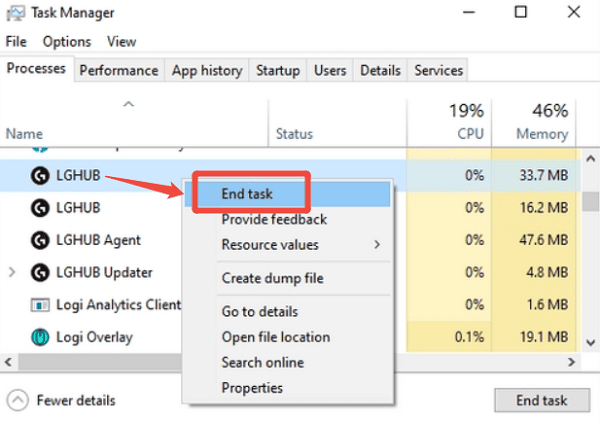
Reopen the software.
Check if your mouse is now detected.
Fix 2. Reconnect Your Mouse to a Different USB Port
Sometimes, a USB port may not provide stable power.
Unplug your mouse.
Try a different USB port (preferably a USB 2.0 port for wired mouse).
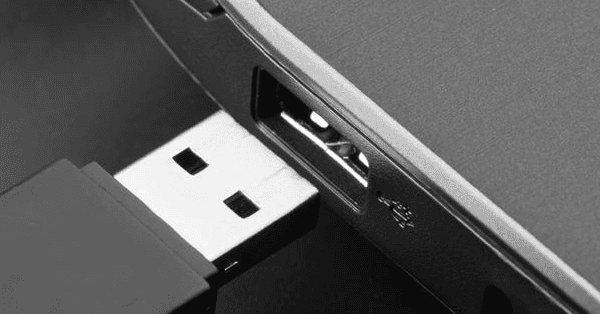
For wireless mouse, reconnect the USB receiver.
For Bluetooth models, remove and re-pair the device.
If the mouse works but the software still does not detect it, continue to the next fix.
Fix 3. Reinstall Logitech G Hub or Logitech Options
A corrupted installation is a common reason for detection failure.
Open Settings. Go to Apps.
Locate Logitech G Hub or Logitech Options, click "Uninstall".
Restart your computer.
Download the latest version from Logitech's official website.
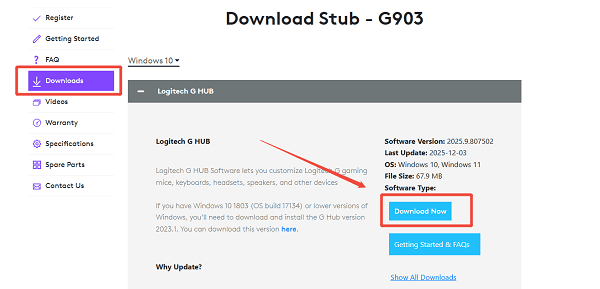
Install and relaunch the software.
Fix 4. Disable USB Power Saving Settings
Windows may temporarily disable USB ports to save power.
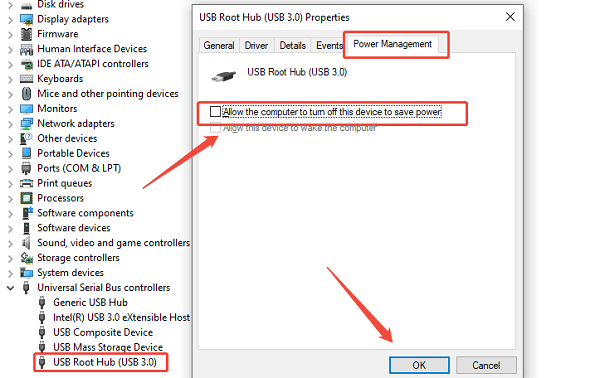
Press Windows + X and select Device Manager.
Expand Universal Serial Bus controllers, right-click each USB Root Hub entry, select "Properties".
Go to Power Management, uncheck "Allow the computer to turn off this device to save power". Click "OK".
Restart your computer.
Fix 5. Reset the Logitech Mouse (Wireless Models)
For models like MX Master or G Pro Wireless, a reset can restore detection.
Turn off the mouse.
Wait 10 seconds.
Turn it on again.
Reconnect the USB receiver or Bluetooth pairing.
If applicable, press the DPI or pairing button to reinitialize communication.
Fix 6. Remove Conflicting Devices from Device Manager
Conflicting HID devices can block Logitech detection.
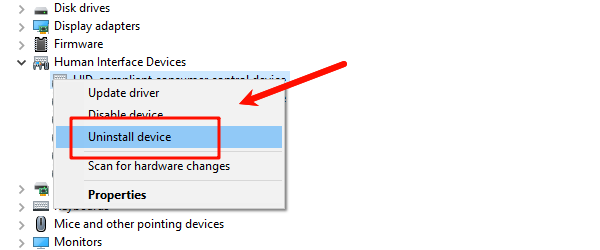
Open "Device Manager", expand "Human Interface Devices".
Look for devices marked with warning icons or unknown input devices. Right-click and uninstall them.
Restart your system.
Reconnect the Logitech mouse.
Fix 7. Update Mouse Firmware Through G Hub
If your mouse shows up briefly in the software, update firmware immediately.
Open G Hub.
Select your device.
If a firmware update is available, follow the on-screen instructions.
Firmware updates can fix recognition failures caused by outdated hardware microcode.
Additional Tips to Prevent Future Detection Problems
Avoid using USB hubs for gaming mouse.
Keep Logitech software updated.
Clean the sensor and USB receiver.
Reboot your PC after major Windows updates.
Use Driver Talent X regularly to keep drivers fully updated.
Conclusion
Logitech mouse software failing to detect a device is usually caused by outdated drivers, faulty USB settings, or software conflicts. By first updating all related drivers using Driver Talent X and then applying the fixes in this guide, you can restore full detection and regain control of your mouse's performance features. Regular maintenance and proper configuration will prevent similar issues in the future.
See also:
How to Fix AMD FreeSync Not Working Issue
How to Fix Bluetooth Not Working Issues









