
Logitech mouse are known for their precision and reliability, but to unlock all features such as button customization, DPI settings, gestures, and profile synchronization, you must install the correct Logitech software. Whether you are using Logitech Options, Options+, G HUB, or classic SetPoint, proper installation and updated drivers are essential to ensure stable performance.
This guide provides a complete walkthrough for downloading Logitech mouse software and setting it up correctly on Windows. Before installing the software, it is highly recommended to update your mouse and USB device drivers using Driver Talent X to avoid compatibility or detection problems.
Update Logitech Mouse Drivers First (Recommended)
Before installing any Logitech software, ensure your Windows drivers are fully updated. Outdated or corrupted USB, Bluetooth, or HID drivers often cause issues such as the mouse not being detected, G HUB not opening, or customization profiles not loading.
Update Drivers With Driver Talent X
Manually troubleshooting and updating the various HID, USB Controller, and Chipset drivers can be complex, especially with specialized gaming or ergonomic mouse. A specialized utility automates this process, guaranteeing that all necessary components are perfectly synchronized, often resolving deep-seated input lag issues instantly.
Download and Install:
Click the "Download" button to download the software package.
Install it on your Windows PC.
Run Scan:
Launch the application and go to "Drivers" > "Scan", click "Scan".
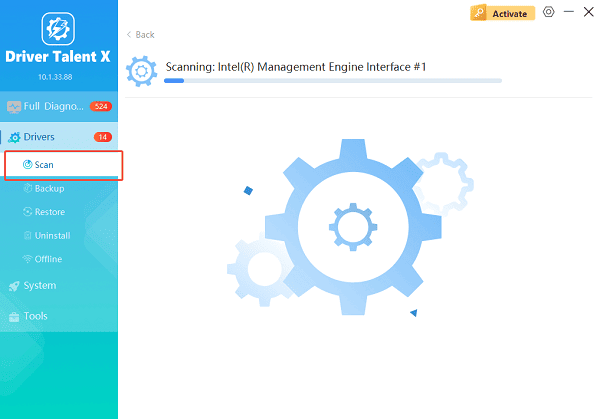
The software will perform a deep analysis of your system, focusing on peripheral and controller drivers.
Execute Update:
After the scan is complete, the software will display a list of all drivers that need attention. Select the necessary drivers and click the "Repair Now" button.
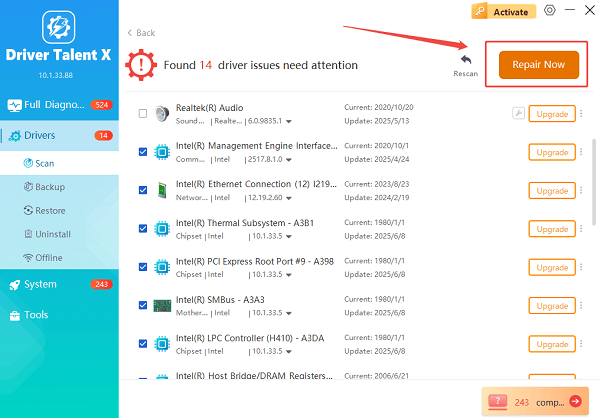
Driver Talent X will download the latest, certified versions specific to your mouse and Windows version, crucial for minimizing latency.
Restart Your PC:
After the installation is complete, restart your computer and test the mouse's responsiveness.
1. Determine Which Logitech Software You Need
Logitech offers multiple software versions, each supporting different devices. Identify your mouse model and choose the correct program:
Logitech G HUB:
For gaming mouse such as:
G102, G203
G402, G502
G Pro Wireless
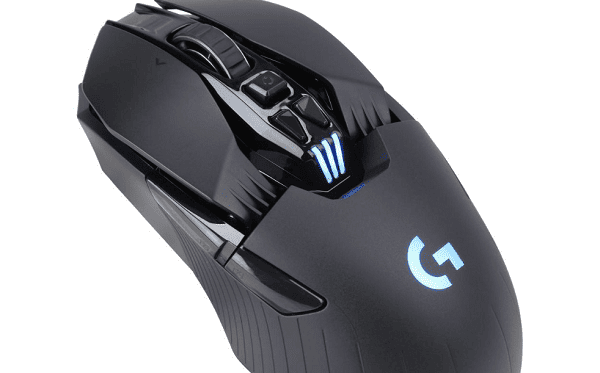
G903
Logitech Options / Options+:
For productivity and office mouse:
MX Master series
MX Anywhere series
M720 Triathlon
Signature M650
Logitech SetPoint:
For older or classic Logitech mouse.
You can find your device model on the bottom of your mouse or in Windows Device Manager.
2. How to Download Logitech Mouse Software
Follow these steps to download the correct software from the official source:
1). Go to Logitech's official support website.
2). Enter your mouse model in the search bar.
3). Select the correct product from the list.
4). Click the "Downloads" section.
5). Choose your operating system (Windows 10/11).
6). Download the appropriate software:
Logitech G HUB
Logitech Options or Options+
Logitech SetPoint
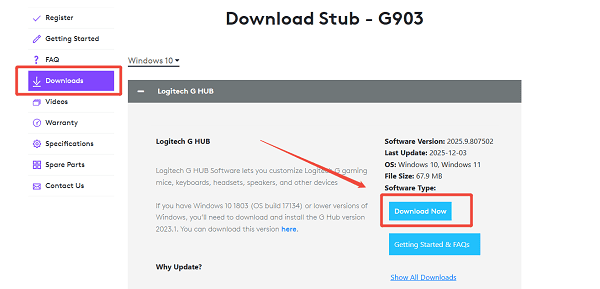
Save the installer to an easy-to-find location on your PC.
3. Install Logitech Mouse Software on Windows
For Logitech G HUB:
Run the lghub_installer.exe file. Allow Windows User Account Control if prompted.
Wait for package extraction. Click "Install and allow the software to download required components".
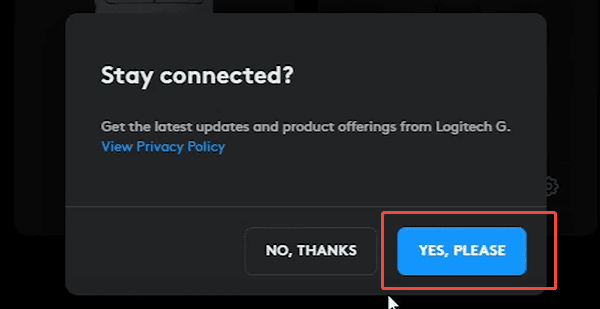
When installation completes, G HUB will launch automatically.
Connect your mouse or USB receiver. Confirm that G HUB recognizes your device.
For Logitech Options / Options+:
Run LogiOptions.exe or LogiOptionsPlus.exe.
Accept the license agreement.
Follow the on-screen installation steps.
Restart the computer if prompted.
Open Options or Options+ and verify detection.
For Logitech SetPoint:
Launch the SetPoint installer.
Select installation path.
Complete the installation.
Restart Windows.
Open SetPoint to customize buttons and scroll actions.
4. Set Up and Configure Your Logitech Mouse
Customize Buttons and Actions:
Most Logitech software lets you adjust:
Left/right click actions
Side buttons
Wheel click
Gesture controls
Productivity shortcuts
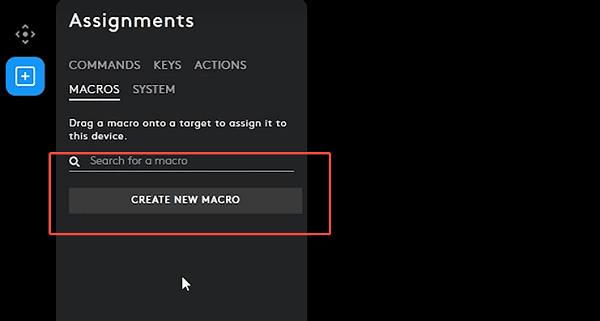
Choose the button you want to change and assign:
Keystrokes
Macros
Windows actions
Application-specific commands
Adjust DPI or Pointer Speed
Gaming mouse allow DPI customization:
Open G HUB.
Select your mouse.
Go to DPI settings.
Add or remove DPI levels and assign the DPI-shift button.
Create and Sync Profiles
You can create multiple profiles for:
Gaming
Office work
Video editing
Browsing
Choose whether profiles load automatically based on the application you open.
5. If Logitech Software Does Not Detect Your Mouse
Try these solutions:
Reconnect the Unifying or Lightspeed Receiver:
Unplug the receiver.
Plug it into a different USB port.
Avoid USB hubs.
Pair the Device Again:
Use Logitech Connection Utility or G HUB pairing tool.
Replace Batteries (for wireless mouse):
Low battery may block detection.
Disable Power Saving for USB Ports:
Open Device Manager.
Expand Universal Serial Bus Controllers.
Right-click each "USB Root Hub".
Open "Power Management".
Uncheck "Allow the computer to turn off this device to save power".
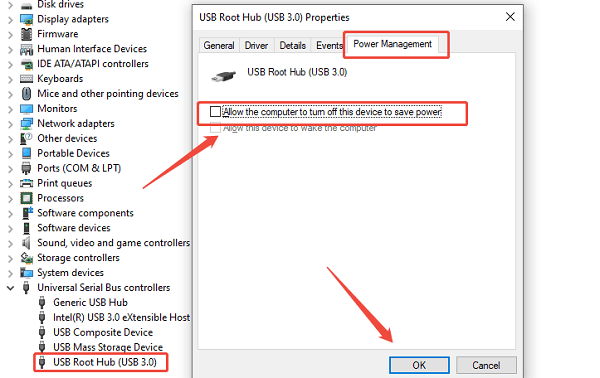
Click "Ok".
Reinstall the Software:
Uninstall and reinstall G HUB, Options, or SetPoint.
6. Additional Troubleshooting Tips
Update Windows: Windows updates often include USB and Bluetooth improvements.
Test on Another Computer: If the mouse works elsewhere, your PC drivers or settings are causing the issue.
Reset the Mouse (available on some models): Some Logitech mouse include a small reset button.
Conclusion
Downloading and setting up Logitech mouse software is straightforward once you identify your mouse model and install the correct software version. Updating your mouse and USB drivers using Driver Talent X beforehand ensures stable detection and prevents compatibility issues. By following the steps in this guide, you can fully customize your Logitech mouse, optimize performance, and resolve common detection or software problems effectively.
See also:
Epson L3250 Driver Download & Installation Guide for Windows 10/11
How to Update BIOS on MSI Motherboard – Step-by-Step Guide









