
Logitech mouse are widely used for work, gaming, and everyday tasks. Whether you are using a Bluetooth mouse or a USB receiver model, installing the correct Logitech mouse software and drivers is essential for stable connectivity, smooth cursor movement, and access to advanced features.
If your Logitech mouse is not detected, not responding properly, or missing customization options, outdated or incorrect drivers are often the root cause. This guide explains how to correctly download Logitech mouse software for Windows and provides step-by-step solutions to fix common issues.
Update Logitech Mouse Drivers Using Driver Talent X
Before manually searching for software, updating your mouse driver with a reliable driver management tool can quickly resolve compatibility and recognition issues. Driver Talent X automatically detects your Logitech mouse and installs the most suitable driver version for your system.
Download and Install:
Click the "Download" button to download the software package.
Run the installation file and follow the on-screen setup instructions.
Run a Full System Scan:
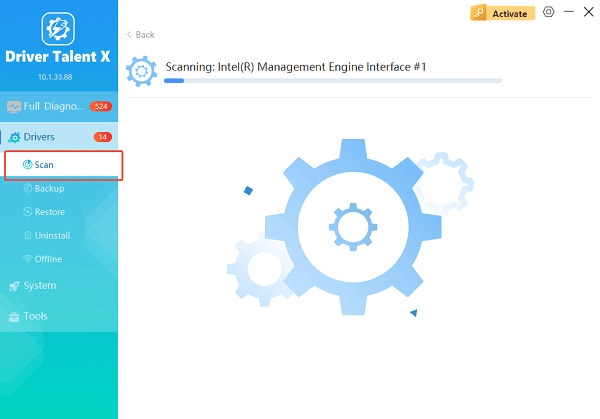
Launch the application and go to "Drivers" > "Scan", click "Scan".
Driver Talent X will check your USB controllers, mouse drivers, and system components for outdated or corrupted drivers.
Update All Related Drivers:
After the scan is complete, the software will display a list of all drivers that need attention. Select the necessary drivers and click the "Repair Now" button.
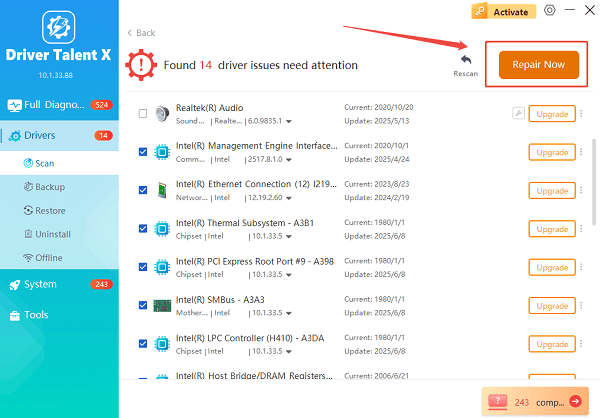
Driver Talent X will download the latest, certified versions specific to your mouse and Windows version, crucial for minimizing latency.
Reboot Your Computer:
Wait for the driver download and installation to complete.
Restart your computer to apply the changes.
Updating drivers this way helps ensure proper compatibility with Windows updates and prevents connection or software conflicts.
Identify Your Logitech Mouse Model and Connection Type
Before downloading Logitech software, you need to know whether your mouse uses Bluetooth or a USB receiver.
Bluetooth models connect directly through Windows Bluetooth settings.
USB models use a Unifying Receiver or Logi Bolt receiver plugged into a USB port.
Check the mouse label, packaging, or Logitech product documentation to confirm the model.
Download Logitech Mouse Software from the Official Website
Logitech provides different software depending on the mouse series.
Logitech Options / Options+:
Best for productivity mouse such as MX Master, MX Anywhere, and Ergo series.
Steps:
Visit Logitech's official support website.
Search for your mouse model.
Download Logitech Options or Logitech Options+ for Windows.
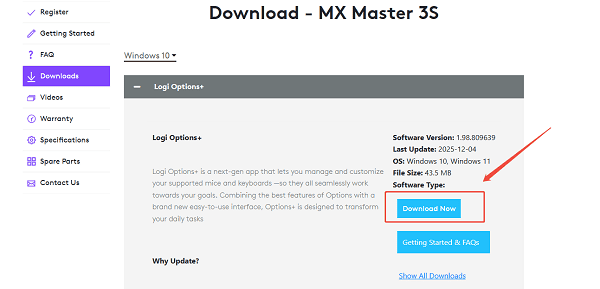
Run the installer and follow the on-screen instructions.
Connect your mouse when prompted.
Logitech G HUB:
Designed for gaming mouse such as G502, G Pro, and G305.
Steps:
Download Logitech G HUB from the Logitech website.
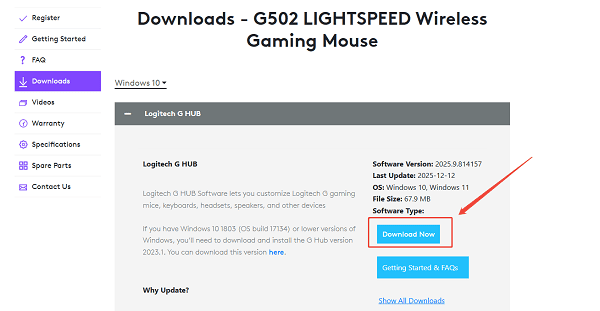
Install and launch the software.
Connect your mouse via USB or wireless receiver.
Allow the software to detect the device and install required drivers automatically.
Fix Logitech Mouse Software Not Detecting the Mouse
If the software does not recognize your mouse, try the following fixes.
Solution 1: Reconnect the Mouse Properly
For USB mouse, unplug the receiver and reconnect it to a different USB port.
For Bluetooth mouse, remove the device from Bluetooth settings and pair it again.
Solution 2: Restart Logitech Services
Press Win + R, type "services.msc", and press Enter.
Restart Logitech Options Service, Logi Overlay Service, or LGHUB Agent Service.
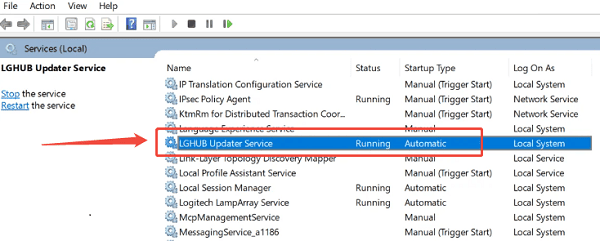
Reopen the Logitech software.
Solution 3: Reinstall Logitech Software
Uninstall Logitech Options or G HUB from Control Panel.
Restart your computer.
Download and install the latest version again.
Update Windows HID and Bluetooth Drivers
Outdated system drivers can prevent Logitech mouse software from working correctly.
Steps:
Open Device Manager.
Expand Human Interface Devices and Bluetooth.
Right-click each related device and select "Update driver".
Choose "Search automatically for drivers".
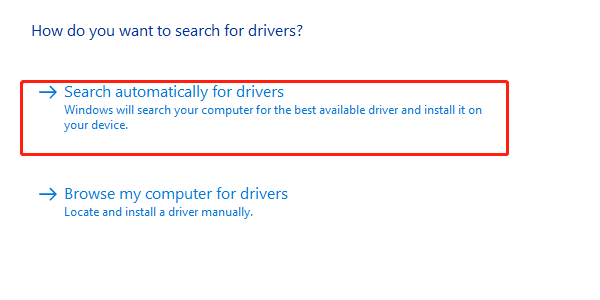
For better accuracy and stability, using Driver Talent X to update these drivers is strongly recommended.
Check Power and Battery Settings
For wireless Logitech mouse:
Replace or recharge the batteries.
Turn off USB power saving in Device Manager.
Disable Bluetooth power optimization in Windows Power Options.
These steps help prevent random disconnections and detection failures.
Conclusion
Downloading the correct Logitech mouse software is only effective when the underlying drivers are properly installed and updated. Starting with a driver update using Driver Talent X ensures your Logitech mouse works smoothly with Windows, whether it connects via Bluetooth or USB.
Combined with the official Logitech software and proper system settings, these steps will restore full functionality and customization options. By following the solutions in this guide, you can quickly fix detection issues, improve performance, and get the most out of your Logitech mouse on Windows.
See also:
How to Update Graphics Driver Intel on Windows PC
HP Drivers Download – Official and Safe Methods for Windows









