The Logitech Z200 speakers are a great option for those seeking quality sound at an affordable price. However, like any electronic device, they can sometimes experience issues such as not turning on. This can be frustrating, especially when you're ready to enjoy your favorite music, movie, or game. The good news is that most issues preventing your Logitech Z200 from turning on can be easily fixed with a few simple steps. In this guide, we'll walk you through how to troubleshoot the problem and restore your speakers to working condition.
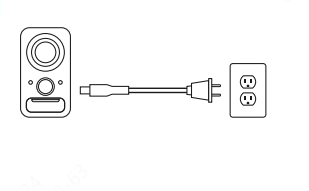
Check Power Connection
Before diving into more complex fixes, it's important to ensure the speakers are properly powered
Check the Power Cord: Ensure the power cord is securely plugged into both the speakers and the power outlet. A loose connection is often the simplest cause of the issue
Try a Different Power Socket: If the speakers are plugged into a power strip, try plugging them directly into the wall outlet. This will eliminate the possibility of an issue with the power strip
Inspect the Power Switch
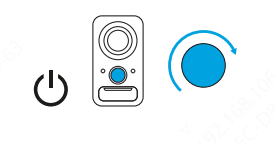
Power Button Check: Make sure the power button is in the "on" position
Some speakers have an LED indicator that should light up when they are powered on. If there's a separate power switch, confirm it isn't stuck or faulty
Test with Different Devices
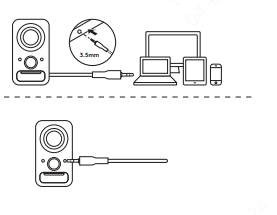
Try Another Audio Source: The issue might be with the audio source you're connected to device
Plug the speakers into another device, like another computer, tablet, or smartphone
Try different ports to check if hardware issues
If they work on a different device, the issue is likely with the original audio source, not the speakers
Reset the Speakers
If the above steps haven't worked, you might want to try resetting the speakers to their default settings
Perform a Factory Reset: Depending on the model, there might be a reset function available
If your speakers have a reset button, press and hold it for a few seconds to reset the system
If not, you may need to refer to the user manual or Logitech support for instructions on resetting the Z200
Check Sound Settings
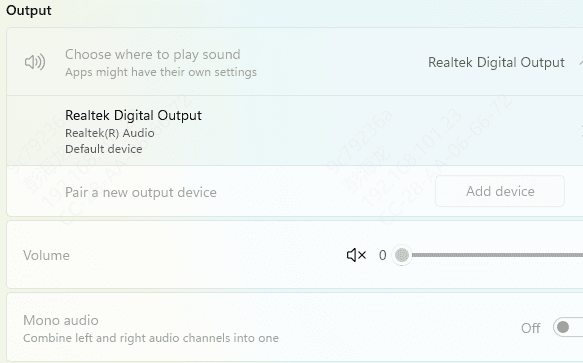
Select the Correct Output Device: Sometimes, your computer may not have selected the Logitech Z200 as the default output device
Go to your sound settings and ensure that the speakers are selected as the output device
After adjusting the settings, test the sound by playing audio from a different app to confirm the speakers are working properly
Update Drivers
If you're using the Logitech Z200 speakers with a computer, outdated or misconfigured drivers could cause issues. Here's how to address that:
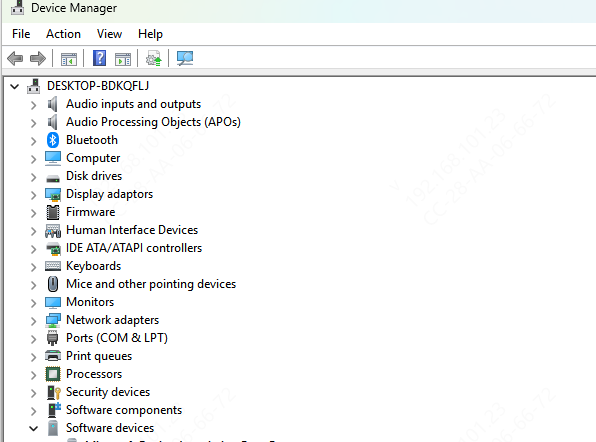
Update Through Device Manager
Press Win + X and select Device Manager
Expand Sound, video and game controllers
Right-click your audio device and select Update driver
Choose Search automatically for updated driver software
Automated Solution with Driver Talent X (Recommended)
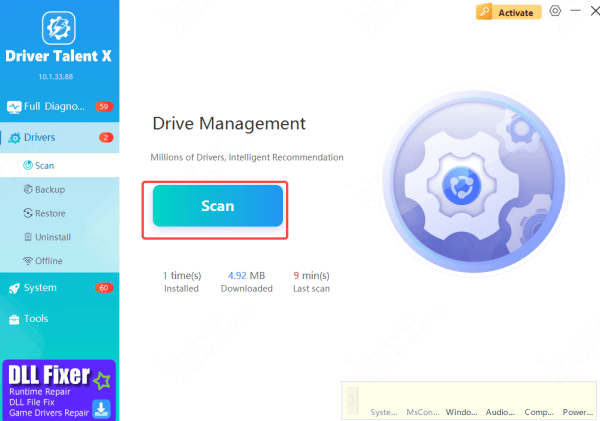
Download and install Driver Talent X from the official website
Launch the software, navigate to Drivers, and click Scan
Hit Repair Now or Update, and Driver Talent X will automatically install the latest compatible drivers.
Restart your computer and check if the speaker works
This method ensures you get the correct drivers quickly and safely, saving you time and reducing the risk of errors
Run Troubleshooter (Windows Built-in Tool)
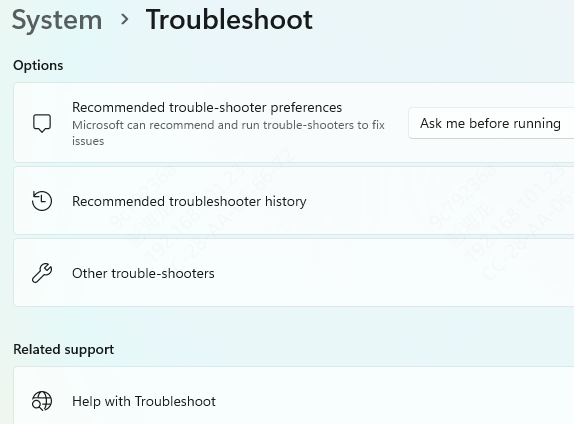
Windows includes a built-in troubleshooter that can help identify and resolve power-related issues, such as your Logitech speakers not turning on. Here's how to use it:
Type "Power Troubleshooter" in the search box on the taskbar
Click on "Find and fix power problems" from the search results
Select "Power" as the category and follow the on-screen instructions to diagnose the issue
Restart your computer if prompted and check if your Logitech Z200 speakers are now turning on
This tool can help identify any power-related issues that might be preventing your speakers from functioning properly
Conclusion
By following these troubleshooting steps, you should be able to get your Logitech Z200 speakers working again. Start with the simple fixes, such as checking the power connection and cable, and move on to more advanced solutions, including driver updates and testing with different devices. If none of these steps work, don't hesitate to reach out to Logitech support for assistance. With the right approach, you'll have your speakers back up and running in no time, and you'll be able to enjoy clear, crisp audio once again.









