
The Logitech Zone Wired Earbuds are a popular choice for professionals, gamers, and casual listeners alike, thanks to their clear audio, comfortable fit, and reliable performance. However, like any wired audio device, there may be times when your earbuds suddenly stop working. This can be frustrating, especially during calls, meetings, or streaming sessions. The good news is that most issues can be fixed with a few simple steps. In this guide, we'll show you how to troubleshoot and restore your Logitech Zone Wired Earbuds to full functionality.
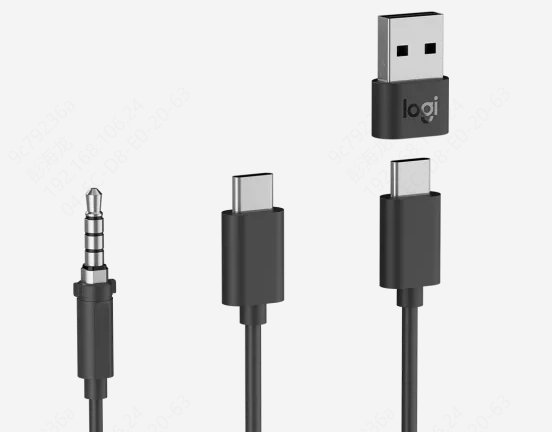
Check Physical Connections
Before diving into software fixes, start with the basics:
Inspect the Cable and Connector
Look for any visible damage, frayed wires, or bent plugs
Make sure the connector is fully inserted into the audio jack or USB port. Loose connections are a common reason earbuds fail to produce sound
Try Different Ports or Devices
Test the earbuds on another device, such as a different PC, laptop, or smartphone
Switch to a different USB or audio port to rule out a faulty port
Restart Audio Services and System
Sometimes Windows audio services can stop working properly, causing your earbuds to fail
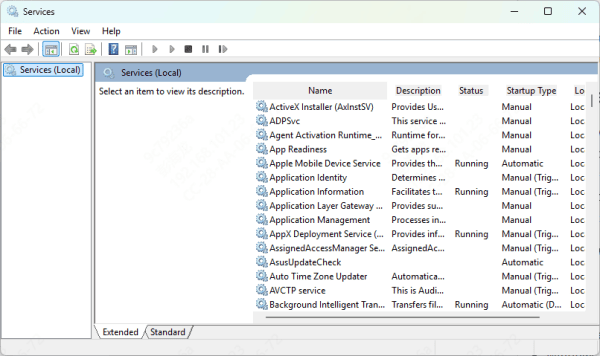
Restart Windows Audio Services
Press Win + R, type services.msc, and press Enter
Locate Windows Audio and Windows Audio Endpoint Builder
Right-click each service and select Restart
Ensure Startup Type is set to Automatic
Reboot Your Computer
A simple restart can often resolve conflicts caused by recent updates or software glitches
Check Audio Settings
Even if your earbuds are properly connected, incorrect settings can prevent sound from coming through
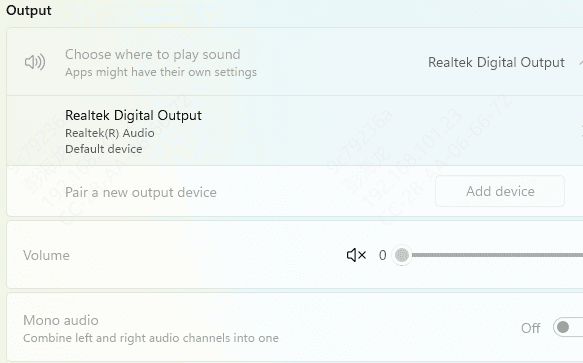
Verify Default Playback Device
Go to Settings → System → Sound → Output
Make sure Logitech Zone Wired Earbuds are set as the default playback device
Adjust Volume and App Permissions
Ensure the system volume isn't muted and the volume slider is up
Check that apps like Zoom, Microsoft Teams, or Discord have permission to access your microphone or audio output
Update or Reinstall Drivers (Recommended)
Outdated, missing, or corrupted drivers are a common reason wired earbuds stop working.
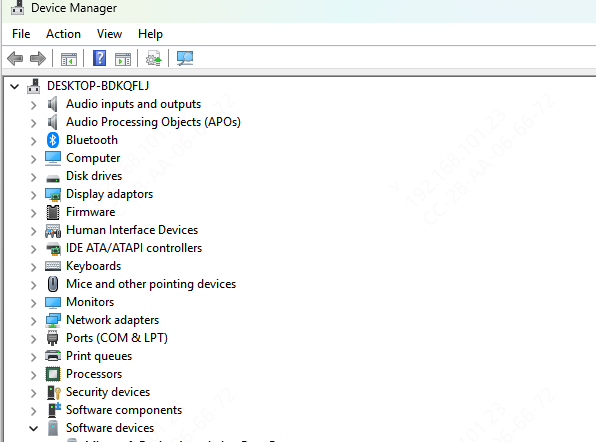
Update via Device Manager
Open Device Manager
Expand Sound, video, and game controllers
Right-click Logitech Zone Wired Earbuds → Update driver
Use Driver Talent X for Automated Driver Updates
Manually updating drivers can be time-consuming and sometimes confusing. Driver Talent X simplifies the process:
Download and install Driver Talent X from the official website
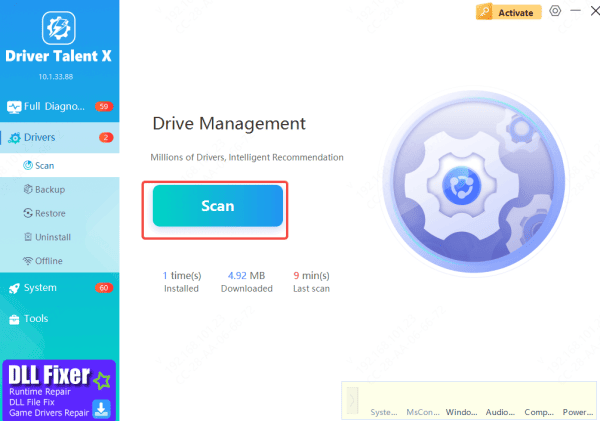
Open the program and navigate to Drivers → Scan
The software will automatically detect any outdated, missing, or corrupted drivers, including your earbuds
Click Repair Now or Update, and the tool will install the correct sound drivers for you
Restart your computer to apply changes and test your earbuds
Using Driver Talent X ensures that your Logitech earbuds and other audio devices are always running with the latest drivers, preventing future issues
Disable Conflicting Software
Other programs or drivers may interfere with your earbuds:
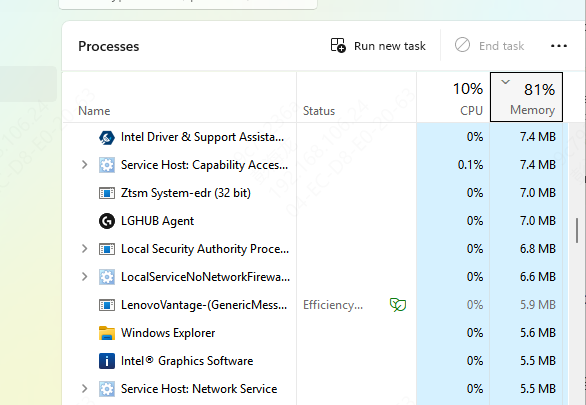
Temporarily disable third-party audio management software
Check if your antivirus or firewall is blocking audio services
After disabling potential conflicts, test your earbuds again
When to Contact Logitech Support
If all else fails, contact Logitech support
Your earbuds may be under warranty, and support can help with repair or replacement options

Conclusion
The Logitech Zone Wired Earbuds are reliable, but occasional problems can occur due to connections, audio settings, or driver issues. Start with basic checks, restart audio services, verify settings, and use Driver Talent X to ensure your drivers are up to date. Following these steps will fix most issues and get your earbuds working properly again in no time.









