
Logitech G Hub is a powerful tool for managing and customizing your Logitech peripherals, including keyboards, mice, and microphones. One of the key features for Logitech microphones is the ability to use mic presets, allowing you to tweak your audio settings for optimal performance. However, many users have reported an issue where mic presets are not showing up in G Hub. This can be frustrating, especially when you rely on these presets for better audio quality during gaming, streaming, or calls. In this guide, we'll walk you through several troubleshooting steps to resolve this issue and get your mic presets working again.
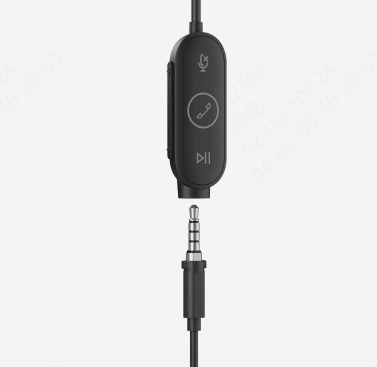
Restart G Hub and Reconnect the Microphone
Sometimes, a simple restart can resolve temporary glitches and restore missing features like mic presets.
Close Logitech G Hub completely
Disconnect your Logitech microphone from the computer
Reconnect the microphone to a different USB port if possible
Restart G Hub and check if the mic presets are showing up
This ensures that the software properly detects and configures your microphone.
Check for Software Updates
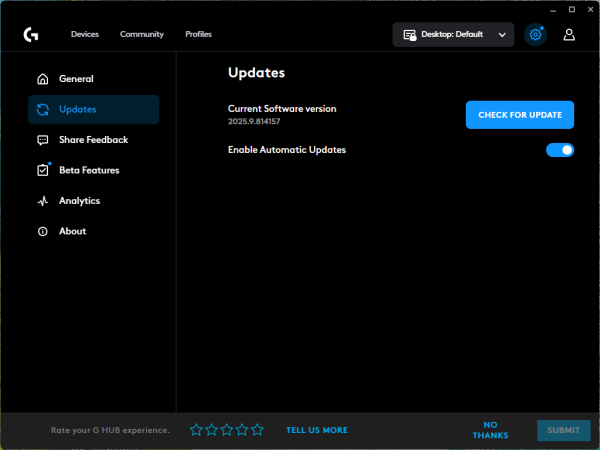
Logitech regularly releases updates to fix bugs, improve features, and ensure compatibility with newer hardware.
Open Logitech G Hub and go to the Settings menu
Check for any available software updates
If an update is available, install it and restart G Hub
After the update, check if your mic presets are now visible
This step can fix many common issues, including missing mic presets.
Reset Logitech G Hub to Default Settings
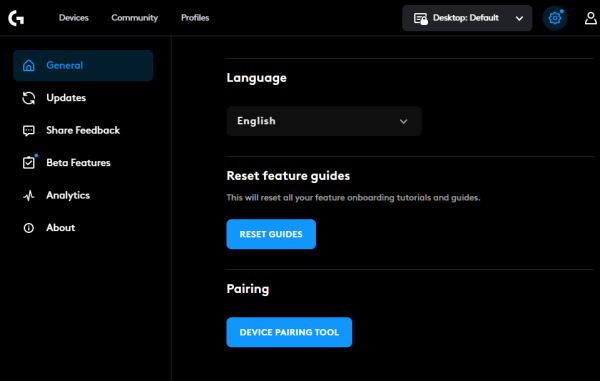
If the previous steps haven't worked, and you still don't see mic presets, resetting Logitech G Hub to its default settings might help. This can clear any corrupted or misconfigured settings that may be causing the issue.
Open Logitech G Hub
Go to Settings and look for the option to Restore Defaults
Confirm that you want to reset the settings to their original state
After the reset, reconfigure your microphone settings and check if the presets are now visible
This will reset all preferences in G Hub, including profiles, macros, and mic settings.
Reinstall Logitech G Hub
If none of the above steps work, reinstalling G Hub can help resolve deeper software issues. A fresh installation will clear any corrupted files and restore the software to its original state.
Uninstall Logitech G Hub from your computer via Control Panel or Settings → Apps
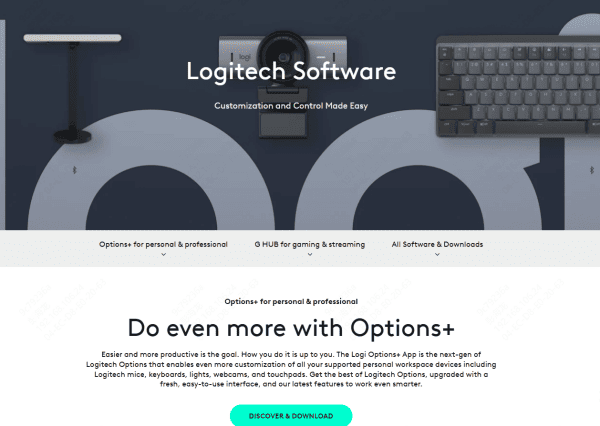
Download the latest version of Logitech G Hub from the official Logitech website
Install the software and restart your computer
Open G Hub, reconnect your microphone, and check if the mic presets are available
This is a more drastic step, but it can resolve persistent issues that other troubleshooting methods don't fix.
Verify Audio Drivers
Sometimes the issue with missing mic presets can be related to outdated or incompatible audio drivers. These drivers help your computer communicate with peripherals like microphones, and if they're outdated or corrupted, certain features may not work as expected.
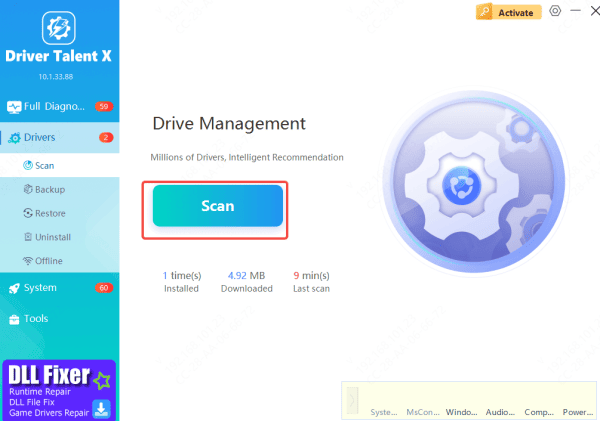
Download and install Driver Talent X
Open the application and navigate to Drivers → Scan
The tool will check for issues with your audio drivers, including sound card drivers (Realtek or Intel HD Audio) and USB drivers (for USB microphones)
Click Repair Now or Update, and Driver Talent X will automatically install the correct drivers
Restart your PC, plug in your microphone, and test it to ensure it's working properly
Conclusion
Losing access to mic presets in Logitech G Hub can be a frustrating experience, but the problem is usually easy to fix. By following the steps outlined in this guide—from updating software and drivers to reinstalling G Hub and creating custom presets—you should be able to restore functionality and get your microphone working again.









