
If your monitor enters power-saving mode and refuses to display anything, it can be frustrating, especially when you need it for work, gaming, or general computer use. This issue usually occurs when the computer fails to send a signal to the monitor, or the monitor settings and power-saving features are misconfigured. This guide will walk you through step-by-step solutions to get your monitor out of power-saving mode.
Check Monitor Connections
Before troubleshooting software or settings, ensure all cables and connections are correct:
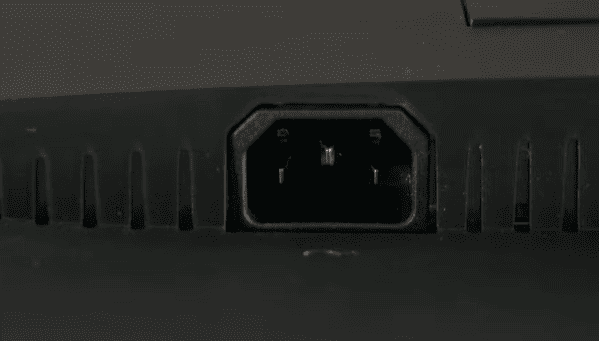
Power cable: Make sure the monitor is securely plugged into a working power outlet. Test the outlet with another device if necessary
Video cables: Check HDMI, DisplayPort, VGA, or DVI cables for tight connections. Loose or damaged cables often cause monitors to enter power-saving mode
Test with another device: Connect your monitor to a different PC or laptop to confirm the monitor itself is functioning properly
.png "check-cable")
Wake Up the Monitor
Sometimes the monitor is in sleep mode rather than powered off:
Press the power button on the monitor
Use Windows + P to toggle between display modes (Duplicate, Extend, Second screen only)
Disconnect the monitor and reconnect it to the PC to trigger a wake-up signal
Adjust Display Settings in Windows
Incorrect display settings can prevent your monitor from receiving a proper signal:
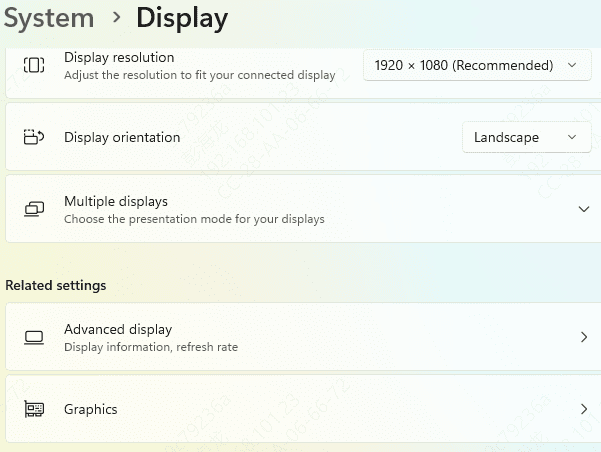
Go to Settings → System → Display
Click Detect to force Windows to find the connected monitor
Make sure the primary display is correctly set
Check that the resolution and refresh rate are supported by your monitor
Disable Sleep or Power Saving Settings
Windows and monitors have built-in power-saving features that may inadvertently activate:
Open Control Panel → Power Options → Change plan settings
Adjust Turn off the display and Put the computer to sleep settings to longer intervals or Never while troubleshooting
Check the monitor's on-screen menu for any eco-mode or power-saving options and disable them if necessary
Update Drivers to Resolve Power-Saving Mode Issues
Driver problems are a common reason why a monitor may remain in power-saving mode or fail to display a signal. Outdated or corrupted graphics, USB-C/DisplayPort, or chipset drivers can prevent your laptop from properly communicating with the monitor. Updating these drivers helps restore a stable connection and ensures the monitor wakes up correctly.
Download and Install Driver Talent X
Click the Download button to get the installer
Run the setup file and follow the on-screen instructions to complete installation on your computer
Perform a Full Driver Scan
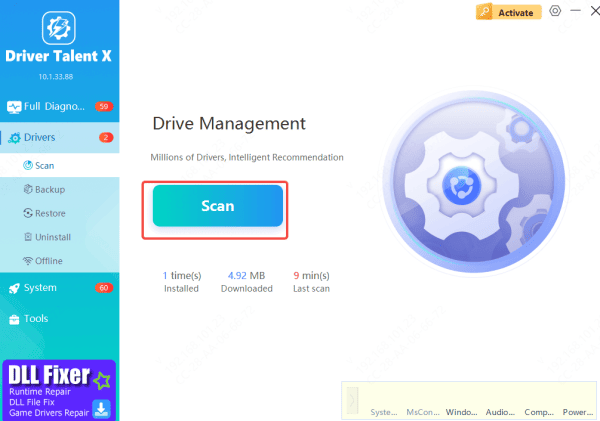
Open Driver Talent X and go to Drivers → Scan
The software will examine all components that affect video output, including graphics drivers (Intel, NVIDIA, AMD), USB-C or DisplayPort controllers, and chipset drivers
Apply All Necessary Updates
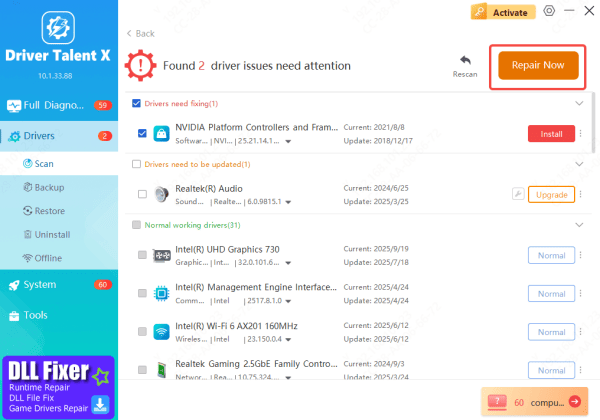
After the scan, Driver Talent X will show a list of outdated, missing, or corrupted drivers that may be causing your monitor to stay in power-saving mode
Click Repair Now or Update to automatically download and install the correct, system-optimized drivers
Restart Your PC
Once all updates are installed, restart your computer
A reboot ensures Windows loads the new drivers properly, which often restores the monitor's display and resolves power-saving mode issues
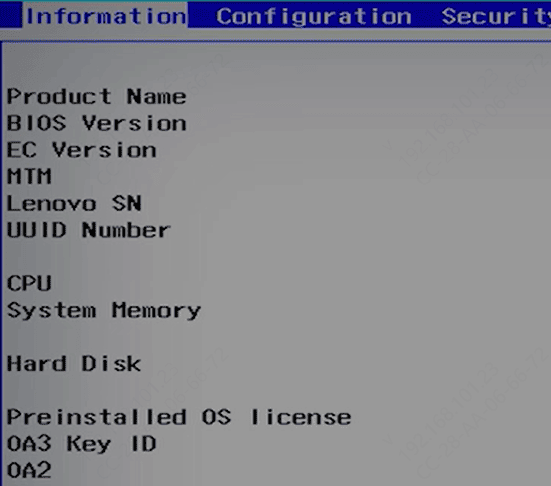
BIOS/UEFI Check (Advanced)
In rare cases, display outputs may be disabled in BIOS:
Restart your PC and enter BIOS/UEFI (usually pressing F2, F1, or Del during startup)
Ensure integrated GPU or external display outputs are enabled
Reset BIOS to default settings if you suspect a misconfiguration
Check for Faulty Hardware
If the above steps don't work, the issue could be hardware-related:
Test the PC with a different monitor to see if the GPU outputs a signal
Inspect all cables for damage. Replace any frayed or bent cables
If multiple monitors fail, the graphics card or motherboard video output may be defective
Conclusion
A monitor stuck in power-saving mode is often caused by loose connections, incorrect display settings, or outdated drivers. By carefully checking cables, adjusting Windows display and power settings, updating drivers, and testing hardware, you can restore your monitor's functionality quickly. If all else fails, BIOS settings and professional hardware inspection may be required to resolve deeper issues.









