
Mouse problems on Windows 10 can severely affect productivity, gaming, and everyday use. If your mouse stops responding, lags, disconnects randomly, or is not detected at all, the issue is often related to outdated, missing, or corrupted mouse drivers. Hardware faults, USB conflicts, or system misconfigurations can also trigger the problem.
Before trying advanced fixes, the most effective first step is updating all related mouse, USB, and chipset drivers using Driver Talent X. This ensures that core system components are functioning correctly and eliminates driver-related malfunctions early.
Update Mouse Drivers Using Driver Talent X
Driver Talent X provides an automated and safe way to update or repair Windows 10 mouse drivers. Follow these detailed steps:
Step 1: Download and Install
Ensure your mouse (wired or receiver) is plugged in.
Download the latest installer for Windows.
Run the installer and follow the on-screen setup instructions.
Step 2: Scan for Mouse Driver Issues
Launch the application and go to "Drivers" > "Scan", click "Scan".
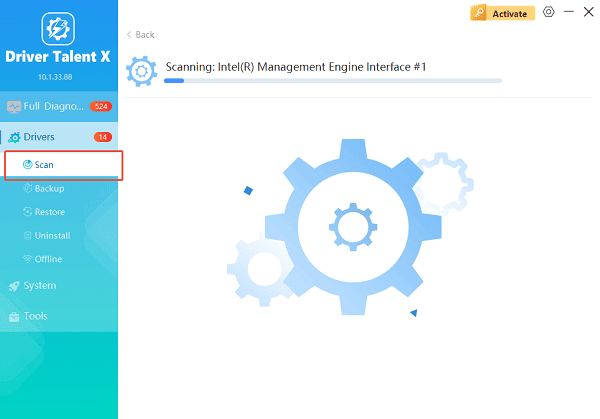
The software will perform a deep analysis of your system, focusing on peripheral and chipset drivers.
Step 3: Update Drivers
After the scan is complete, the software will display a list of all drivers that need attention. Select the necessary drivers and click the "Repair Now" button.
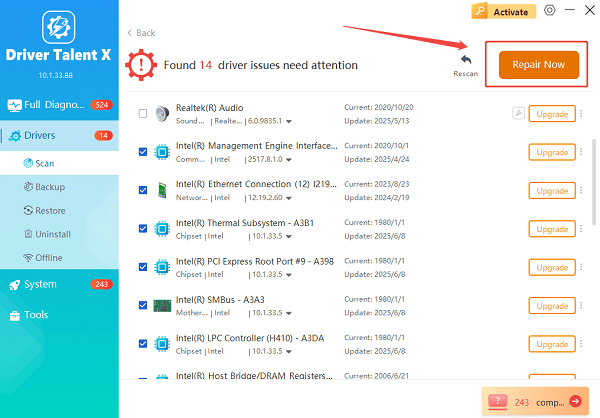
Driver Talent X will download the latest, certified versions specific to your mouse and Windows version, crucial for minimizing latency.
Step 4: Restart Your Computer
A system restart ensures the updated drivers are applied properly.
After updating drivers, test your mouse again. If the issue persists, continue with the following solutions.
Additional Fixes for Windows 10 Mouse Driver Problems
Check the Mouse Hardware
Plug the mouse into another USB port.
Try connecting it to another computer.
If using a wireless mouse, replace the batteries or recharge it.
If it does not function on another system, the mouse itself may be faulty.
Reinstall Mouse Drivers Manually
Press Windows + X and select "Device Manager".
Expand "Mice and other pointing devices", right-click your mouse device and select "Uninstall device".
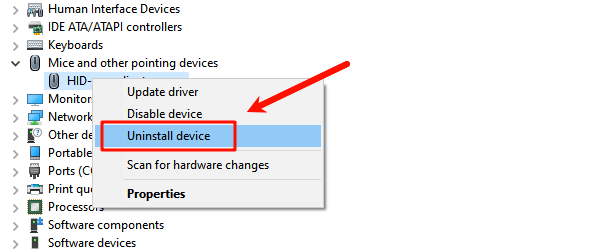
Restart your PC to let Windows reinstall the default driver.
Disable USB Power Management
Windows may power off USB ports to save energy, causing mouse disconnects.
Press Windows + X and choose "Device Manager".
Expand "Universal Serial Bus controllers", right-click each "USB Root Hub" and select "Properties".
Under "Power Management", uncheck "Allow the computer to turn off this device to save power".
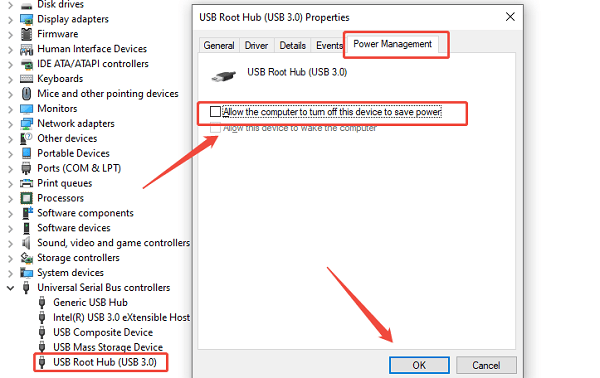
Click "OK".
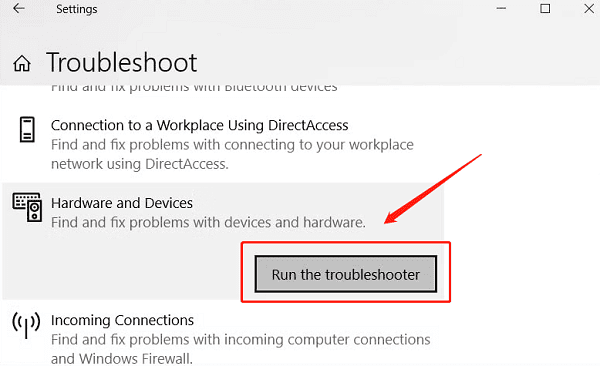
Run Windows Hardware Troubleshooter
Press Windows + I to open Settings.
Navigate to "Update & Security".
Select Troubleshoot, click "Additional troubleshooters".
Find "Hardware and Devices" and click "Run the troubleshooter".
Reset Windows Pointer Settings
Incorrect pointer configurations can cause speed or lag problems.
Open Control Panel.
Go to "Mouse".
Click the "Pointers" tab.
Click "Use Default".
Apply the settings.
Disable Enhanced Pointer Precision
Enhanced mouse acceleration may cause inconsistent movement.
Open Control Panel and select Mouse.
Go to "Pointer Options".
Uncheck "Enhance pointer precision".
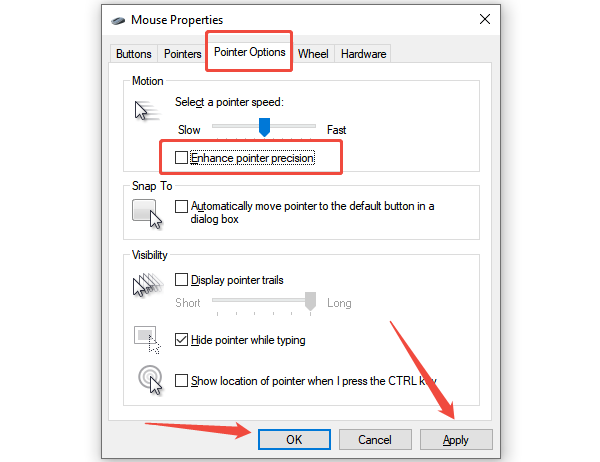
Click "Apply".
Check for Windows Updates
Some mouse rely on system-level driver packages.
Open Settings.
Navigate to "Update & Security".
Click Windows Update, select "Check for updates".
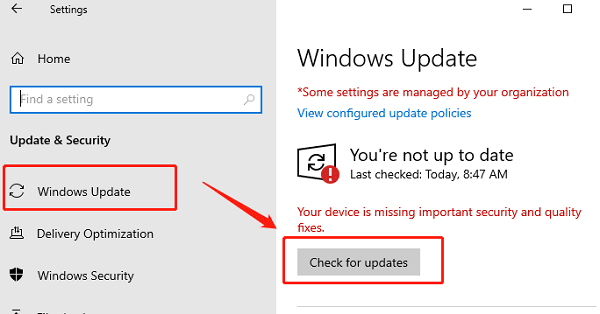
Install all available updates, especially optional driver packages.
Try Using a Different USB Mode (For USB 3.0 Issues)
Some older mouse have compatibility problems with USB 3.0 ports.
Plug the mouse into a USB 2.0 port if available.
Check whether the response stabilizes.
Conclusion
Mouse driver issues on Windows 10 can stem from driver corruption, hardware faults, USB conflicts, or system misconfigurations. The most reliable starting point is updating all related drivers using Driver Talent X, which ensures your system is running stable and compatible versions. If the issue persists, the additional methods above will help identify and eliminate other causes.
See also:
How to Fix AMD FreeSync Not Working Issue
How to Fix Bluetooth Not Working Issues









