
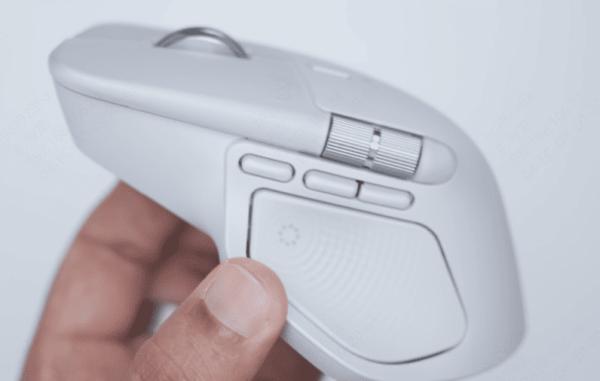
The Logitech MX Master 3S is a high-performance mouse known for its ergonomic design and precision. However, like any electronic device, it may sometimes stop working or fail to respond. Whether you're experiencing issues with connectivity, buttons, or functionality, most of these problems can be resolved with a few simple troubleshooting steps. This guide will help you fix the common issues with the Logitech MX Master 3S and get it working again.
Check the Power
For Wired Mode: Ensure that the mouse is plugged into a functioning USB port. If the mouse has a detachable cable, try using a different cable
For Wireless Mode: Check if the mouse is powered on. Make sure the power switch (usually located at the bottom of the mouse) is in the "on" position
Battery Level: If you are using a rechargeable version of the MX Master 3S, the battery could be low. Charge the mouse using the provided USB-C cable for a few hours. If the mouse uses replaceable batteries, replace them with fresh ones
Inspect the USB Connection
Ensure that the USB receiver is securely plugged into the USB port on your computer
If the receiver is in a USB hub, try plugging it directly into a USB port on your computer
Try plugging the receiver into a different USB port to rule out faulty ports
If you are using Bluetooth, ensure that Bluetooth is enabled on your computer and that the mouse is properly paired
Plug the mouse into another USB port or use a different computer to see if the issue persists. This will help determine whether the problem lies with the mouse or the computer
.png "try-different-port")
Update Mouse Drivers
If you're facing issues with your Logitech MX Master 3S not working due to outdated or missing drivers, using Driver Talent X can provide a quick and effective solution. This tool automates the process of scanning for and fixing driver issues, making it an excellent choice for users looking to get their mouse working again without the hassle of manually updating drivers.
Download Driver Talent X
Visit the official Driver Talent X website and download the installer
Run the setup file and follow the on-screen instructions to install the software on your computer
Scan for Driver Issues
Launch the Driver Talent X software after installation
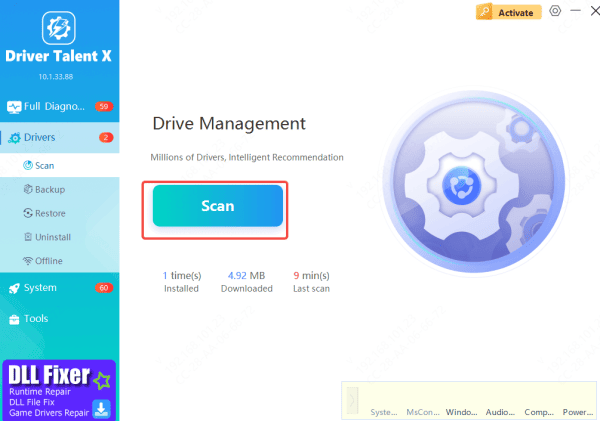
In the main interface, click on Drivers → Scan to start the system scan
The software will check for outdated, missing, or corrupted drivers for your Logitech MX Master 3S and other devices
Update the Logitech MX Master 3S Drivers
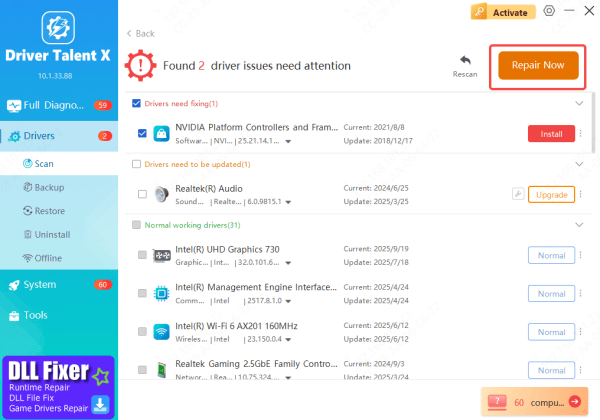
After the scan is complete, Driver Talent X will display any issues related to your Logitech MX Master 3S driver
Simply click on Repair Now or Update to allow the tool to automatically fix or update the driver for the mouse
Restart the Computer
Once the update is complete, restart your computer to apply the changes
Test the mouse functionality after rebooting to ensure the issue has been resolved and the mouse is working properly again
Reset the Mouse to Factory Settings
If the mouse is still not working, reset it to its factory settings:
Press and hold the Easy-Switch button (the button used to switch between devices) for 10-15 seconds. This may reset the mouse settings and resolve minor glitches
After the reset, try reconnecting the mouse to the USB receiver or Bluetooth
Conclusion
The Logitech MX Master 3S is a great tool for productivity and gaming, but like any technology, it can encounter issues from time to time. By following the troubleshooting steps outlined in this guide—checking connections, updating drivers, and resetting the mouse—you should be able to resolve most problems. If the issue persists, don't hesitate to contact Logitech Support for further assistance. With the right steps, your MX Master 3S will be back in action, providing you with a smooth and efficient user experience.









