
Lenovo docking stations are designed to simplify multi-monitor setups, but many users encounter a frustrating issue: the Lenovo dock is connected, yet external monitors are not detected. This problem can occur with USB-C docks, Thunderbolt docks, or hybrid docking stations and is usually related to drivers, firmware, cables, or system settings. This guide explains why your Lenovo dock is not detecting monitors and provides step-by-step solutions to fix the issue.
Check Dock and Laptop Compatibility
Not all Lenovo docks support all laptops or display configurations
Confirm your dock model (e.g., ThinkPad USB-C Dock, Thunderbolt 3/4 Dock)
Check Lenovo's official compatibility list for:
Supported laptop models
Maximum number of monitors
Maximum resolution and refresh rate
Some USB-C docks do not support dual monitors unless the laptop supports DisplayPort Alt Mode or Thunderbolt
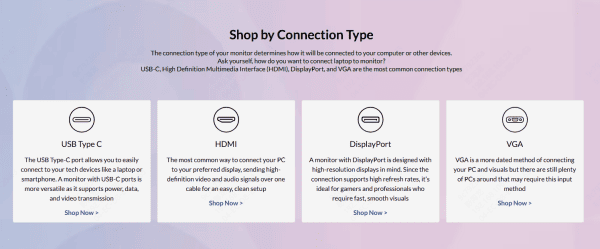
Verify Cables, Ports, and Power Supply
Hardware connection issues are very common
Use the original Lenovo dock power adapter
Ensure monitors are connected to the dock's HDMI or DisplayPort, not the laptop
Avoid adapters (HDMI-to-DP or DP-to-HDMI) when possible
Try: Different monitor cables, Different dock display ports, or A different monitor
If the dock is underpowered, external displays may not activate
.png "check-ports")
Restart and Power-Cycle the Dock
A simple reset often resolves detection problems.
Shut down your laptop
Disconnect:
Dock cable from laptop
Dock power adapter
Wait 30 seconds
Reconnect the dock power
Connect the dock to your laptop
Power on the system
This clears temporary dock controller issues.
.png "restart-dock")
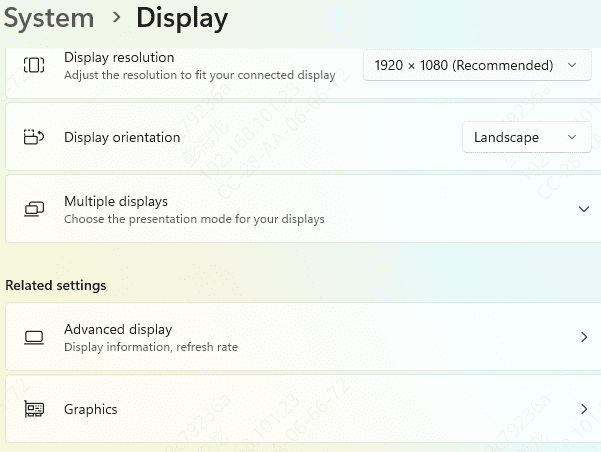
Check Windows Display Settings
Sometimes monitors are connected but not enabled.
Right-click on the desktop → Display settings
Click Multiple displays
Select Extend these displays
Click Detect
Scroll down and ensure the external monitor is not disabled
You can also press Win + P and select Extend or Duplicate.
Update Lenovo Graphics Drivers (Critical Step)
Outdated or corrupted graphics drivers are the top reason Lenovo docks fail to detect monitors.
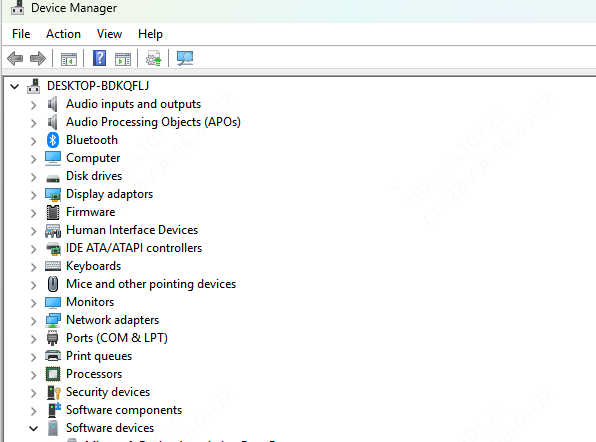
Option 1: Update via Device Manager
Press Win + X → Device Manager
Expand Display adapters
Right-click Intel / NVIDIA / AMD graphics → Update driver
Choose Search automatically for drivers
Option 2: Automatically Update with Driver Talent X (Recommended)
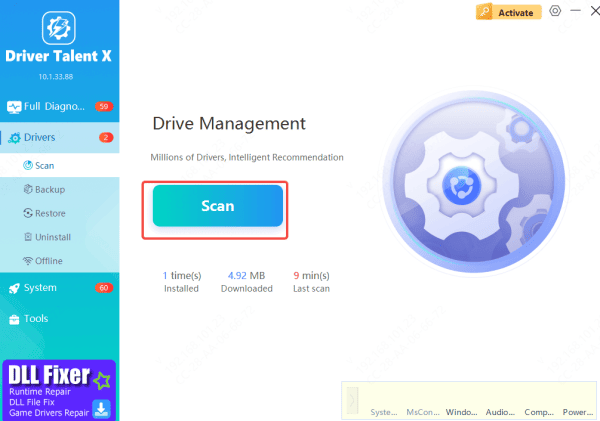
Driver Talent X scans your system and installs Lenovo-compatible display drivers
Download and install Driver Talent X
Open the program → Drivers → Scan
Let it detect: Graphics drivers, USB-C / Thunderbolt drivers, Chipset drivers
Click Repair Now or Upgrade
Restart your laptop
This method avoids wrong driver versions and compatibility issues
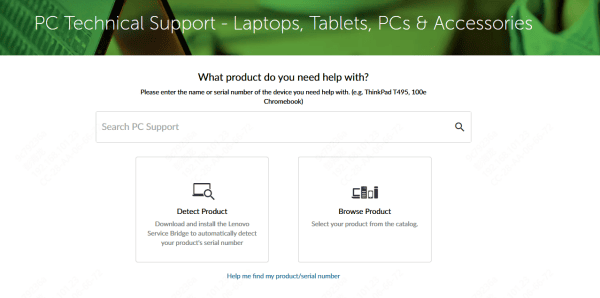
Update Lenovo Dock Firmware
Outdated dock firmware can prevent monitor detection.
Download Lenovo Dock Firmware Utility from Lenovo Support
Install the firmware update while the dock is connected
Do not disconnect power during the update
Restart your system afterward
Firmware updates often fix: Display detection bugs, Resolution limits,or Multi-monitor issues
Check BIOS and Enable Thunderbolt / USB-C Display
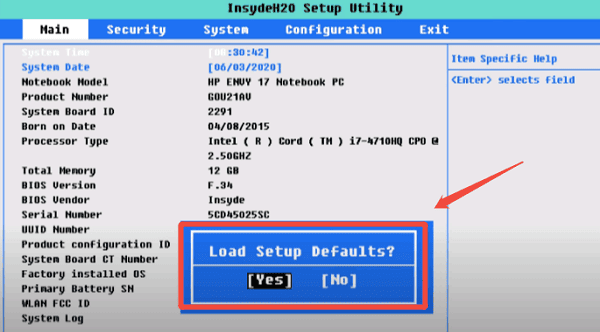
Incorrect BIOS settings can disable external display output.
Restart your Lenovo lapto
Press F1 / F2 / Enter to enter BIOS
Ensure:
Thunderbolt is Enabled
USB-C Display Support is Enabled
Save changes and exit
If unsure, choose Load Setup Defaults.
Install Windows Updates
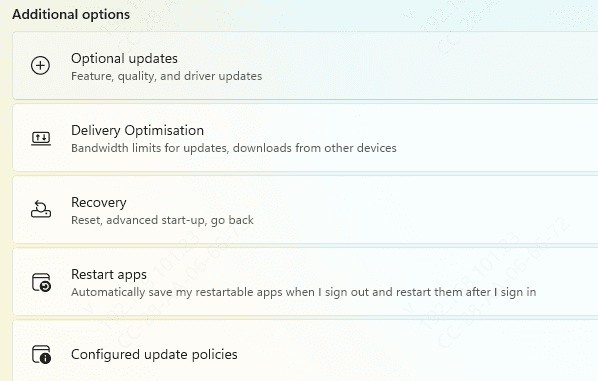
Windows updates may include display and docking fixes.
Go to Settings → Windows Update
Install all pending updates
Restart your laptop
Test the Dock on Another Computer
If none of the above works:
Connect the dock to another compatible laptop
If monitors still aren't detected, the dock may be defective
If it works on another system, the issue is driver or system-related on your laptop
.png "connect-to-dock")
Common Reasons Lenovo Dock Is Not Detecting External Monitors
Outdated or missing graphics drivers
Incorrect or outdated dock firmware
Faulty or incompatible USB-C / Thunderbolt cable
Display settings misconfigured in Windows
Power delivery issues
Dock compatibility limitations
Windows or BIOS configuration problems
Conclusion
By updating drivers, checking dock firmware, and verifying compatibility, most users can restore external monitor functionality quickly. For the fastest and safest solution, using an automated driver updater like Driver Talent X ensures all display-related drivers are properly installed and compatible with your Lenovo device.









