
If your Lenovo docking station is not functioning correctly, it can disrupt your productivity—whether it's failing to detect external monitors, not providing USB ports, or having trouble with network connections. The issue could stem from a variety of causes, including cable problems, outdated drivers, incorrect settings, or even hardware malfunctions. This comprehensive guide walks you through every potential solution to get your Lenovo docking station working properly again.
Check the Power Source
Before diving into more complex solutions, ensure the docking station is receiving adequate power.
Power Cable Connection: Ensure the docking station is properly connected to a power source. Check the power adapter and cables for visible damage or wear
Power LED: Check if the power LED indicator on the docking station is lit up. If it's off, the issue might be power-related
Test the Outlet: Plug the docking station into a different outlet to rule out any power issues from the socket itself
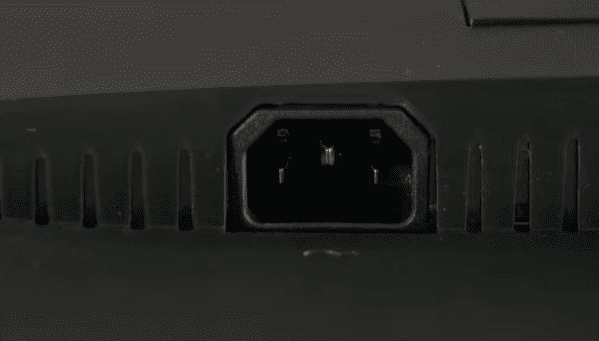
Check Cable Connections
Ensure all cables are securely connected.
USB and Display Cables: Inspect the cables connecting the docking station to your laptop and external devices (like monitors, keyboard, and mouse). Ensure that all connections are firm and not loose
Test with Different Cables: If you notice any visible damage or bent connectors, try using different cables, especially USB, HDMI, and DisplayPort cables
.png "check-cable")
Update Docking Station Drivers
Outdated or corrupted drivers can cause docking station malfunctions.
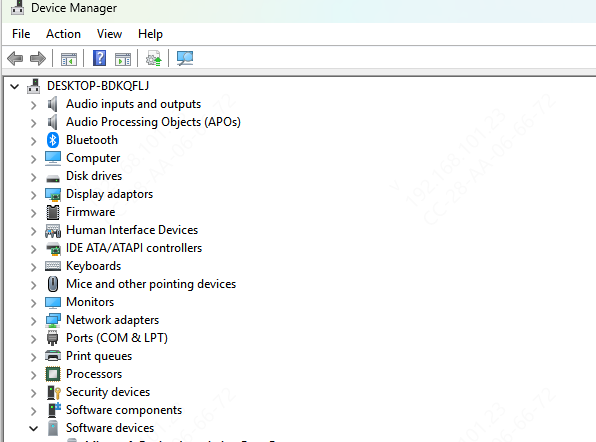
Using Device Manager
Open Device Manager (press Win + X > Device Manager)
Look for your docking station under Universal Serial Bus Controllers or Display Adapters
Right-click the docking station and select Update Driver
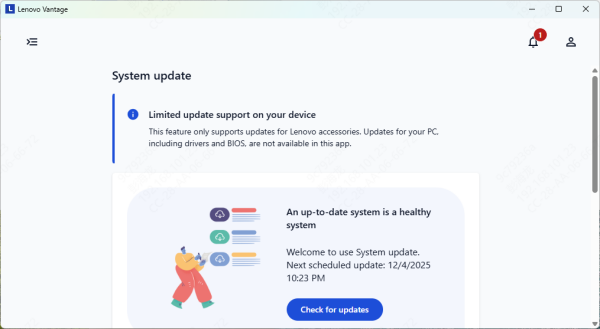
Using Lenovo Vantage
Open the Lenovo Vantage app and check for any available updates for your docking station.
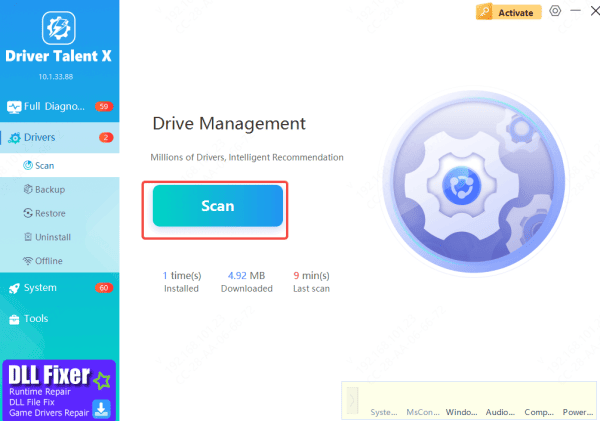
Using Driver Talent X
Download and install Driver Talent X
Run a scan and check for any outdated drivers related to the docking station, USB controllers, or display adapters
Update the drivers using Driver Talent X, which automatically installs the latest compatible drivers for your laptop and docking station
Update BIOS and Firmware
Sometimes, a BIOS update is required to ensure the docking station works properly, especially with newer models.
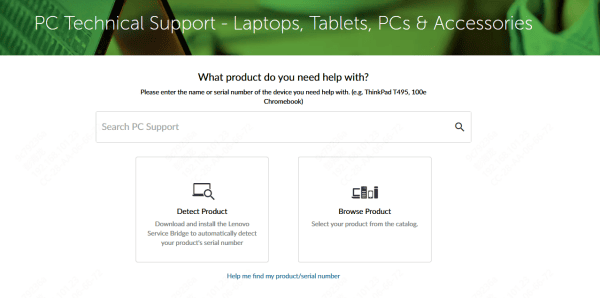
Visit Lenovo Support: Go to the Lenovo Support website and check if your system's BIOS is up-to-date
Download and Install BIOS Update: Download the latest BIOS for your model and follow the on-screen instructions to update it
Update Dock Firmware: Similarly, you may need to update the firmware of the docking station itself Visit the Lenovo support page for firmware updates for your docking station model
Check Windows Display Settings
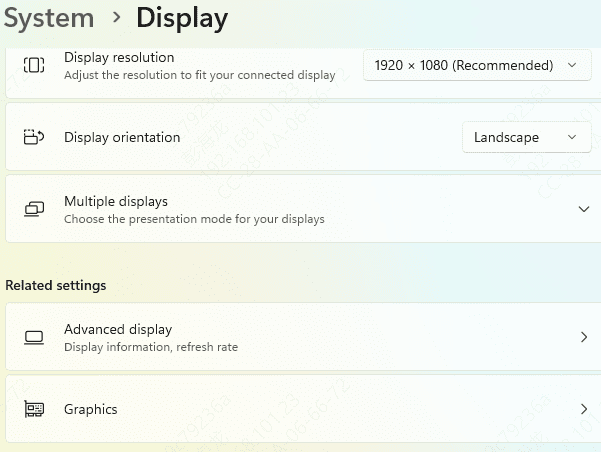
Windows 11 sometimes fails to detect a connected docking station and external displays, especially after updates or system changes.
Go to Settings > System > Display
Scroll down and click Detect to make Windows search for connected monitors or docking stations
Choose how you want to arrange your displays under Multiple displays (Extend, Duplicate, etc.)
Hardware Issues
If none of the previous steps resolve the issue, the docking station hardware might be faulty.
Power Supply Issues: If the docking station is powered but not functioning correctly, check for issues with the internal power supply
Faulty Ports: The USB, HDMI, or DisplayPort connectors might be defective. In such cases, professional repair may be needed
.png "check-if-docking-is-damaged")
Conclusion
If your Lenovo docking station isn't working, the cause could be anything from power issues to outdated drivers or incorrect display settings. By following the steps outlined in this guide, you can systematically diagnose the issue and restore full functionality to your docking station. If all else fails, consider contacting Lenovo support for further assistance or replacing the docking station if it's found to be defective.









