If your Lenovo laptop isn't turning on, it can be frustrating, especially when you're in the middle of important work or gaming. The good news is that most of the time, this issue can be resolved by following a few simple troubleshooting steps. Whether it's a battery, power supply, or hardware issue, this guide will help you diagnose the problem and get your laptop up and running again.
Preliminary Checks and Solutions
Ensure the Laptop is Charged
Check if the charging light is on or if you can see the battery indicator when plugging the laptop in
If the laptop isn't charging, try plugging the charger into a different power outlet, or test it with another charger if available
Perform a Hard Reset
Disconnect the charger and remove the battery (if removable)
Hold the power button down for 10-15 seconds to perform a hard reset
Reconnect the battery and charger, then try turning the laptop on again
Check for External Device Interference
Disconnect any external devices (e.g., USB drives, external monitors, printers) that could be causing issues during startup
Sometimes, peripherals can interfere with the boot process
.png "hard-reset")
Check for Power Supply Issues
Inspect the AC Adapter and Charging Cable
Test the charging cable with another device or use a different charging cable to ensure it's working
If there's no light when plugging the charger into the laptop, the charging port or adapter may be damaged
Test the Laptop Battery
Try turning on the laptop with the battery removed and plugged directly into the power adapter
This can help you determine if the issue is with the battery
Look for Charging Indicator Light
If the laptop's charging indicator light doesn't turn on, this could indicate an issue with the charger or the power port
.png "charge-laptop")
Driver & System Check
If your Lenovo laptop isn't turning on, corrupted or outdated drivers—especially for power management (ACPI) and chipset—could be to blame. Follow these steps to resolve the issue using Driver Talent X.
Step 1: Download and Install Driver Talent X
Download: Get the latest version of Driver Talent X from the official website
Install: Run the setup and follow on-screen prompts to install
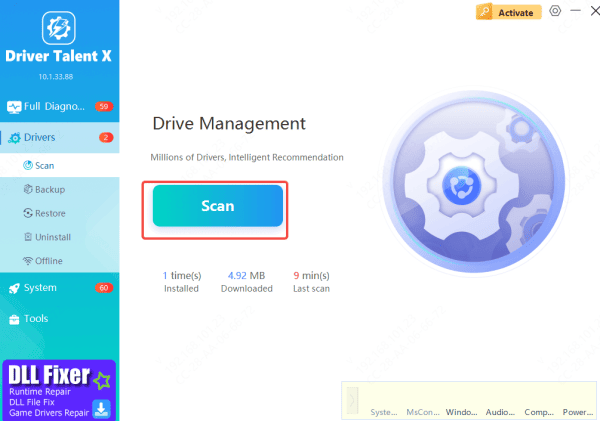
Step 2: Perform a System Scan
Open Driver Talent X
Go to Drivers > Scan to check for outdated, missing, or corrupted drivers, particularly for power management and chipset
Step 3: Update Drivers
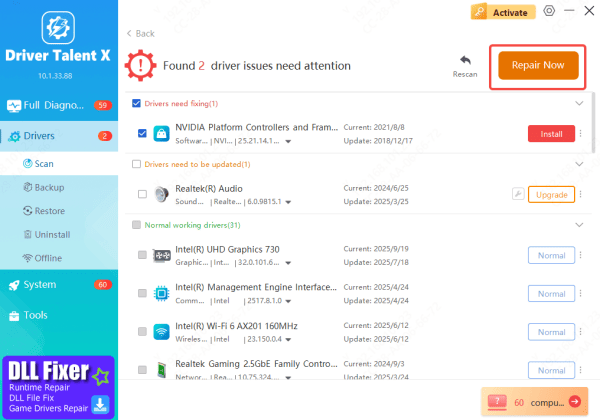
Choose the drivers that need updating or repair
Click Upgrade or Repair Now to download and install the latest drivers
Step 4: Restart Your Laptop
Restart: Once updates are complete, restart your laptop
This process should resolve startup issues caused by driver problems, ensuring your Lenovo laptop works smoothly again
Hardware Diagnosis
Check for Internal Component Issues
Sometimes, loose internal components like the RAM or hard drive can cause the laptop to fail to boot. If you're comfortable with hardware, try reseating the RAM and storage drives to ensure they're properly connected
If the laptop makes unusual sounds or if it's overheating, this could signal a hardware issue
Monitor for Signs of Overheating
If the laptop feels unusually hot or shuts down right after powering on, overheating could be the problem
Ensure the vents are clear of dust and debris and that the cooling system is working properly
Software Issues and System Recovery
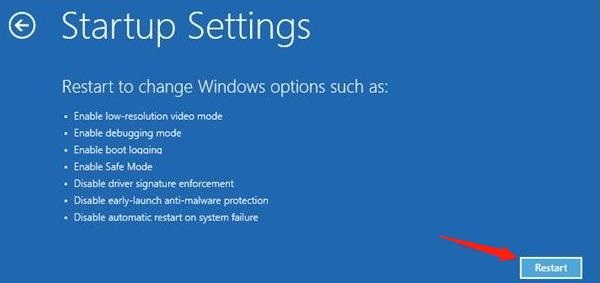
Boot in Safe Mode
If you suspect a software issue, try booting into Safe Mode. This can help you troubleshoot and fix system problems without starting up the full operating system
To enter Safe Mode, turn off the laptop, then turn it on and press the F8 key repeatedly until the Advanced Boot Options menu appears. From there, select Safe Mode
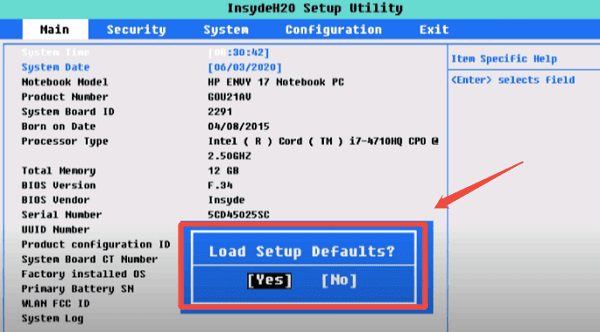
Reset BIOS Settings
Corrupted BIOS settings might be preventing the laptop from starting. To reset the BIOS:
Turn off the laptop and then press F2 or DEL during boot to enter BIOS
Look for the option to "Load Default Settings" and save the changes
Conclusion
If your Lenovo laptop is not turning on, don't panic. Most of the issues can be fixed with a few simple troubleshooting steps. Start by checking the power supply, resetting the laptop, and performing basic hardware checks. If you suspect software issues, try Safe Mode or system recovery tools.









