
When your Lenovo ThinkPad refuses to power on, it can be both frustrating and alarming, especially if you rely on it for daily work. There are several potential reasons why a laptop may not turn on—ranging from simple power supply issues to more complex hardware failures. In this article, we'll walk you through some effective troubleshooting steps to help you identify and resolve the issue, so you can get back to using your laptop.
Check the Power Supply
Inspect the Power Adapter and Charging Cable: Ensure that the charger is properly plugged into both the laptop and the wall outlet. Verify that the charging cable is not frayed or damaged. Try using a different charger (if you have one available) to confirm that the issue isn't with the adapter
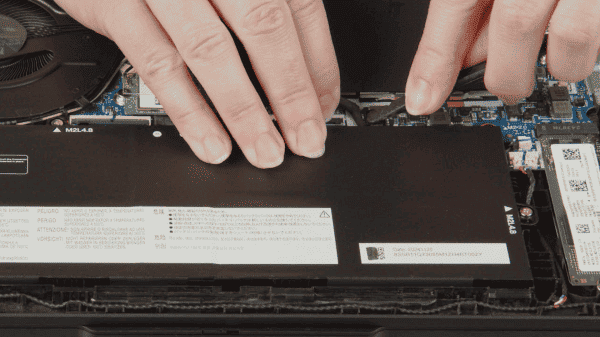
Check the Battery: If your laptop has a removable battery, it's worth inspecting it. A completely drained battery or a faulty battery may prevent the laptop from powering on. If the battery is removable, try taking it out and reinserting it, making sure it fits properly. If your laptop is not turning on even when plugged in, try removing the battery entirely and just powering it through the charger
Test with a Different Power Outlet: A faulty power outlet can sometimes be the cause of the issue. Plug the charger into a different power socket to rule out a broken or unpowered outlet
.png "check-power-adapter")
Perform a Hard Reset
Sometimes, a simple reset can fix the issue, especially if there's residual power in the laptop that is preventing it from turning on
Disconnect all external devices (USB drives, external monitors, printers, etc.)
Press and hold the power button for 30 seconds to drain any residual power
Release the power button, and then press it again briefly to turn the laptop on
Try turning it on after performing the hard reset. This can often resolve minor issues that prevent your laptop from booting up
Driver and System Integrity Checks
If your laptop turns on occasionally but fails to start reliably, begin by updating key system drivers.
Download and Install Driver Talent X
Click the "Download" button to download the Driver Talent X installer
Run the setup file and follow the on-screen prompts to install Driver Talent X on your Lenovo laptop
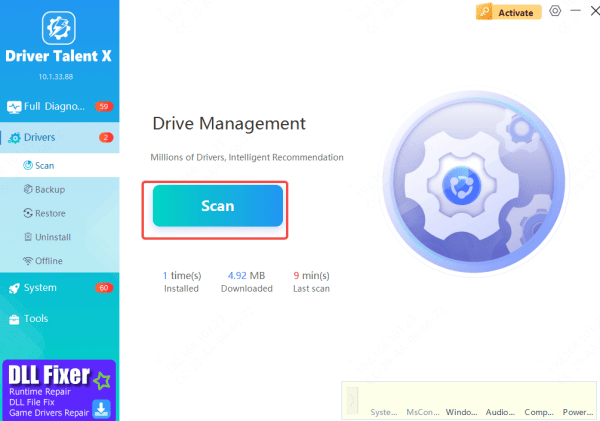
Perform a Full System Scan
Once the tool is installed, launch Driver Talent X and proceed to check your system for any outdated or corrupted drivers
Open Driver Talent and go to the "Drivers" section
Updating the Drivers
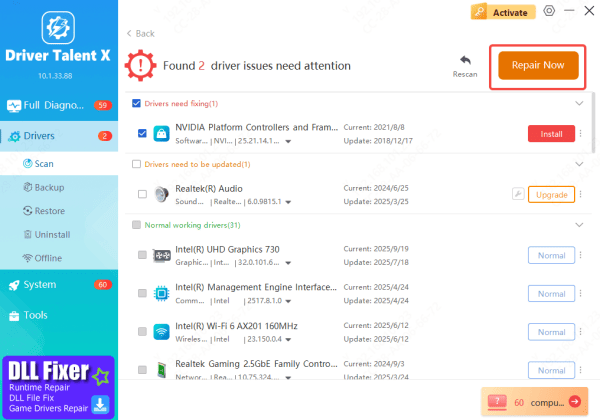
Once the scan is complete, Driver Talent X will display a list of drivers that are outdated or corrupted
Click "Upgrade" or "Repair Now" to automatically download and install the most compatible versions of these drivers for your Lenovo laptop
Restart Your Laptop
After the driver updates are complete, restart your laptop
This allows Windows to properly load the new drivers, which should resolve any startup or power-related issues
Inspect the Power Button and Indicator Lights
If the laptop seems to be powered on but the screen is still black, check the power button for any indicator lights
Look for LED lights that might show that the laptop is receiving power (such as charging indicators)
Listen for any fan noise or beeps, which can indicate the system is on, but the display is faulty
Sometimes, the power button itself may be stuck or malfunctioning. Gently press or hold the power button and see if the system powers up
.png "check-indicator-light")
Check for Display Issues
Try Connecting to an External Monitor: Use a VGA or HDMI cable to connect your laptop to an external monitor or TV. If the external monitor displays the laptop's screen, the issue may be with your laptop's screen or display connection
Brightness Settings: Sometimes, the screen might be working, but the brightness is set to the lowest setting. Try adjusting the brightness using the function keys on the keyboard to see if that resolves the issue
Disconnect External Devices: External devices can sometimes interfere with the startup process. Unplug All External Peripherals such as USB drives, printers, and external hard drives. Try Booting with Only Essential Devices Connected: Just connect the charger and any necessary peripherals (like the keyboard and mouse) to eliminate any external factors that may be causing the issue
.png "try-external-monitor")
Conclusion
When your Lenovo ThinkPad won't turn on, it's important to approach the problem methodically. Start by checking the power supply, performing a hard reset, and checking for display issues. By following the troubleshooting steps outlined above, you should be able to get your laptop up and running again, or at least understand the root cause of the problem.









