
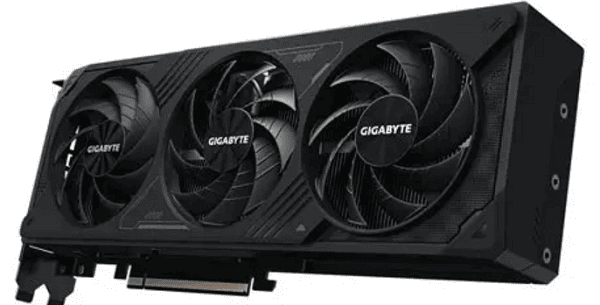
The anticipated NVIDIA GeForce RTX 5070, based on the next-generation Blackwell architecture, is poised to become the new sweet spot for high-end 1440p and entry-level 4K gaming. As the successor to the highly successful RTX 4070 series, the RTX 5070 is expected to bring significant gains in Ray Tracing efficiency, general rasterization performance, and further refinement of DLSS (Deep Learning Super Sampling) technology.
While the hardware promises a generational leap, optimizing your existing system to flawlessly support the new GPU is paramount. A clean, stable system environment is essential to unlock the full potential of any new graphics card.
Part I: System Preparation and Driver Cleanup
Before installing the RTX 5070, or immediately upon its release, ensuring your system's core drivers are stable and free of any conflicts (especially from previous NVIDIA or AMD installations) is non-negotiable.
Automated Driver Update with Driver Talent X
Manually cleaning old driver files and synchronizing the motherboard chipset for optimal PCIe performance can be complex and risky. A specialized utility automates this entire procedure, guaranteeing stability for the new GPU.
Download and Install:
Click the "Download" button to download the software package.
Install it on your PC before removing any old GPU or installing the new one.
Run Scan:
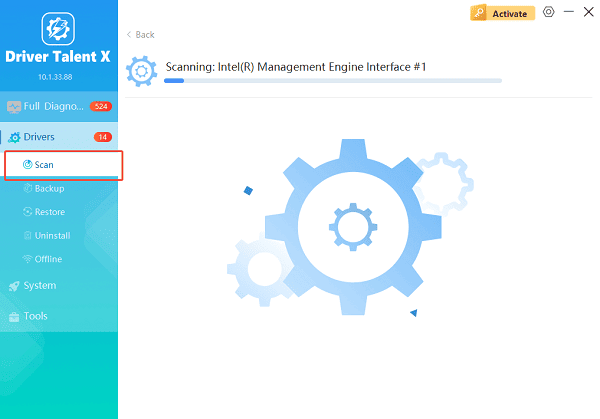
Launch the application and go to "Drivers" > "Scan", click "Scan".
The software will perform a deep analysis of your system, focusing on core hardware components.
Execute Clean Update:
After the scan is complete, the software will display a list of all drivers that need attention. Select the necessary drivers (prioritizing the Chipset and any pre-existing graphics driver cleanup) and click the "Upgrade" or "Repair Now" button.
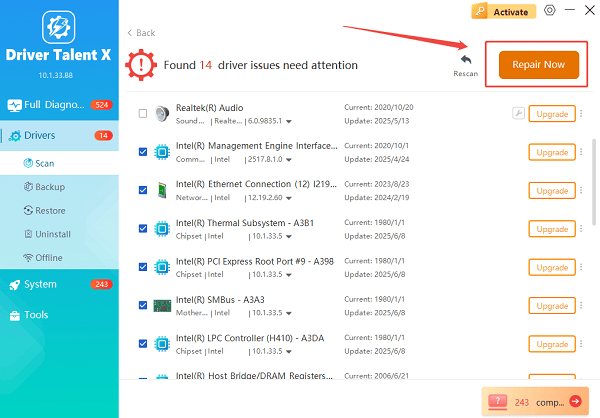
Driver Talent X will ensure the latest, certified versions are installed, preparing the system perfectly for the Blackwell architecture.
Finalize:
After the process is complete, restart your PC.
Once the RTX 5070 is installed, run Driver Talent X again to install its specific, latest driver.
Part II: Anticipated Specifications and Performance
Based on industry trends and NVIDIA's generational improvements, here is what is expected from the RTX 5070.
Anticipated Key Specifications (Blackwell Architecture)
| Feature | Anticipated Specification | Expected Improvement |
| Architecture | Blackwell (e.g., GB204) | Significant uplift in Ray Tracing and energy efficiency |
| VRAM | 16 GB GDDR7 (or high-speed GDDR6X) | Increased capacity is crucial for 4K textures and advanced RT |
| Memory Bus | 256-bit (Potential) | Wider bus for substantial memory bandwidth gains over the 4070's 192-bit |
| TDP | 220W – 250W | Maintaining high efficiency despite higher power |
Expected Performance Leap
The primary focus of the RTX 5070 will be pushing the boundaries of the 1440p resolution while making 4K gaming more accessible.
Native Rasterization: Expect a 25% to 40% native performance increase over the RTX 4070 in traditional rendering.
Ray Tracing (RT): The Blackwell architecture is anticipated to deliver a substantial performance gain in RT workloads, making Ultra settings with RT viable in most AAA titles at 1440p.
DLSS 4 Integration: The RTX 5070 will launch with support for an advanced version of DLSS (likely DLSS 4), leveraging improved hardware (Tensor Cores) for higher-quality upscaling and even greater Frame Generation fidelity.
Part III: Essential Installation and Compatibility Checks
To avoid crashes and ensure maximum efficiency from the start, check these hardware prerequisites.
Method 1: Verify Power Supply Unit (PSU) Capacity
The RTX 5070 will require a robust power supply capable of handling transient power spikes.
Check Minimum Wattage: Be prepared to use a high-quality, at least 650W PSU (750W recommended for overall system safety and longevity).
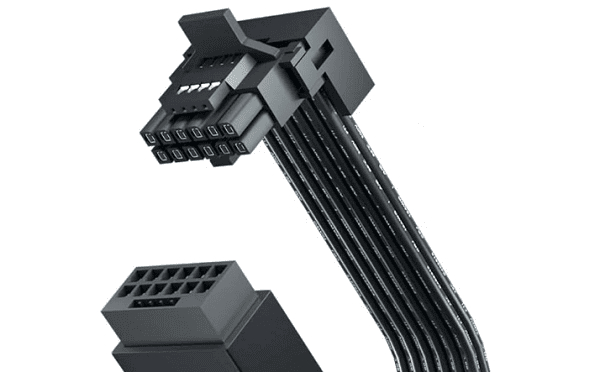
Check Connectors: Verify your PSU has the necessary 12VHPWR (16-pin) connector or sufficient dedicated 8-pin connectors to use the adapter that will ship with the card. Do not daisy-chain power cables.
Method 2: Enable Resizable BAR (ReBAR) in BIOS
ReBAR allows the CPU to access the entire GPU VRAM buffer at once, which can provide a significant, free performance boost in supported games.
Enter BIOS: Restart your PC and repeatedly press the required key (usually DEL or F2) to enter the BIOS/UEFI.
Enable Settings: Navigate to the "Advanced" or "PCI settings" and set "Above 4G Decoding" to Enabled and "Resizable BAR" to Enabled (ensure your motherboard and CPU support this feature).
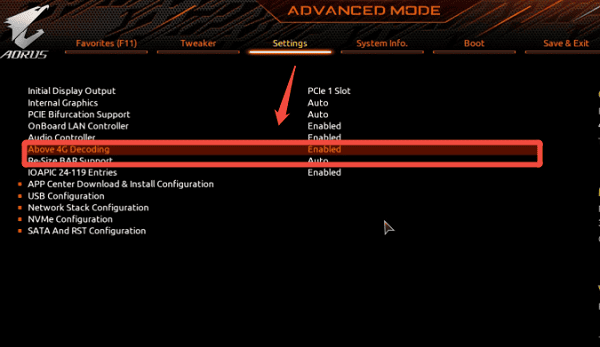
Save and exit.
Method 3: Configure Monitor Refresh Rate
Ensure your monitor is configured to display the high frame rates the RTX 5070 is designed to achieve.
Right-click on the desktop and select "Display settings".
Go to "Advanced display settings".
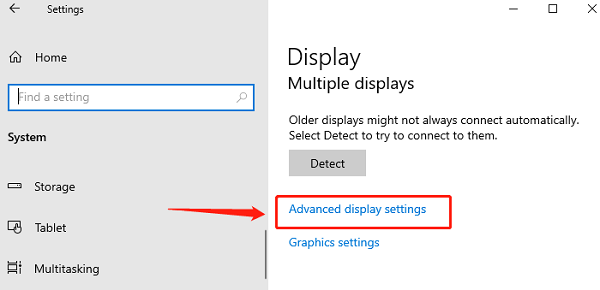
Set the "Refresh rate" to the maximum supported by your monitor (e.g., 144 Hz or 165 Hz). Failure to do this limits the visible performance of your new card.
Conclusion
The NVIDIA GeForce RTX 5070 is highly anticipated to redefine the high-end gaming experience with its Blackwell architecture and expected generational leap in VRAM and RT performance. Maximizing the card's potential begins with methodical system preparation.
The most reliable path to stability is to first ensure system-wide driver synchronization and cleanup with Driver Talent X. By combining this foundation with verifying PSU capacity and enabling Resizable BAR in the BIOS, you guarantee a smooth, optimized transition to next-generation gaming performance.
See also:
Canon CanoScan LiDE 100 Not Recognized? Try These Fixes
How to Fix Knup Keyboard Connection Issues – Working Driver Solutions
Canon IR2520 UFRII LT Driver Not Recognized? Try These Fixes
Can't Print with HP LaserJet M1120 MFP? Complete Troubleshooting Guide









