The NVIDIA Control Panel is the essential gateway for managing your GeForce graphics card settings, including 3D performance profiles, display resolution, G-SYNC configuration, and color settings. When the NVIDIA Control Panel fails to open, it prevents you from optimizing your PC for gaming and productivity.
This issue is typically not due to a physical hardware failure but rather a breakdown in the communication between the Windows operating system and the NVIDIA software services.
Common Causes of the NVIDIA Control Panel Failure
Understanding the potential sources of the problem guides you to the correct fix:
Corrupted Drivers: The most common cause. The core NVIDIA display driver or necessary system driver files were corrupted during an update or installation process.
Service Failure: The critical background services required by the Control Panel (like the NVIDIA Display Container LS service) have stopped running or failed to start with Windows.
Windows Update Conflict: A recent Windows update may have overwritten or blocked components of the NVIDIA software framework.
Registry Corruption: Incorrect or missing registry keys related to the NVIDIA shell extension prevent the control panel from launching.
Conflicting Applications: Other software that interfaces with the display (e.g., monitor calibration tools, other graphics utilities) can block the Control Panel process.
Part I: Driver Integrity and System Synchronization
Since the Control Panel relies entirely on a clean driver installation and stable core system components, fixing the drivers is the most reliable starting point.
Automated Driver Update with Driver Talent X
Manually troubleshooting and updating the various NVIDIA display, motherboard Chipset, and system drivers can be complex, especially dealing with leftover files from previous installations. A specialized utility streamlines this process, guaranteeing a completely clean installation of the necessary components.
Download and Install:
Click the "Download" button to download the software package.
Install it on your Windows PC.
Run Scan:
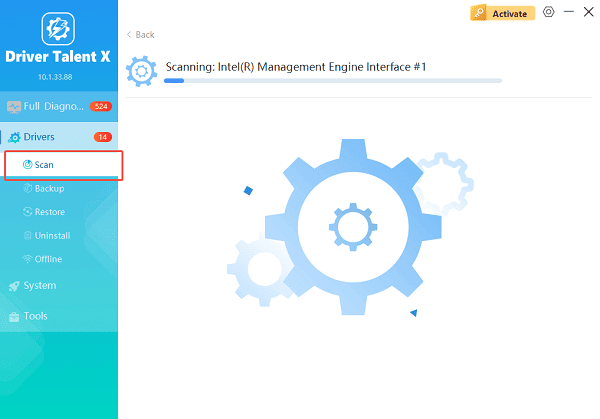
Launch the application and go to "Drivers" > "Scan", click "Scan".
The software will perform a deep analysis of your system, focusing on the GPU and core components.
Execute Clean Installation:
After the scan is complete, the software will display a list of all drivers that need attention. Select the necessary graphics drivers and click the "Upgrade" or "Repair Now" button.
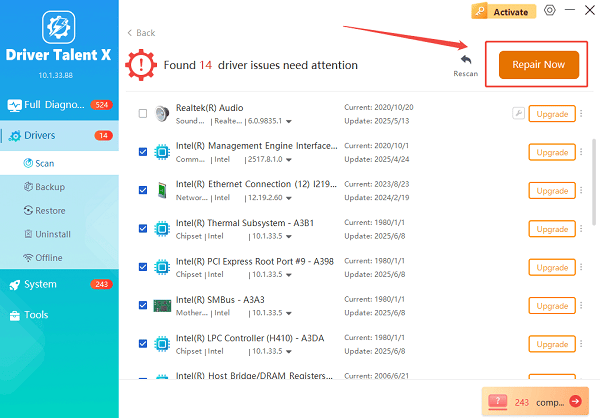
Driver Talent X will first perform a thorough cleanup of any conflicting old NVIDIA files, then reliably download and install the latest certified driver.
Finalize:
Once the installation is finalized, restart your PC and attempt to open the NVIDIA Control Panel.
Part II: Software and Service Fixes
These solutions address issues with the specific background services and Windows configuration that the Control Panel needs to launch.
Method 1: Verify and Restart NVIDIA Services
The Control Panel cannot launch if its required background services are not running.
1. Press Windows Key + R and type "services.msc". Press Enter.
2. Locate the following key services:
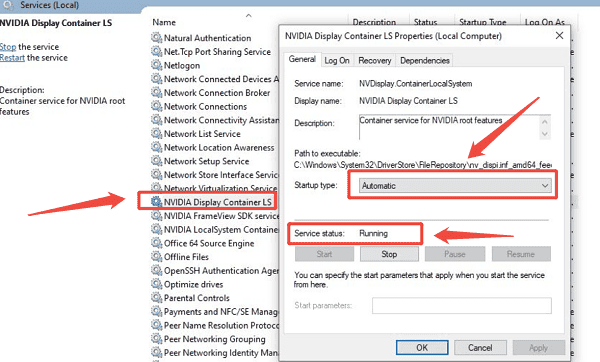
NVIDIA Display Container LS
NVIDIA Local System Container
3. For each service, ensure the Status is "Running" and the Startup Type is "Automatic". If they are running, right-click and select "Restart".
4. Close the Services window and attempt to open the Control Panel.
Method 2: Adjust the Display Context Menu Settings
Sometimes the context menu option fails while the main application link still works. This method ensures the application link is correctly established.
Press Windows Key + I to open Settings.
Go to "Personalization" > "Taskbar".
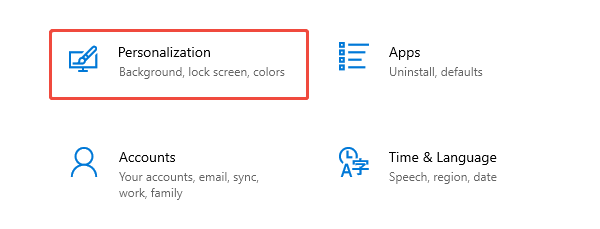
Click on Taskbar behaviors (or search for "Select which icons appear on the taskbar" in older Windows versions).
Ensure the NVIDIA Control Panel icon is enabled or listed to guarantee the application link is active.
If this fails, search for "NVIDIA Control Panel" in the Windows Search bar and try launching it directly.
Part III: Advanced Troubleshooting
These steps involve a complete cleanout of the application or running system tools to fix core file corruption.
Method 1: Reinstallation via DDU (Display Driver Uninstaller)
Full wipe using DDU is necessary to ensure every trace of the old driver is removed.
Access Safe Mode: Boot Windows into Safe Mode with Networking (This is essential for DDU to work correctly).
Download Files: Download the Display Driver Uninstaller (DDU) tool and the latest NVIDIA driver from the official NVIDIA website.
Run DDU: Run DDU, select "GPU" and "NVIDIA", and choose the option "Clean and restart (Highly recommended)".
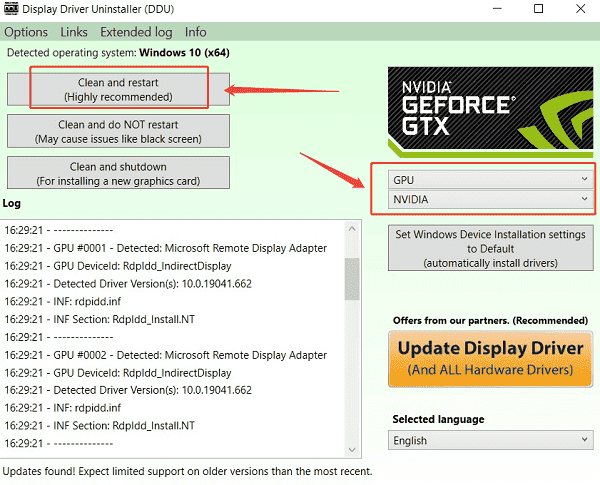
Install New Driver: After restarting, run the official NVIDIA driver installer you downloaded. Select the "Custom" option and check the box for "Perform a clean installation".
Method 2: Run System File Checker (SFC)
Corrupted core Windows files can sometimes interfere with the NVIDIA software shell extension.
Open Command Prompt as Administrator (Win + R > type "cmd" > right-click and choose "Run as administrator").
Type the command: sfc /scannow
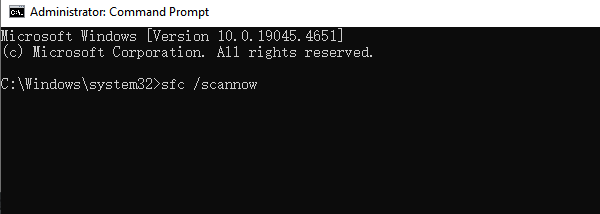
Press Enter and wait for the scan to reach 100%. If the tool fixes errors, restart your PC and try opening the Control Panel.
Conclusion
The failure of the NVIDIA Control Panel to open is a highly fixable software communication issue rooted in driver or service conflicts. The most reliable strategy is to first ensure system-wide driver synchronization and stability with Driver Talent X.
By combining this foundational fix with verifying and restarting the essential NVIDIA background services and performing a full DDU clean reinstallation when necessary, you can systematically eliminate the conflicts and restore full access to your GPU settings.
See also:
Epson L3250 Driver Download & Installation Guide for Windows 10/11
How to Update BIOS on MSI Motherboard – Step-by-Step Guide









