
NVIDIA driver installation failures are common on Windows, especially when upgrading to a new GPU, installing GeForce Game Ready drivers, or applying major system updates.
Errors such as "NVIDIA Installer Failed", "NVIDIA Installer Cannot Continue", or missing components usually indicate driver conflicts, corrupted system files, or outdated system drivers.This guide explains the most effective ways to fix the issue, starting with a complete driver update using Driver Talent X.
Update All System Drivers Using Driver Talent X
Before trying manual fixes, it is important to ensure all system drivers are correct and compatible. Conflicting or outdated chipset, display, and system drivers often cause NVIDIA installation failures. Driver Talent X automatically detects and installs the correct versions.
Download and Install:
Click the "Download" button to download the software package.
Install it on your Windows PC.
Run Scan:
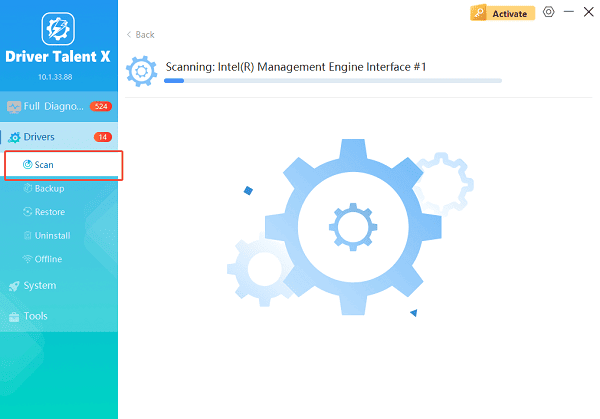
Launch the program and go to "Drivers" > "Scan", click "Scan".
The software will perform a deep analysis of your system, focusing specifically on the NVIDIA drivers and motherboard components.
Execute Clean Installation:
After the scan is complete, the software will display a list of all drivers that need attention. Select the necessary drivers and click the "Upgrade" or "Repair Now" button.
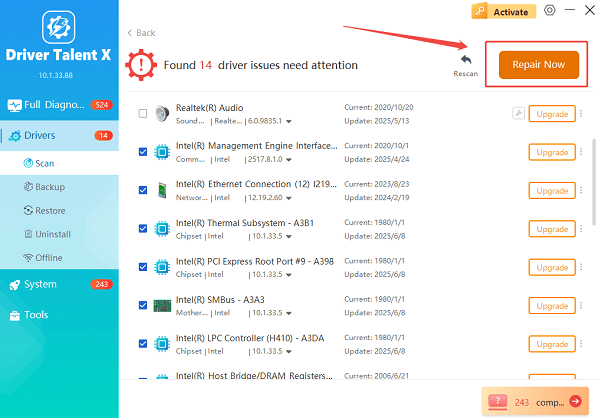
Driver Talent X will reliably download the latest driver and execute a clean installation, critical for performance enhancements and stability fixes.
Restart your computer:
Restart your PC to apply the updates.
Try installing the NVIDIA driver again.
Updating these components resolves installation failures caused by incompatible or partially installed system drivers.
Additional Solutions to Fix NVIDIA Driver Installation Failed
If the issue persists, continue with the following methods.
Solution 1: Completely Remove Old NVIDIA Drivers
A corrupted previous driver is one of the most common causes.
Use Display Driver Uninstaller (DDU):
Download DDU from the official website.
Boot Windows into Safe Mode.
Launch DDU and select "Clean and Restart (Highly recommended)".
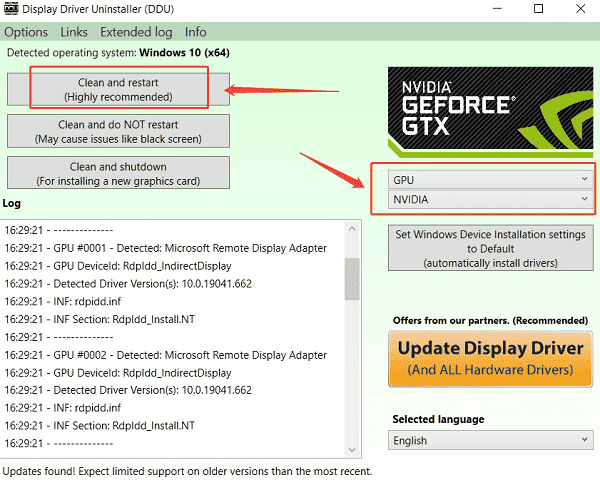
Once the system reboots, try installing the NVIDIA driver again.
This removes all old files, registry entries, and services that may block installation.
Solution 2: Install the Correct GPU Driver
Make sure you select the correct driver category:
GeForce Game Ready Driver
Studio Driver
Notebook vs. Desktop GPU
Correct Windows version (Windows 10 or Windows 11, 64-bit)
Even a small mismatch will cause installation failure.
Solution 3: Disable Antivirus or Windows Security Temporarily
Some security software blocks driver installers.
Open Windows Security.
Go to "Virus & Threat Protection".
Turn off "Real-time protection" temporarily.
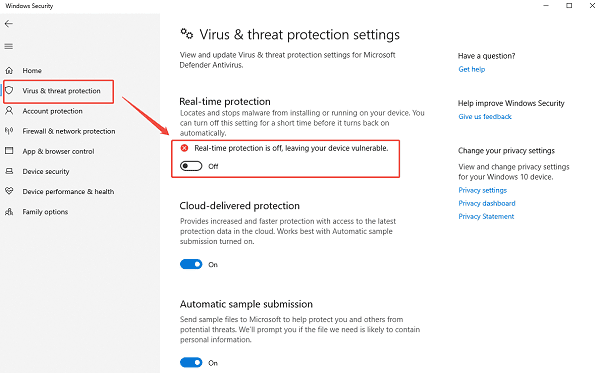
Install the NVIDIA driver.
Re-enable protection after installation.
Solution 4: Enable NVIDIA GPU in Device Manager
If the device is disabled, the installer may fail.
Press Win + X, choose Device Manager.
Expand Display adapters, right-click your NVIDIA GPU, select "Enable Device" if available.
Try the installation again.
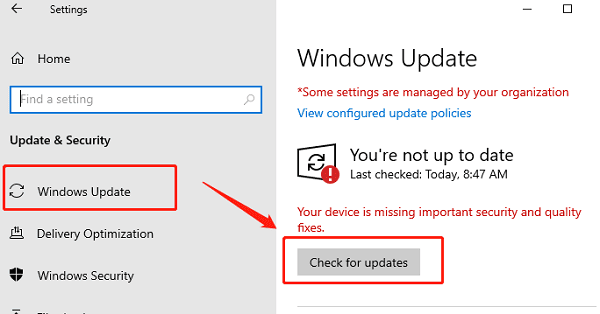
Solution 5: Check Windows Update Status
A pending system update may conflict with driver installation.
Open Settings.
Go to "Update & Security" > "Windows Update".
Click "Check for updates", install all pending updates.
Restart the PC.
Install the NVIDIA driver again.
Solution 6: Reset Windows Graphics Components
Corrupt system files can block driver installation.
Run System File Checker:
Open Command Prompt as administrator.
Type: sfc /scannow
Restart after completion.
Run DISM:
Again in Command Prompt: DISM /Online /Cleanup-Image /RestoreHealth
Restart your PC.
Try installing the NVIDIA driver again.
Solution 7: Install via GeForce Experience
Install GeForce Experience.
Go to the "Drivers" tab, click "Download".
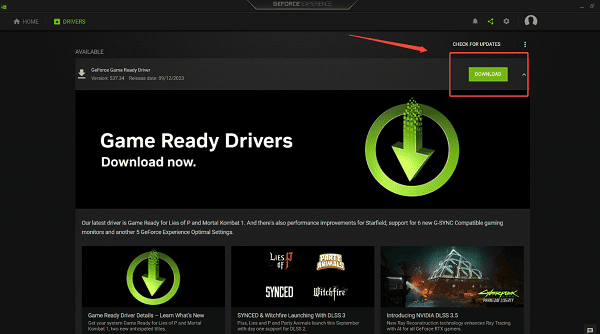
Choose "Custom Installation".
Select Perform a clean installation.
This resets all NVIDIA settings and installs a fresh driver package.
Final Thoughts
NVIDIA driver installation failures are usually caused by outdated system components, leftover driver files, or conflicting software. Updating all system drivers with Driver Talent X is the most effective first step, ensuring your system is prepared for the correct NVIDIA driver version. Follow the solutions above in order, and you should be able to install your NVIDIA drivers successfully and restore your graphics performance.
See also:
How to Fix AMD FreeSync Not Working Issue
How to Fix Bluetooth Not Working Issues









