
The NVIDIA driver update black screen is a common issue that occurs either during or immediately after updating your GeForce graphics driver. This problem leaves the user with an unresponsive monitor, often with the system still running in the background. It is a major disruption that prevents access to the PC and any subsequent troubleshooting.
Common Causes of the Black Screen Error
Understanding why your screen goes black after an NVIDIA driver update is the first step toward fixing it:
Driver Conflict: The most frequent cause is a conflict between the new driver and leftover files from the old NVIDIA installation, or remnants of a previous AMD/Intel driver.
Corrupted Download: The downloaded driver package itself was corrupted during transmission, leading to a failed installation and a non-functional display state.
Incorrect Display Mode/Resolution: The new driver attempts to switch the display to a resolution or refresh rate that your monitor does not support, resulting in a blank screen.
HDCP or Multi-Monitor Mismatch: The NVIDIA software has trouble negotiating the digital rights management (HDCP) handshake or incorrectly configures multiple connected displays.
Outdated Chipset/System Drivers: The graphics card driver relies on the motherboard chipset and PCIe drivers being up-to-date. If these are old, the GPU cannot communicate properly, leading to failure.
Part I: Driver Integrity and System Synchronization
Before attempting to fix the screen, you must ensure the underlying system drivers are stable and free of conflicts.
Automated Driver Update with Driver Talent X
Since the black screen is often caused by conflicts with the motherboard chipset or previous driver versions, a clean, automated solution is required. This utility helps restore system stability, often allowing Windows to regain display functionality in Safe Mode.
Access Safe Mode:
Since the screen is black, you must boot Windows into Safe Mode with Networking (This is often done by forcing a few power cycles: hold the power button until the PC shuts down, repeat 2-3 times until the Windows Recovery Environment appears, then select "Troubleshoot" > "Advanced options" > "Startup Settings" > "Enable Safe Mode with Networking").
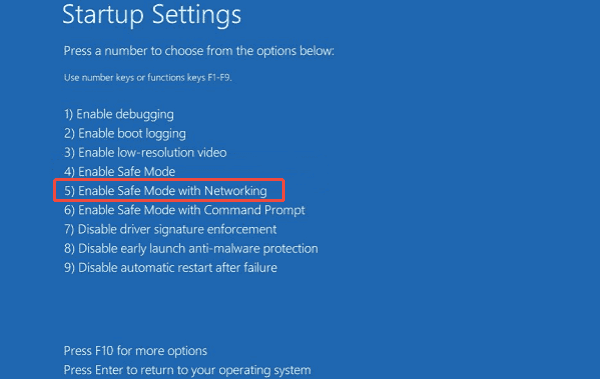
Download and install the Driver Talent X application before enter Safe Mode.
Run Scan:
Launch the application and go to "Drivers" > "Scan", click "Scan".
The software will perform a deep analysis, focusing on your "Display adapters" and "System devices" (Chipset).
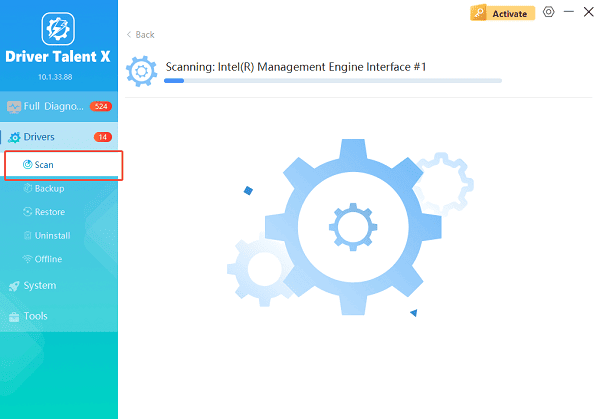
Execute Update:
After the scan is complete, the software will display a list of all drivers that need attention. Select the necessary drivers and click the "Upgrade" or "Repair Now" button.
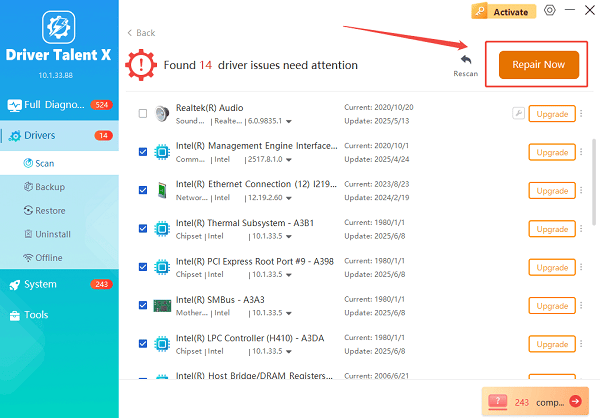
Driver Talent X will perform a clean removal of the conflicting NVIDIA driver files and install a stable, compatible version.
Finalize:
After the process is complete, restart your computer (exiting Safe Mode). Your display should now return to normal.
Part II: Safe Mode and Clean Reinstallation
If the black screen persists, the next step is to force a clean reinstallation of the NVIDIA driver in a controlled environment.
Method 1: Use DDU (Display Driver Uninstaller) in Safe Mode
DDU is the industry-standard tool for thoroughly wiping all remnants of old display drivers, ensuring a completely clean slate for the new installation.
Access Safe Mode: Boot Windows into Safe Mode with Networking (as described in Method 1 of Part I, Step 1).
Download Files: Download the Display Driver Uninstaller (DDU) tool and the latest NVIDIA driver from the official NVIDIA website.
Run DDU: Run DDU, select "GPU" and "NVIDIA", and choose the option "Clean and restart". DDU will automatically perform the cleanup and restart the PC.
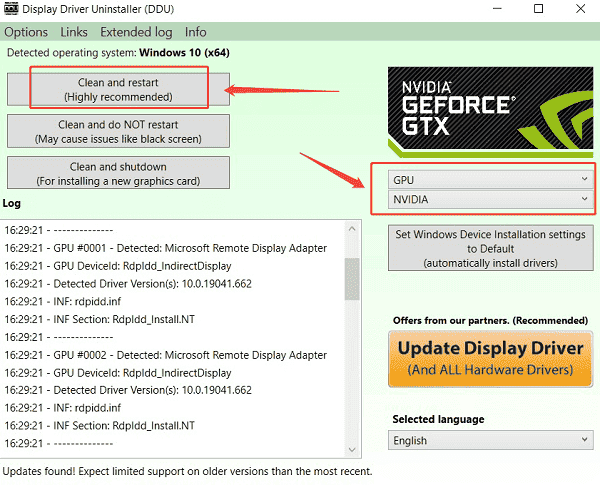
Install New Driver: After restarting (and returning to normal Windows mode), run the NVIDIA driver installer you downloaded. Select the "Custom" option and check the box for "Perform a clean installation".
Method 2: Disable/Re-enable Display Adapter
If the system boots normally but the screen stays black, you can force Windows to re-detect the display adapter.
Blind Navigation: In normal Windows mode (assuming the PC is running blind), press Windows Key + X and then press M to open Device Manager.
Disable/Enable: Press the Tab key a few times until the tree view is highlighted. Use the Down Arrow key to navigate to "Display adapters". Press the Right Arrow key to expand the category.
Press the Down Arrow key once to highlight the NVIDIA card. Press the Application Key (or Shift + F10) to open the context menu. Press D twice to select "Disable device".
Repeat Step 3, but select "Enable device". This often forces the black screen to resolve if it was a simple handshake error.
Part III: System and Compatibility Checks
These solutions address potential conflicts unrelated to the driver file itself.
Method 1: Check for Conflicting Graphics Cards
If you are using a CPU with integrated graphics (e.g., Intel), ensure the output isn't defaulting to the integrated port.
Physical Check: Unplug your monitor cable from the motherboard's video ports (HDMI/DisplayPort) and ensure it is plugged directly into the dedicated NVIDIA GPU ports.
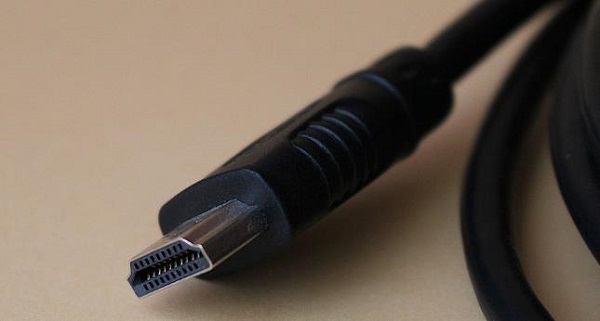
BIOS Check: In the BIOS/UEFI settings, ensure the Primary Display Adapter is set to PCIe/External Graphics.
Method 2: Check Display Cable and Monitor Settings
The new driver might be using a feature your cable or monitor doesn't support (e.g., high refresh rate or HDR).
Swap Cable: Try using a different cable (e.g., switch from DisplayPort to HDMI) or a different port on the monitor.
Test Another Monitor: Connect the PC to a known, working display (like a TV) to confirm the GPU is outputting a signal, proving the issue is specifically with the main monitor's compatibility.
Conclusion
The NVIDIA driver update black screen is a fixable, though alarming, symptom of driver conflict or system instability. The most reliable path to regaining control and stability is to first ensure system-wide driver synchronization and perform a clean driver wipe with Driver Talent X while in Safe Mode.
By combining this essential cleanup with a thorough DDU cleaning and verifying your display output settings, you can systematically resolve the conflict and restore your PC's display functionality.
See also:
Canon CanoScan LiDE 100 Not Recognized? Try These Fixes
How to Fix Knup Keyboard Connection Issues – Working Driver Solutions
Canon IR2520 UFRII LT Driver Not Recognized? Try These Fixes
Can't Print with HP LaserJet M1120 MFP? Complete Troubleshooting Guide









