
If you cannot download NVIDIA drivers on Windows, the problem can be caused by network failures, corrupted system files, outdated drivers, browser restrictions, or issues with the NVIDIA servers. This guide explains all common causes and provides reliable, step-by-step solutions. Before trying advanced fixes, start with the essential step: updating all related drivers using Driver Talent X.
Update Graphics Drivers Using Driver Talent X
Driver Talent X is an automated tool that detects outdated, missing, or damaged graphics drivers and installs the correct versions for your system. If manual NVIDIA driver downloads fail, this method often resolves the issue quickly.
Download and Install:
Click the "Download" button to download the software package.
Install it on your Windows PC.
Run Scan:
Launch the program and go to "Drivers" > "Scan", click "Scan".
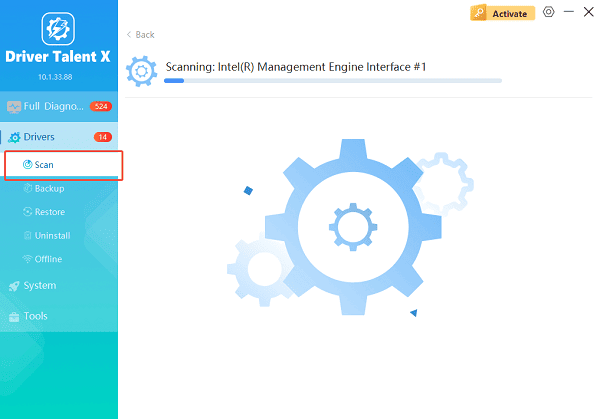
The software will perform a deep analysis of your system, focusing specifically on the NVIDIA drivers and motherboard components.
Execute Clean Installation:
After the scan is complete, the software will display a list of all drivers that need attention. Select the necessary drivers and click the "Upgrade" or "Repair Now" button.
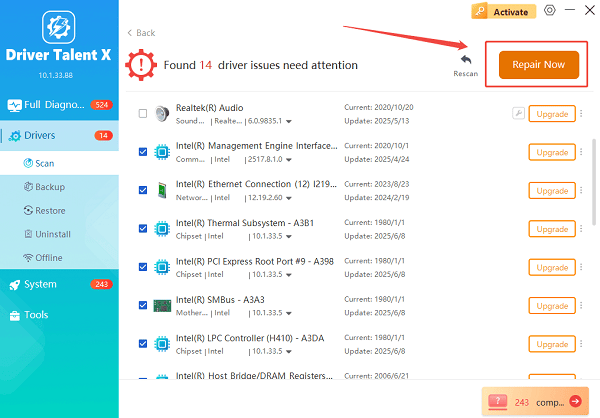
Driver Talent X will reliably download the latest driver and execute a clean installation, critical for performance enhancements and stability fixes.
Restart your computer:
Restart your computer after the installation to ensure full driver functionality.
If the problem is caused by corrupted, mismatched, or missing drivers, Driver Talent X usually fixes it immediately.
Method 1: Check Your Internet Connection
A weak or unstable network connection can interrupt the NVIDIA driver download.
Steps:
Right-click on start button, select and open "Device Manager".
Expand "Network adapters", disable and re-enable your network adapter.
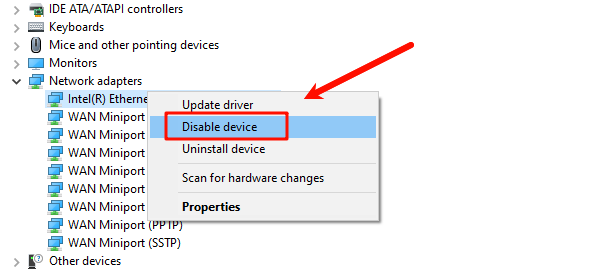
Connect to another Wi-Fi network or switch to a wired Ethernet connection.
Temporarily disable any VPN you are using.
Run a speed test to confirm stable connectivity.
Method 2: Use NVIDIA GeForce Experience
Sometimes NVIDIA's website download fails, but GeForce Experience works.
Steps:
Download GeForce Experience from NVIDIA's official website.
Install and launch the application.
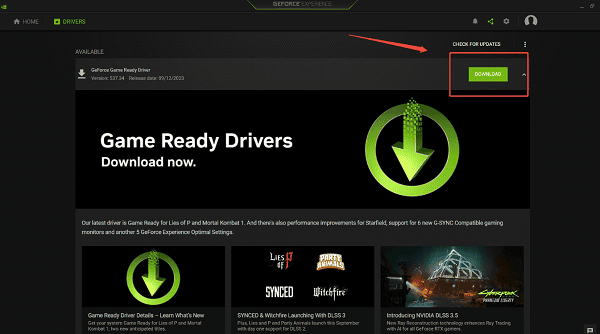
Go to the "Drivers" tab, click "Check for updates".
Click "Download" and allow the software to complete installation.
Method 3: Clear Browser Cache or Use Other Browser
Your browser may block or corrupt the driver download.
Steps:
Open your browser settings.
Clear cache, cookies, and temporary files.
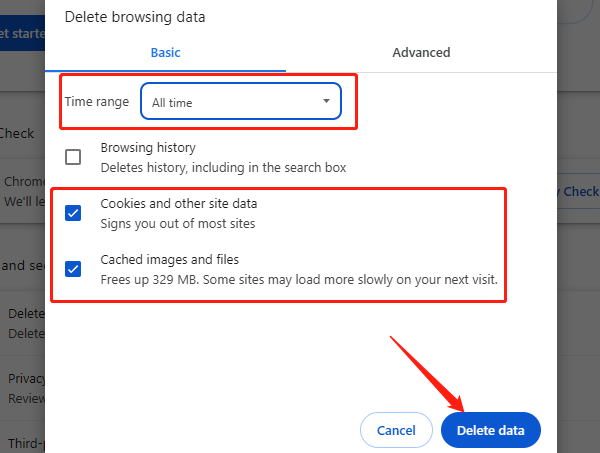
Disable downloaded file scanning if your browser uses it.
Try downloading the driver using another browser such as Edge, Firefox, or Chrome.
Method 4: Disable Windows Security or Firewall Temporarily
Security software can block large driver files.
Steps:
Go to "Settings" > "Update & Security" > "Windows Security".
Open "Virus & Threat Protection".
Temporarily turn off "Real-time protection".
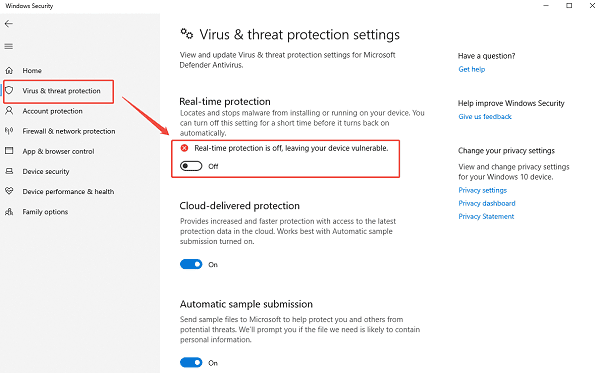
Navigate to "Firewall & Network Protection" and temporarily turn off the firewall.
Try downloading the NVIDIA driver again.
Re-enable all security features immediately after the download completes.
Method 5: Delete Previously Failed NVIDIA Installer Files
Corrupted installation files can block new downloads or installations.
Steps:
Press Win + R, type "%ProgramFiles%", and press Enter.
Open the folder named NVIDIA Corporation.
Delete any installer or temporary folders.
Also delete the folder located at C:\NVIDIA if present.
Try downloading the driver again from NVIDIA's website.
Method 6: Check NVIDIA Server Status
If NVIDIA servers are under maintenance, downloads may temporarily fail.
What to do:
Search online for NVIDIA server status or check official support channels.
If servers are down, wait and try again after a few hours.
Method 7: Check Your Windows System
Outdated Windows components can prevent NVIDIA drivers from installing correctly.
Steps:
Open "Settings" > "Update & Security" > "Windows Update".
Click "Check for updates".
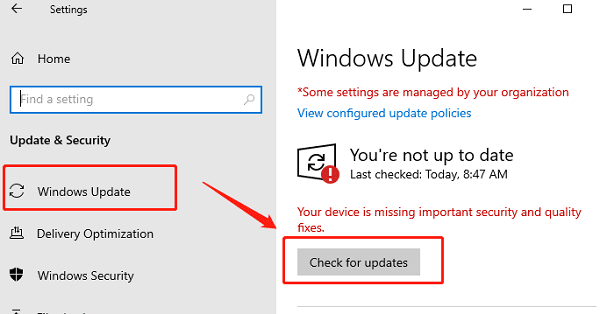
Install all available updates.
Restart the computer.
Method 8: Enable Required Windows Services
Driver installation requires several Windows services to be running.
Steps:
1. Press Win + R, type "services.msc", and press Enter.
2. Ensure the following services are Running and Automatic:
Windows Update
Background Intelligent Transfer Service (BITS)
Cryptographic Services
3. If any are disabled, right-click and select "Start", then set Startup type to Automatic.
Method 9: Install the Standard Driver
Some systems reject the DCH version of NVIDIA drivers.
Steps:
Visit the NVIDIA driver download page.
Select Windows Standard instead of DCH under the driver type.
Download and install the alternative driver.
Final Thoughts
If you cannot download NVIDIA drivers, the issue is usually caused by browser restrictions, network problems, corrupted system files, or mismatched driver versions. Starting with Driver Talent X ensures you automatically receive the correct driver without manual troubleshooting.
If automatic repair does not resolve the issue, the additional methods above will help you restore proper driver functionality and ensure your NVIDIA GPU works smoothly.
See also:
How to Fix AMD FreeSync Not Working Issue
How to Fix Bluetooth Not Working Issues









