
The NVIDIA RTX 4060 is a powerful mid-range GPU built for smooth 1080p and 1440p gaming, AI workloads, and creative applications. However, to unlock its full performance and stability, you must keep your graphics drivers updated and apply proper system optimizations.
This guide provides detailed steps on how to update RTX 4060 drivers using Driver Talent X, along with additional methods, performance tweaks, and troubleshooting tips.
Update NVIDIA RTX 4060 Drivers Using Driver Talent X
Keeping your GPU drivers up to date is essential for gaming performance, new feature support, and system stability. Driver Talent X offers an automated and reliable way to update RTX 4060 drivers without manual downloads.
Step-by-Step Guide
Download and Install:
Click the "Download" button to download the software package.
Run the setup file and follow the on-screen instructions to complete installation.
Scan Your Computer for Outdated Drivers:
Open the program from your desktop or start menu, go to "Drivers" > "Scan", click "Scan".
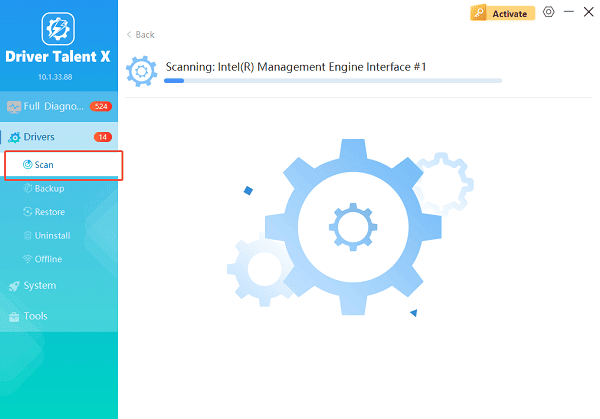
The software will automatically detect your RTX 4060 and check whether the NVIDIA driver is outdated, missing, or corrupted.
Update the NVIDIA RTX 4060 Driver:
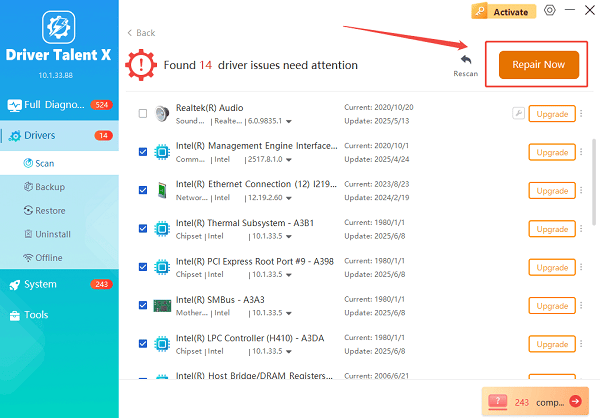
After scanning, locate the NVIDIA display driver in the list. You will see the current version and the recommended latest version.
Click the "Upgrade" or "Repair Now" button to download and install the official driver automatically. Wait until the installation finishes.
Restart Your Computer:
Reboot your system to apply the new driver.
This ensures optimal performance and prevents driver conflicts.
Using Driver Talent X reduces installation errors, missing component issues, and compatibility problems common with manual driver updates.
Alternative Ways to Update NVIDIA RTX 4060 Drivers
In addition to Driver Talent X, you can update your RTX 4060 driver using the methods below.
Update via NVIDIA GeForce Experience
Download and install NVIDIA GeForce Experience.
Open the app and sign in.
Go to the "Drivers" tab, click "Check for Updates".
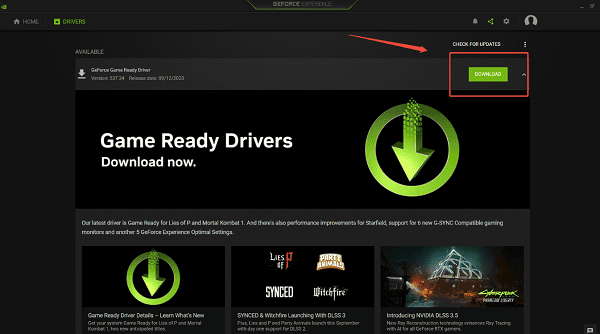
Download and install the latest Game Ready or Studio Driver.
Update from the NVIDIA Official Website
Go to the NVIDIA driver download page.
Select "GeForce RTX 40 Series" > "NVIDIA GeForce RTX 4060".
Choose your Windows version and language, find and download the latest driver.
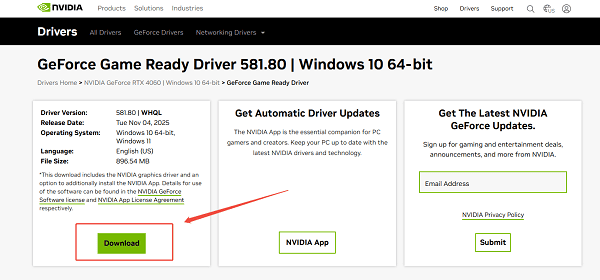
Choose the "Clean Installation" option for best results.
Restart your computer.
Update via Windows Device Manager
Right-click Start and select "Device Manager".
Expand "Display Adapters", right-click NVIDIA GeForce RTX 4060 and select "Update Driver".
Choose "Search automatically for drivers". Allow Windows to install available updates.
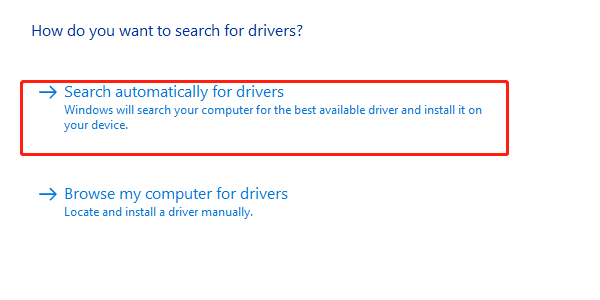
This method is less reliable because Windows may not always provide the latest driver.
Optimization Tips for NVIDIA RTX 4060
Once your drivers are updated, apply the optimizations below to maximize performance.
Adjust NVIDIA Control Panel Settings
Right-click your desktop and select NVIDIA Control Panel.
Go to "Manage 3D settings". Change the following for higher FPS:
Power Management Mode: Prefer maximum performance
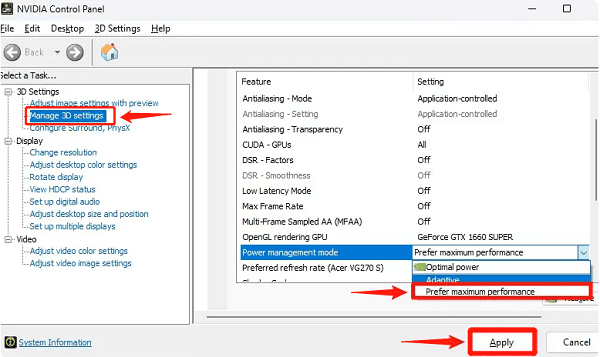
Texture Filtering Quality: High performance
Low Latency Mode: On or Ultra (for competitive games)
Enable Resizable BAR (If Supported)
Enter your BIOS settings.
Look for the Re-Size BAR option. Enable it.
Save and restart.
This improves GPU memory access and frame performance.
Enable DLSS or DLAA in Games
NVIDIA DLSS can significantly increase FPS in supported games:
Open game settings. Navigate to "Graphics" or "Video".
Turn on DLSS and select "Balanced", "Quality", or "Performance mode".
Optimize Windows for Gaming
Turn on Hardware Accelerated GPU Scheduling: "Settings" > "System" > "Display" > "Graphics" > "Default Graphics Settings".
Enable Game Mode: "Settings" > "Gaming" > "Game Mode". Turn on it.
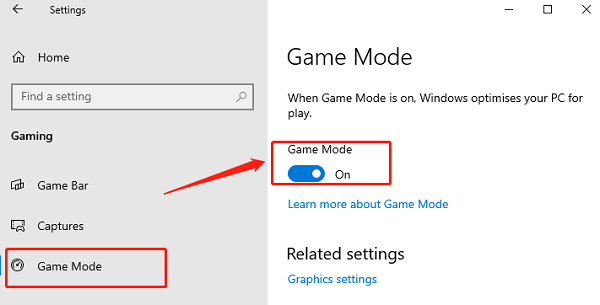
Close unnecessary background applications before gaming.
Improve Cooling and Power Settings
Ensure your laptop or desktop has proper airflow.
Use a cooling pad if using a laptop.
Change power mode to High Performance: "Control Panel" > "Power Options" > "High Performance".
Troubleshooting Common RTX 4060 Issues
1. Low FPS or Stuttering
Update your drivers using Driver Talent X or NVIDIA tools.
Lower ray tracing settings.
Enable DLSS or reduce resolution.
2. Driver Crashes
Perform a clean installation using the NVIDIA installer.
Remove old driver files using Display Driver Uninstaller (DDU).
Check Windows for updates.
3. Overheating
Clean dust from fans.
Improve airflow.
Update BIOS or firmware if available.
Conclusion
The NVIDIA RTX 4060 delivers impressive performance, but driver maintenance and system optimization are essential to keep it running at its best.
Start by updating your graphics driver using Driver Talent X, which provides an easy and reliable update process. Combine this with NVIDIA Control Panel tweaks, Windows optimizations, and proper hardware maintenance to achieve the highest performance in games and creative workloads.
See also:
Epson L3250 Driver Download & Installation Guide for Windows 10/11
How to Update BIOS on MSI Motherboard – Step-by-Step Guide









