
A Lenovo BIOS update can improve system stability, fix hardware compatibility issues, and resolve boot or performance problems. However, updating the BIOS incorrectly may cause serious system failures. Before performing a Lenovo BIOS update, it is critical to ensure all essential drivers are up to date.
Outdated chipset, firmware, or power management drivers can interrupt the BIOS update process and lead to errors. This guide explains when a Lenovo BIOS update is necessary, how to prepare your system safely, and the correct step-by-step methods to update BIOS without risks.
Step 1: Update System Drivers with Driver Talent X
Before updating the BIOS, Lenovo strongly recommends ensuring all hardware drivers are current. Driver conflicts are a common cause of BIOS update failures.
Download and Install:
Click the "Download" button to download and save the installer to your computer.
Run the installer and follow the on-screen instructions to complete installation.
Scan Your System Drivers:
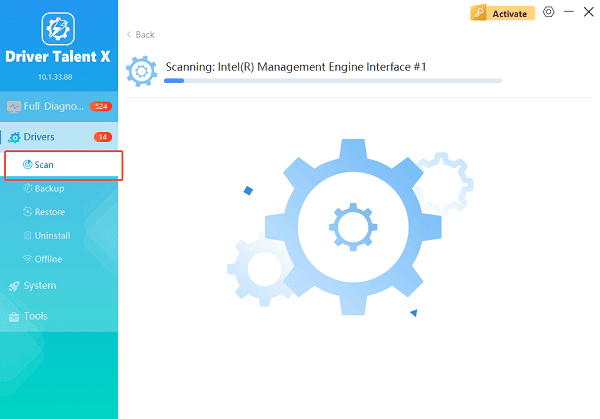
Open Driver Talent X from the desktop or Start menu, go to "Drivers" > "Scan", click "Scan".
The tool will check your system for outdated, missing, or corrupted drivers. Wait for the scan to complete.
Update Graphics Drivers:
After the scan is complete, the software will display a list of all drivers that need attention. Click the necessary drivers and click the "Upgrade" or "Repair Now" button.
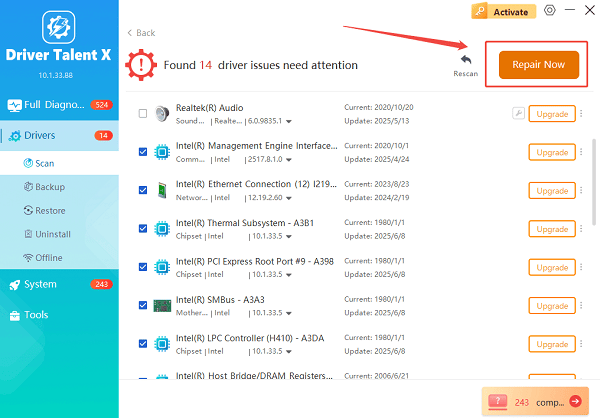
Driver Talent X will reliably download the latest drivers and execute a clean installation, critical for performance enhancements and stability fixes.
Restart Your Computer:
Reboot your system to ensure all driver updates are applied correctly.
Updating drivers first reduces the risk of BIOS update interruptions and improves overall system compatibility.
When Should You Perform a Lenovo BIOS Update?
A BIOS update is not required for every user. You should consider updating BIOS only in the following situations:
Lenovo officially recommends a BIOS update for your model
Your laptop fails to boot or freezes during startup
Hardware components such as CPU, RAM, or SSD are not recognized
You experience power management or thermal issues
Windows updates or firmware upgrades require a newer BIOS version
If your system is working normally, updating BIOS is not necessary.
Step 2: Check Your Current BIOS Version
Before downloading a new BIOS version, verify your existing one.
Press Windows + R, type "msinfo32" and press Enter.
Locate BIOS Version/Date.
Note the version number and release date.
Compare this information with the latest BIOS version available for your Lenovo model.
Step 3: Download the Correct Lenovo BIOS Update
Go to Lenovo's official support page.
Enter your exact Lenovo model number.
Select your operating system.
Navigate to BIOS/UEFI.
Download the latest BIOS update compatible with your device.
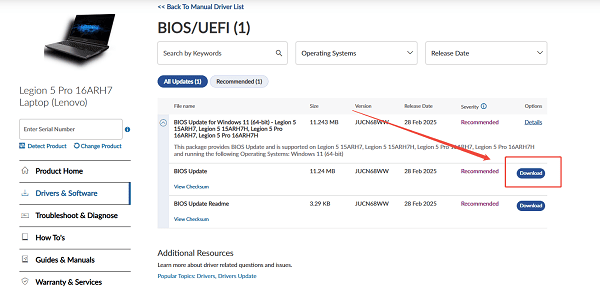
Ensure the BIOS version matches your model exactly. Installing the wrong BIOS can permanently damage your system.
Step 4: Prepare Your System for BIOS Update
Before starting the update process:
Plug in the AC power adapter.

Ensure battery level is above 50 percent.
Close all running applications.
Disable antivirus software temporarily.
Do not connect external peripherals unless required.
A power interruption during BIOS update may cause irreversible damage.
Step 5: Perform Lenovo BIOS Update Safely
Method 1: Update BIOS from Windows
Locate the downloaded BIOS executable file.
Right-click and select "Run as administrator".
Follow the on-screen instructions carefully.
Do not shut down or restart during the update.
The system will reboot automatically when complete.
Method 2: Update BIOS via Boot Menu
Create a bootable USB drive if required.
Restart your Lenovo laptop.
Press F2, F12, or Enter to access BIOS or boot menu.
Select the BIOS update utility.
Choose the BIOS file and confirm the update.
This method is useful if Windows cannot boot properly.
Step 6: Restore Default BIOS Settings After Update
After completing the BIOS update:
Restart the computer.
Enter BIOS setup.
Select "Load Default Settings".
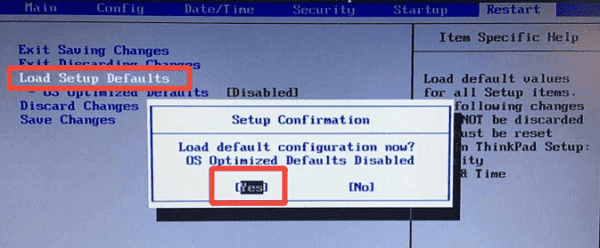
Save and exit.
This ensures system stability and prevents configuration conflicts.
Additional Troubleshooting Tips
If you encounter issues after BIOS update:
Reinstall chipset and system drivers using Driver Talent X.
Update Windows to the latest version.
Reset BIOS settings to default.
Avoid overclocking until system stability is confirmed.
Conclusion
A Lenovo BIOS update should only be performed when necessary and with proper preparation. Updating drivers first using Driver Talent X significantly reduces the risk of BIOS update failures and system instability. By following the correct steps outlined above, you can safely update your Lenovo BIOS and ensure long-term performance and compatibility.
See also:
Mandragora: Whispers of the Witch Tree Overview
Overview of Tempest Rising on Steam
[Fixed] Red Dead Redemption 2 ERR_GFX_STATE Graphics Error
Ways to Fix The Elder Scrolls IV: Oblivion Remastered Startup Crash









