
A malfunctioning graphics card can cause screen flickering, low FPS, black screens, crashes, or driver errors. Whether you use NVIDIA, AMD, or Intel graphics, resetting or reinstalling the GPU driver is one of the most effective ways to restore stable performance.
This guide explains how to reset your graphics card, update all GPU-related drivers with Driver Talent X, and apply additional troubleshooting steps to fix display and performance problems on Windows.
Update Graphics Drivers Using Driver Talent X
Before applying advanced fixes, updating your graphics driver is essential. Outdated, corrupted, or missing drivers are the main reason behind display failures and poor GPU performance. Driver Talent X provides a fast, automated way to repair, reinstall, or update all GPU-related drivers.
Download and Install:
Click the "Download" button to download the software package.
Follow the on-screen instructions to complete installation.
Scan Your Computer:
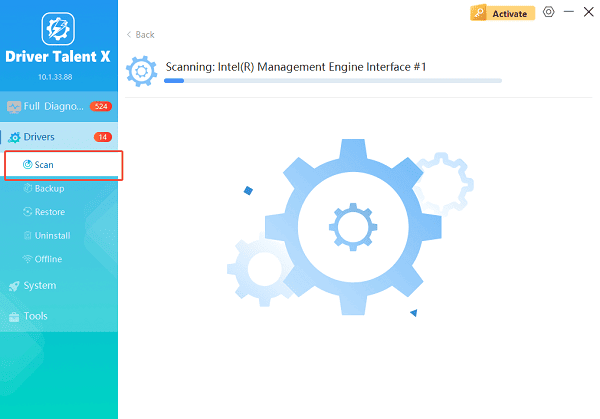
Launch the software and go to "Drivers" > "Scan", click "Scan".
The software will automatically detect your graphics card drivers and check whether the driver is outdated, missing, or corrupted.
Update Windows Drivers:
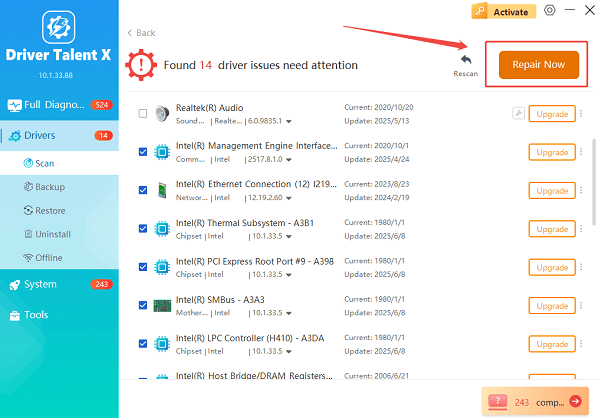
After the scan is complete, the software will display a list of all drivers that need attention. You will see the current version and the recommended latest version.
Click the "Upgrade" or "Repair Now" button to download and install the official driver automatically. Wait for Driver Talent X to download and install the correct versions.
Restart Your Computer:
Restart your computer after the repair or update process completes.
Open the program again and confirm that the driver status is marked as "Latest".
This process helps fix black screens, GPU stuttering, driver crashes, and performance drops.
Method 1: Reset GPU Driver Using Keyboard Shortcut
Windows includes a built-in shortcut to restart your graphics driver without rebooting your PC.
Steps:
Press Windows + Ctrl + Shift + B.
Your screen will flash briefly, and you may hear a beep.
This resets the GPU driver and often resolves temporary graphic glitches.
Method 2: Reinstall GPU Drivers via Device Manager
If the driver files are corrupted, a clean reinstallation can help.
Steps:
Right-click Start and select Device Manager.
Expand "Display adapters", right-click your GPU and choose "Uninstall device".
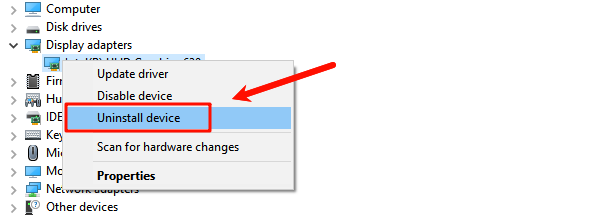
Check "Delete the driver software for this device" and confirm.
Restart Windows; basic drivers will load automatically.
Method 3: Reset Graphics Settings in NVIDIA Control Panel
For NVIDIA users:
Open NVIDIA Control Panel.
Go to "Manage 3D settings".
Click "Restore Defaults" at the top right.
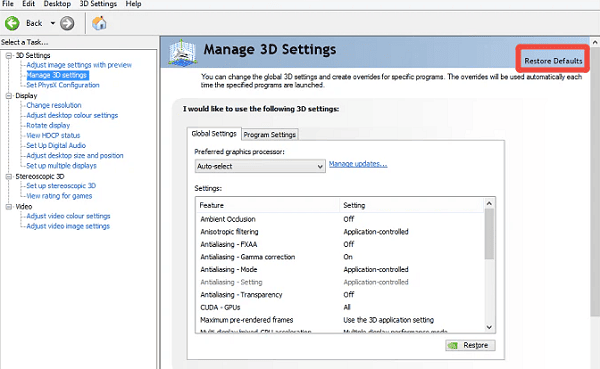
Apply the changes.
This resolves issues caused by incorrect custom GPU settings.
Method 4: Reset AMD Adrenalin Graphics Settings
For AMD users:
Open AMD Software: Adrenalin Edition.
Go to Settings > Preferences.
Select "Restore Factory Defaults" and confirm.
Restart the system.
Method 5: Reset Intel Graphics Settings
For Intel GPU users:
Right-click your desktop and select "Graphics Properties" or "Intel Graphics Command Center".
Open "Display" or "Graphics Settings".
Choose "Restore Defaults".
Method 6: Resetting Windows Display Settings
Steps:
Go to Settings > System > Display.
Reset scaling, resolution, and refresh rate to recommended values.
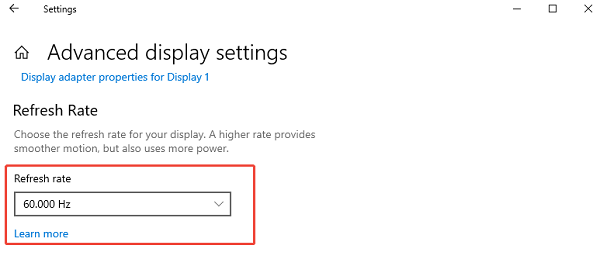
Apply changes and restart.
Incorrect display settings can cause stretching, tearing, and low-quality visuals.
Method 7: Check HDMI, DisplayPort, or USB-C Cable
A loose cable can mimic GPU failure.
Reseat your video cable on both ends.
Test a different cable or port.
Plug the display directly into the laptop or desktop without adapters.
Method 8: Clean Dust to Prevent GPU Overheating
Overheating causes GPU throttling and black screens.
Power off the device.
Use compressed air to blow out dust from vents and fans.
Ensure proper airflow around the laptop or desktop.
Method 9: Run System File Checker
Corrupted Windows files can cause GPU issues.
Steps:
Open Command Prompt (Admin).
Run: sfc /scannow
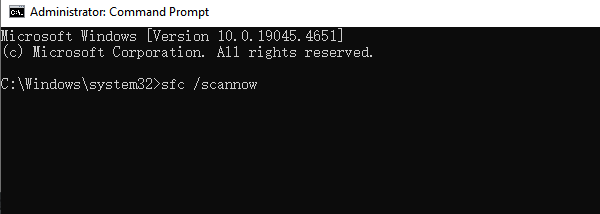
Wait for the repair process to finish, then restart your PC.
Method 10: Restore Windows to a Previous State
If the problem started after an update:
Open Control Panel.
Go to "Recovery".
Choose "Open System Restore".
Select a restore point and follow the instructions.
Final Thoughts
Resetting your graphics card can resolve black screens, display glitches, low FPS, and performance issues. The most effective first step is updating or repairing GPU drivers using Driver Talent X, which ensures your system has the correct and optimized display drivers. If issues persist, try the additional methods above to restore stable GPU performance.
See also:
How to Fix AMD FreeSync Not Working Issue
How to Fix Bluetooth Not Working Issues









