Using dual monitors with a Lenovo ThinkPad docking station can greatly improve productivity by expanding your workspace. Whether you are using ThinkPad USB-C Dock, ThinkPad Hybrid USB-C Dock, or ThinkPad Thunderbolt Dock, setting up two monitors is simple when you follow the correct steps. This guide explains how to properly connect, configure, and troubleshoot dual-monitor setups for Lenovo laptops.
Check Dock and Laptop Compatibility
Before setting up dual monitors, confirm that both your docking station and laptop support dual-display output
Most ThinkPad models support two monitors through USB-C or Thunderbolt, but some lower-end models only support one external display
Also verify that your dock has two video output ports such as HDMI, DisplayPort, or USB-C video
.png "check-compatibility")
Connect Power to the Dock
Start by plugging the power adapter into your docking station
A stable power source ensures the dock can output video signals, supply power to peripherals, and maintain consistent performance
You should see a light indicator turn on once the dock is powered
.png "check-power")
Connect the Dock to Your ThinkPad
Use the dock's USB-C or Thunderbolt cable to connect it to your laptop
If your laptop supports USB-C charging, it will begin charging automatically
Windows will load basic drivers, allowing the docking station to start detecting connected devices
.png "connect-thinkpad")
Connect Your Two External Monitors
Turn on your monitors and connect them to the dock using HDMI, DisplayPort, or USB-C
For the best experience, use DisplayPort when possible because it supports higher resolutions and refresh rates After connecting the displays, wait a few seconds for Windows to recognize them
If the monitors do not appear automatically, press Windows key plus P and select Extend
.png "connect-dual-monitors")
Configure Display Settings in Windows
Open Windows display settings by right-clicking on the desktop and selecting Display settings
Under the display layout, you should see both external monitors
Arrange the monitors in the correct left-right order
Select Extend these displays to expand your workspace across two monitors. Adjust resolution and orientation as needed for optimal clarity
.png "display-setting")
Update Dock, Graphics, and USB Drivers
Dual-monitor issues are often caused by outdated drivers. Update your graphics driver, USB-C driver, chipset driver, network driver, and dock firmware to ensure stable performance. Using an automated driver update tool can simplify this process and prevent display detection problems.
Download Driver Talent X
Click the Download button to get the Driver Talent X installer. Once downloaded
Run the setup file and follow the on-screen instructions to complete the installation on your PC
Run a Full Driver Scan
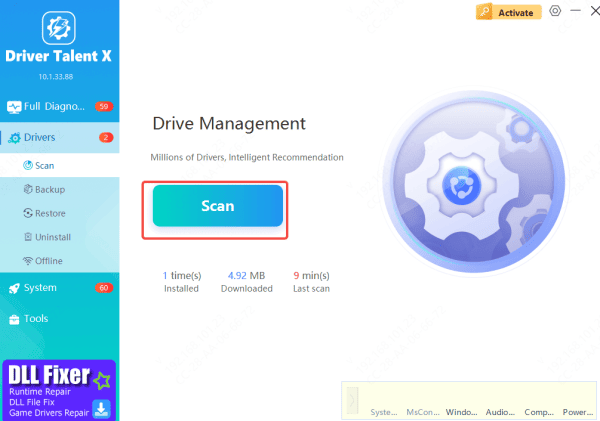
Open Driver Talent X and navigate to the Drivers section
Click Scan to let the software examine all components that influence dual monitor functionality, including GPU drivers, USB-C or Thunderbolt controllers, and chipset drivers
Apply Updates Drivers
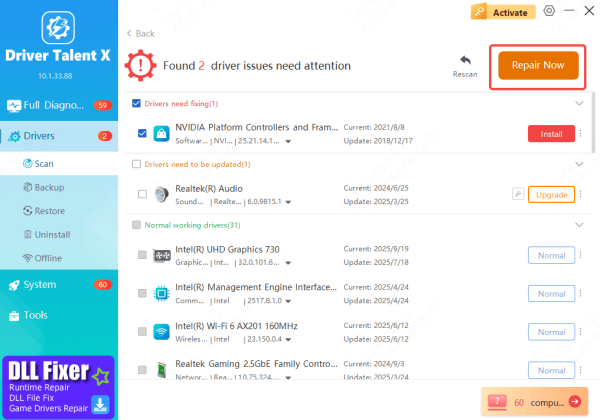
After the scan, Driver Talent X will show a list of drivers that need updates or repairs. Select all relevant drivers, then click Repair Now or Update
The software will automatically download and install the correct, Lenovo-optimized versions to ensure proper dual monitor support
Restart
Once updates are complete, restart your laptop
This ensures Windows loads all new drivers correctly, which typically restores full dual monitor functionality through the docking station
Troubleshooting Common Dual Monitor Problems
If one or both monitors are not displaying, check your cable connections and try another video port Ensure the cables support the required resolution, such as 4K
Restart your dock and laptop. Update your DisplayLink driver if you are using a hybrid USB-C dock
For laptops not charging, confirm that USB-C Power Delivery is supported and that you are using the original Lenovo power adapter
.png "usb-c-charging")
Tips for Better Dual-Monitor Performance
Use high-quality DisplayPort cables for the best image stability
Keep the dock in a ventilated area to prevent overheating
Avoid long USB-C cables that can cause signal loss. Restart your laptop after any major driver update Always keep Windows and Lenovo dock firmware up to date
Conclusion
Setting up dual monitors on a Lenovo ThinkPad docking station is straightforward when you follow the correct steps. By checking compatibility, connecting the displays properly, configuring Windows settings, and keeping drivers updated, you can enjoy a smooth and productive dual-screen experience. Whether for work, creative tasks, or multitasking, a dual-monitor setup can significantly enhance the efficiency of your Lenovo ThinkPad system.









