.jpg "set-up-g502-hero")
The Logitech G502 Hero is one of the most popular gaming mice on the market, known for its ergonomic design, precision tracking, and extensive customization options. Whether you're an avid gamer, a professional eSports player, or someone who simply enjoys high-quality peripherals, customizing your G502 Hero is key to getting the most out of your gaming experience. This guide will walk you through the process of setting up and customizing the Logitech G502 Hero for ultimate gaming performance.
Installing Logitech G Hub Software
Logitech G Hub is essential for fully customizing your G502 Hero. It allows you to tweak settings like DPI, RGB lighting, button mappings, and macros. Plus, you can create different profiles for various games and applications.
Download and Installation
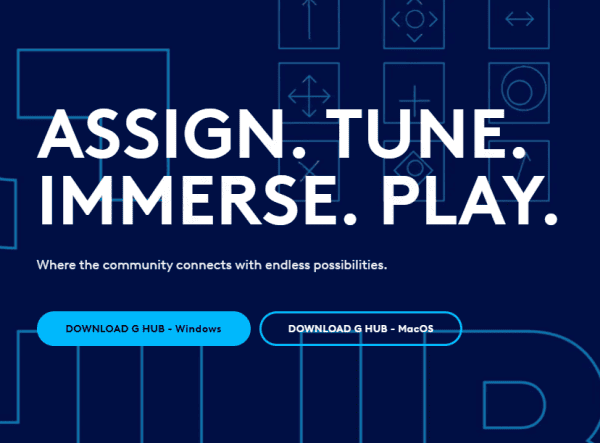
Go to the Logitech G Hub website
Download the G Hub software
Run the installer and follow the on-screen instructions to install the software
Initial G Hub Configuration
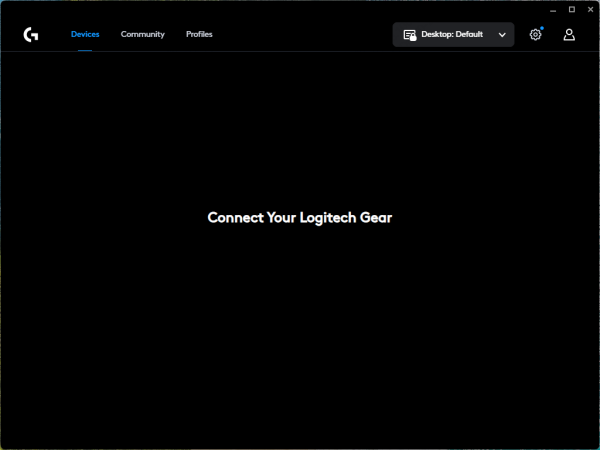
Once installed, open G Hub
The software should recognize your G502 Hero automatically. From here, you can begin customizing your mouse settings
Customizing DPI Settings for Gaming
DPI (dots per inch) measures the sensitivity of the mouse. A higher DPI results in faster cursor movement, while a lower DPI offers more precision. For gaming, DPI is crucial, as different games require different sensitivities.
DPI settings
Open Logitech G Hub and click on the G502 Hero mouse
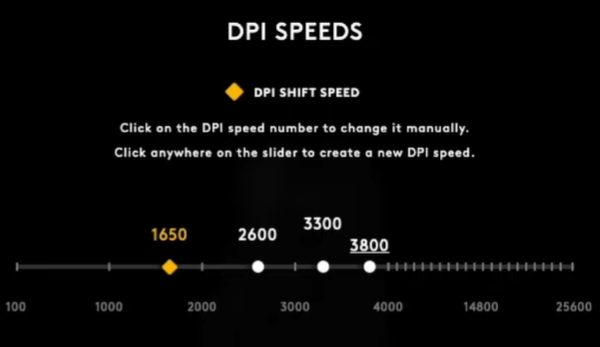
Navigate to DPI settings
You can adjust the DPI in increments, from 200 to 16,000 DPI. Create profiles for different gaming scenarios: Low DPI for sniping in FPS games. High DPI for fast movements in RTS or MOBA games
Use the color indicator to visually represent DPI levels. You can assign different colors to each level for easy identification
DPI Shift Button Configuration
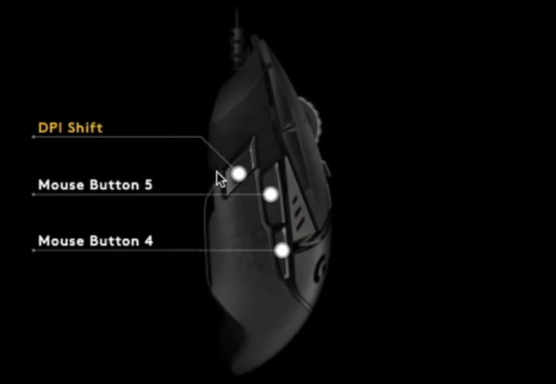
The G502 Hero has a dedicated DPI shift button
You can assign it to toggle between your custom DPI profiles, allowing you to switch between fast movements and precise aiming instantly
Customizing Button Functions
Remapping Buttons in G Hub
In Logitech G Hub, select the G502 Hero mouse
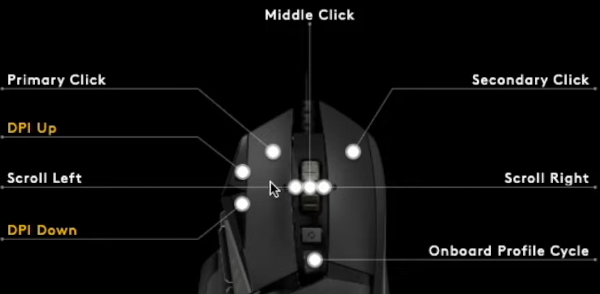
Click on the button you want to remap
Choose the function you want to assign, such as open browser, screenshot, or in-game commands like reload, switch weapons, or crouch
Creating Macros
Macros allow you to combine multiple actions into one button press. For example, you can create a macro to jump, crouch, and shoot in rapid succession for FPS games. To create macros:
Go to the Macros section in G Hub
Create a new macro by recording the sequence of actions
Assign the macro to one of the mouse buttons
Adjusting RGB Lighting
RGB lighting not only enhances the aesthetics of your gaming setup but can also be used to indicate DPI levels, game modes, or simply add a personalized touch.
In G Hub, select Lighting settings
Choose between breathing, color shift, or static lighting effects
Customize colors for each profile or DPI setting. For instance, you can set red for low DPI and green for high DPI
Sync the mouse's RGB lighting with other Logitech peripherals for a unified setup
.png "light-setting")
Driver Updates
Keeping your Logitech G502 Hero drivers up to date is essential for ensuring optimal performance. Driver updates can improve mouse responsiveness, fix bugs, and provide compatibility with the latest system updates and games. Using Driver Talent X makes this process quick and automated, saving you time and ensuring your drivers are always up to date.
Download and Install Driver Talent X
Visit the official Driver Talent X website and download the installer
Run the setup file and follow the on-screen instructions to install Driver Talent X on your computer
Scan for Outdated Drivers
Launch Driver Talent X
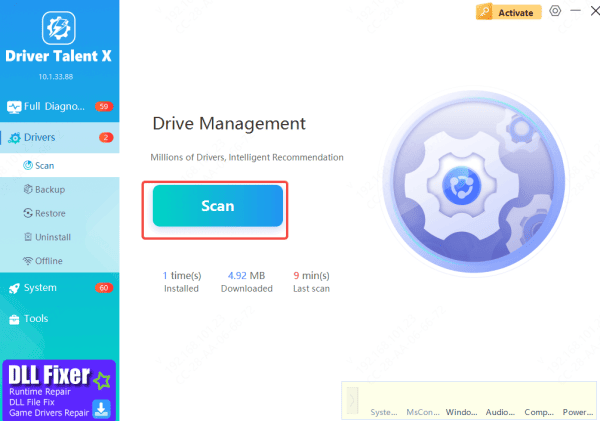
In the main interface, click on Drivers → Scan. The tool will check your system for outdated, missing, or corrupted drivers, including those for your Logitech G502 Hero mouse
Update the Drivers
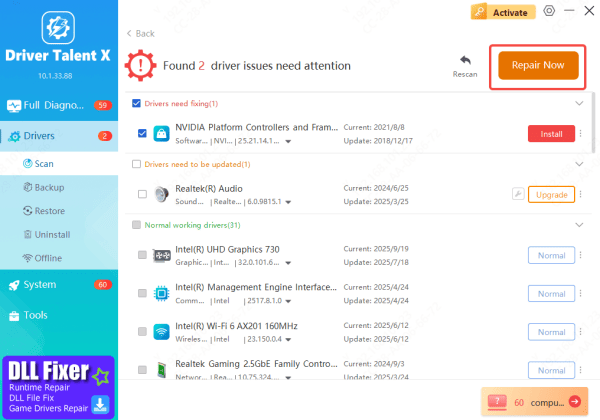
Once the scan is complete, Driver Talent X will display a list of drivers that need updating
Click Repair Now or Update next to the Logitech G502 Hero driver, and the software will automatically download and install the latest version
Restart Your Computer
After the update is finished, restart your computer to apply the new drivers effectively
Conclusion
By following this guide, you've set up and customized your Logitech G502 Hero for optimal gaming performance. From adjusting DPI settings to creating profiles and customizing buttons, you now have the tools to make this gaming mouse work exactly the way you want. Enjoy an enhanced gaming experience with the precision and comfort that the G502 Hero offers!









