
A Lenovo USB-C docking station is one of the easiest and most efficient ways to expand your laptop's connectivity. With just a single USB-C cable, you can connect external monitors, USB devices, wired internet, audio equipment, and even power your laptop. Whether you are using a ThinkPad USB-C Dock, ThinkPad Hybrid USB-C Dock, or Lenovo Universal USB-C Dock, this guide provides clear, beginner-friendly steps to help you set it up correctly and avoid common issues.
Step 1: Connect Power to the Dock
Plug the power adapter into an electrical outlet
Connect the power connector to your docking station
A power indicator light should turn on
A powered dock ensures stable video output, USB functionality, and laptop charging
.png "connect-power-to-dock")
Step 2: Connect the Dock to Your Laptop
Plug the USB-C cable from the dock into your laptop's USB-C port
If your laptop supports USB-C charging, it should start charging immediately
Windows should automatically install basic drivers for the dock
If nothing happens, try another USB-C port—some ports do not support video output
.png "connect-to-laptop")
Step 3: Connect External Monitors
Turn on your external monitors
Use HDMI or DisplayPort cables to connect them to the dock
Wait a few seconds for Windows to detect the displays
If Windows does not detect the screen
Press Win + P
Select Extend or Duplicate
DisplayPort → Best quality and highest refresh rates
HDMI → Ideal for secondary monitors
.png "connect-monitor")
Step 4: Connect USB Accessories
Now you can attach peripherals such as: Keyboard, Mouse, USB flash drives, External hard drives, Webcam, and Printer
Use: USB 3.0 ports for storage devices, and USB 2.0 ports for keyboard/mouse
Step 5: Connect Ethernet (Optional)
If the dock includes an Ethernet port
Plug in your LAN cable
Look for LED lights on the Ethernet port
Your laptop should switch to wired internet automatically
Wired internet is usually faster and more stable than Wi-Fi
.png "connect-ethernet")
Update Driver
To ensure your Lenovo USB-C docking station works smoothly, using an automated driver update tool is one of the fastest and most reliable solutions.
Download Driver Talent X
Click the Download button to obtain the installer
Run the setup file and follow the prompts to complete installation on your laptop
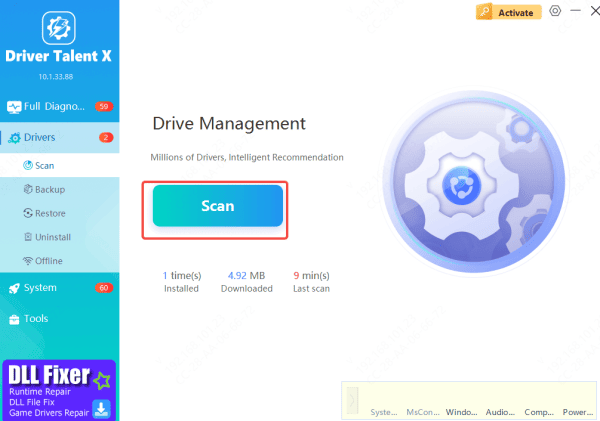
Run a System Scan
Open Driver Talent X, navigate to the Drivers section, and click Scan
The software will analyze your system and detect outdated, missing, or corrupted drivers that directly affect docking performance
Update Drivers
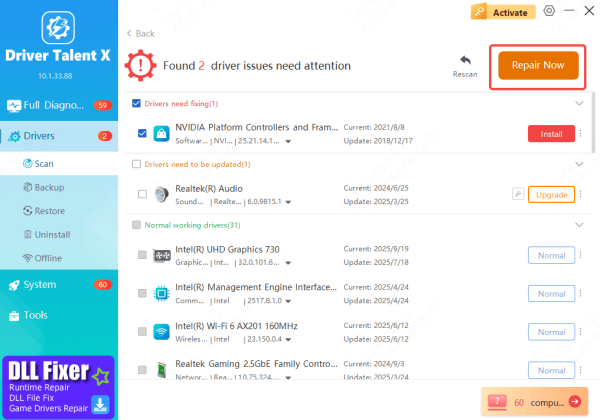
After the scan, click Upgrade or Repair
The software will download and install the correct driver versions for USB-C, chipset, DisplayLink, network, and graphics components
Restart Your PC
Once updates are installed, reboot your laptop
Restarting ensures all docking-related drivers load correctly, improving monitor detection, port stability, charging compatibility, and overall docking performance
Troubleshooting Common Dock Problems
Monitor Not Working: Check HDMI/DP cable connection. Try a different video port. Update DisplayLink and dock drivers. Restart your dock and laptop. Ensure the cable supports 4K if needed
Laptop Not Charging Through Dock: Use the original Lenovo power adapter. Confirm the laptop supports USB-C Power Delivery. Try another USB-C port
USB Ports Not Responding: Restart the dock. Update USB drivers. Try a different USB port
Ethernet Not Connecting: Reconnect LAN cable. Update network drivers. Disable/enable Ethernet adapter in Windows
Tips to Maximize Docking Station Performance
Always use Lenovo's official power adapter
Use high-quality DisplayPort cables for fewer screen issues
Keep Windows and dock drivers updated
Avoid extremely long USB-C cables
Restart your laptop after driver updates
Place the dock in a well-ventilated area
.png "place-dock-in-ventilated-area")
Conclusion
Setting up a Lenovo USB-C docking station is simple, and with the right steps, you can instantly transform your laptop into a full desktop workstation. By properly connecting power, linking your USB-C cable, attaching monitors, and plugging in peripherals, you'll enjoy a smoother and more efficient workflow. With regular maintenance, quality cables, and up-to-date drivers, your Lenovo USB-C docking station will deliver reliable performance, stable connectivity, and an optimized workspace for everyday productivity.









