
The error message "Steam Not Enough Disk Space" is a frustrating roadblock for PC gamers. This issue typically pops up when trying to download or update large games, even if you believe you have sufficient free space on your drive. Steam often requires significantly more temporary space than the final installed size of the game for unpacking and patching files.
The problem can be caused by fragmented game files, corrupted download cache, or, less obviously, outdated system drivers interfering with disk access. This comprehensive guide provides systematic, step-by-step methods to fix this error and free up the space Steam needs.
1. The First Step: Ensure System Stability and Optimize Disk Access
While this error appears to be a space issue, it can sometimes be triggered by underlying system problems, such as unstable Storage Controller Drivers (AHCI/RAID) that slow down disk access, or corrupted Chipset Drivers that interfere with the Steam download process.
Ensuring all core drivers are up-to-date is the fastest way to rule out system conflicts. Driver Talent X is an efficient tool that automates the driver update process, making it the quickest and safest way to ensure your entire system is stable, particularly focusing on components that interact with your storage devices.
Download and Install:
Click the "Download" button to download the software package.
Install it on your Windows PC.
Scan Your System:
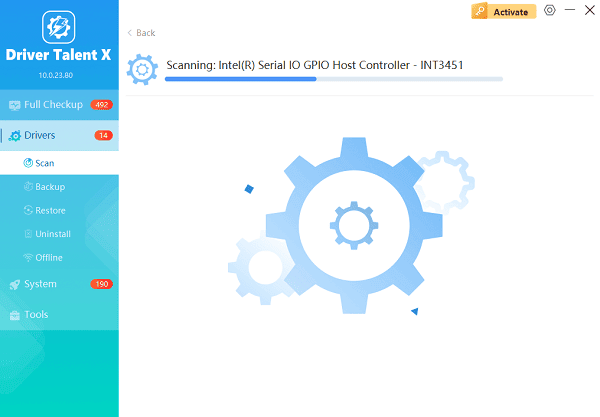
Launch the application. Go to "Drivers" > "Scan", click "Scan".
Driver Talent X will automatically perform a comprehensive scan, identifying all outdated, missing, or corrupted drivers, focusing specifically on your Storage Controller Drivers and Chipset Drivers.
One-Click Update:
The results will show you a list of all drivers that need attention. Click the "Repair Now" button.
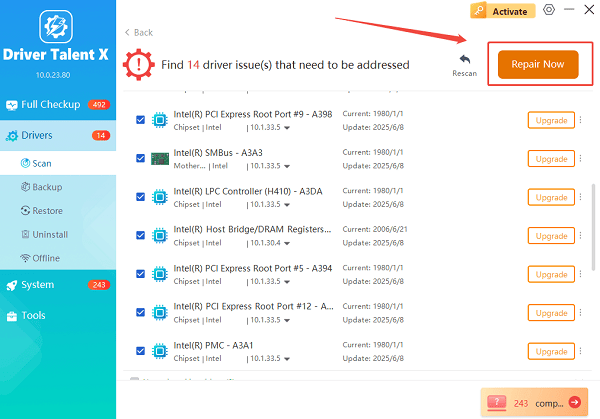
The tool will automatically download and install the latest, verified versions, optimizing your system for fast and stable disk operations.
Restart Your PC:
Once the installation is finished, it is absolutely crucial to restart your computer to integrate the new drivers fully.
2. Steam-Specific and Cache Fixes
The issue often resides within Steam's own temporary files and settings. These fixes directly target Steam's download process.
Clear the Steam Download Cache:
The download cache stores temporary files from previous downloads and can become corrupted, leading to false disk space readings.
Open Steam Settings: Open the Steam client and click "Steam" in the upper left corner, then select "Settings".
Navigate to Downloads: In the Settings window, click on the "Downloads" tab.
Clear Cache: Click the "Clear Download Cache" button.

Confirm and Restart: Steam will require you to log back in. After logging back in, try downloading or updating the game again.
Repair Steam Library Folders:
Steam's library folders can sometimes lose write permissions or become corrupted, which prevents Steam from allocating space properly.
Open Steam Settings: Open the Steam client and click "Steam" in the upper left corner, then select "Settings".
Navigate to Storage: Click on the "Storage" tab.
Repair Folder: Select the drive where the game is being installed. Click the three dots (…) next to the drive name and select "Repair Folder". Steam will re-verify permissions and integrity for that entire library.

3. Windows and Disk Management Solutions
If Steam is functioning correctly, you must maximize your actual free space or address drive errors.
Use Windows Disk Cleanup:
Windows often accumulates gigabytes of unnecessary temporary files, cached data, and old update files that can be safely deleted.
Open Disk Cleanup: Click the Start button, type "Disk Cleanup", and open the application.
Clean System Files: Click the "Clean up system files" button. This is essential as it reveals large files from previous Windows updates.
Select Files: Check the boxes for categories like "Windows Update Cleanup", "Temporary Windows installation files" and "Recycle Bin". This step often frees up several gigabytes.
Confirm Deletion: Click "OK" and confirm the file deletion.
Move Game to Another Drive:
If you have a secondary drive (D:, E:, etc.) with sufficient space, you can easily move the game without re-downloading.
Create New Drive: In Steam Settings (Storage tab), click "Add Drive" to add a new Steam drive.

Move the Game: On the same Storage tab, select the game you want to move. Click "Move" and select your newly created library folder on the secondary drive.
Conclusion
The "Steam Not Enough Disk Space" error is a common but fixable issue that can block game downloads. By starting with the foundational stability step of updating core drivers with Driver Talent X.
Then eliminating potential corruption by clearing the Steam download cache, and finally utilizing Windows Disk Cleanup to maximize physical space, you can quickly resolve the conflict and get back to gaming.
See also:
Solutions to Fix Monster Hunter Wilds Crashes
How to Fix Split Fiction Not Launching on Windows









