
The Microsoft Surface Pro 9 is designed for seamless productivity, and nothing disrupts that more than an unresponsive Type Cover or Signature Keyboard. Before concluding you need a costly replacement, there are several proven troubleshooting steps you can take to restore functionality.
Common Causes of Surface Pro 9 Keyboard Failure
The keyboard failure on a Surface Pro 9 is typically not a random hardware breakdown but rather a communication issue, which falls into three categories:
Physical Connection Issues (Most Common): The Surface Pro keyboard relies on a magnetic connector. Dust, dirt, or lint on the metallic pins, or a simple loose attachment, can completely block the connection.
Driver and Firmware Conflict: Major Windows updates, particularly on Surface devices, can sometimes install a corrupted or incompatible keyboard filter driver. This prevents the operating system from recognizing the attached keyboard.
Power and Cache Glitches: The Surface Pro's internal hardware components can sometimes hold residual power or cache data that causes the system to misidentify or ignore the keyboard upon wake-up or startup.
Method 1: Software & Driver Solutions
If the keyboard does not work after a hard reset, the issue is software-related. Using a driver update tool is the quickest way to resolve this.
Solution 1: Automatic Driver Update with Driver Talent X
Outdated or corrupted drivers prevent Windows from properly loading the keyboard. This tool automates the usually tricky process of finding the specific Type Cover driver.
Download and Install:
Click the "Download" button to download the software package.
Install it on your computer.
Start Scan:
Open the program and go to "Drivers" > "Scan", click "Scan".
The software will perform a comprehensive analysis of all drivers on your laptop.

Complete Update:
After the scan is complete, the software will display a list of all drivers that need attention. Click the "Repair Now" button.
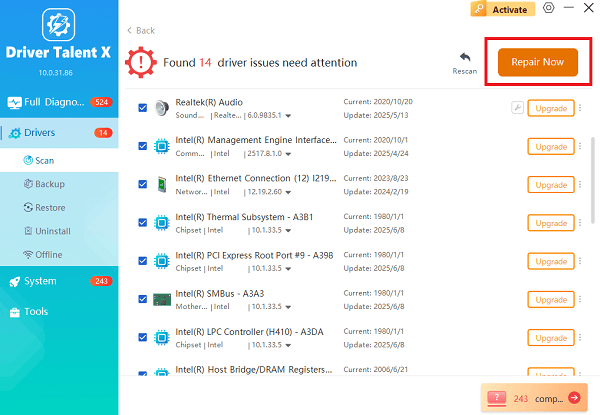
Driver Talent X will automatically download the correct, certified drivers and perform a clean installation.
Final Restart:
Restart your Surface Pro 9 to complete the driver installation and test your keyboard.
Solution 2: Manually Uninstall and Reinstall the Driver
This is the standard manual method to force Windows to reload the correct driver.
Open Device Manager: Right-click the Start button and select "Device Manager".
Locate Keyboards: Use the mouse/touchpad to expand the "Keyboards" section.
Uninstall Driver: Right-click on the keyboard entries (often listed as "HID Keyboard Device" or "Surface Type Cover Filter Device") and select "Uninstall device". Check the box that says "Attempt to remove the driver for this device" if the option appears.
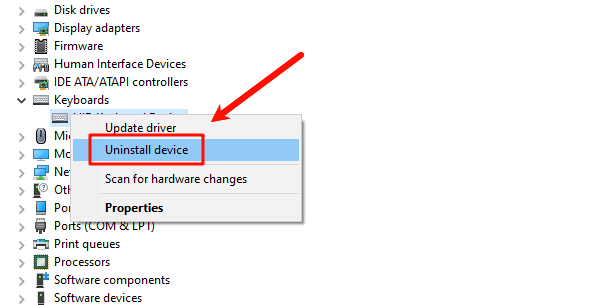
Reboot: Restart your Surface Pro 9. Windows will automatically detect the keyboard upon reboot and reinstall the necessary drivers from its internal repository.
Method 2: The Fast Fixes - Physical and Power Resets
These solutions address the most frequent and easily corrected causes of the problem.
Solution 1: Clean and Reattach the Keyboard
Detach and Inspect: Gently detach the keyboard from the bottom edge of your Surface Pro 9.
Clean the Connectors: Examine the row of metallic contacts on both the keyboard and the Surface device. Use a soft, lint-free cloth or a cotton swab dampened with a small amount of isopropyl alcohol (90% or higher is best) to gently wipe down all the gold/copper-colored pins. Ensure no moisture remains.
Reattach: Reconnect the keyboard firmly, making sure the magnetic strip locks securely into place.
Confirm Connection: Press the "Caps" or "Fn" keys a few times. If the LED light turns on and off, the physical connection is working, and you should proceed to the next step.
Solution 2: Perform a Force Shutdown and Restart
This is a mandatory step that clears the system cache without affecting your files.
Shut Down: Click "Start" > "Power" > "Shut down" and wait for the device to power off completely.
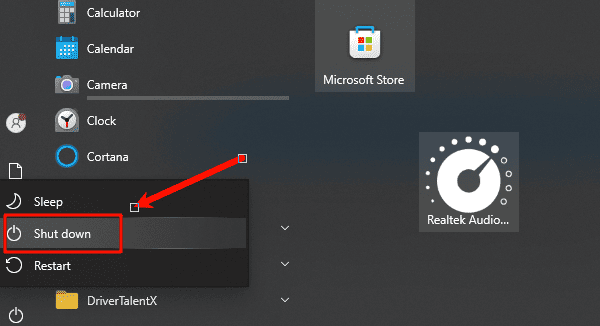
Force Restart: Press and hold the Power Button for a full 20 seconds. If the Surface logo appears, continue holding for the entire 20 seconds until the screen turns off and the logo reappears.
Test: Release the Power button and allow the Surface Pro 9 to restart normally. Test the keyboard functionality once Windows loads.
Method 3: UEFI Test (Hardware vs. Software Check)
The Unified Extensible Firmware Interface (UEFI) is the modern equivalent of the BIOS. Testing the keyboard here eliminates any doubt about whether the problem is hardware or software.
1). Enter UEFI: Shut down your Surface Pro 9 completely. Press and hold the "Volume Up" button, and while holding it, press and release the Power button. Continue holding Volume Up until the UEFI screen appears.
2). Test the Keys: In the UEFI menu, try using the arrow keys and the touchpad to navigate the menu options.
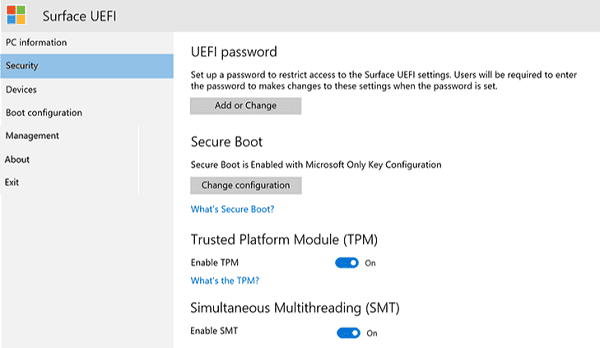
3). Analyze Results:
If the keys and touchpad work in UEFI: The hardware is fine. The problem is definitively a driver or Windows software issue (return to Method 1).
If the keys and touchpad DO NOT work in UEFI: This is a physical failure of the keyboard unit or the connector on the Surface. Your next step should be to contact Microsoft Support for a hardware replacement.
Conclusion
A Surface Pro 9 keyboard failure is a common annoyance that rarely requires a new Type Cover immediately. By starting with simple physical checks and a forced restart, you can fix the majority of connection issues.
For software and driver problems, using Driver Talent X offers the most efficient way to ensure your proprietary Surface drivers are correctly installed, bringing your Surface Pro 9 back to full productivity.
See also:
Mandragora: Whispers of the Witch Tree Overview
Overview of Tempest Rising on Steam
[Fixed] Red Dead Redemption 2 ERR_GFX_STATE Graphics Error
Ways to Fix The Elder Scrolls IV: Oblivion Remastered Startup Crash









