
Keeping your Lenovo ThinkPad drivers up to date is essential for system stability, security, and performance. Drivers control how your hardware communicates with Windows, and outdated or corrupted drivers can cause issues such as slow performance, hardware not working, random crashes, Wi-Fi problems, audio failures, or display glitches. This step-by-step guide explains all reliable ways to update ThinkPad drivers.
Method 1: Automated Driver Update with Driver Talent X
If you want a fast and simple solution, an automated driver updater can help.
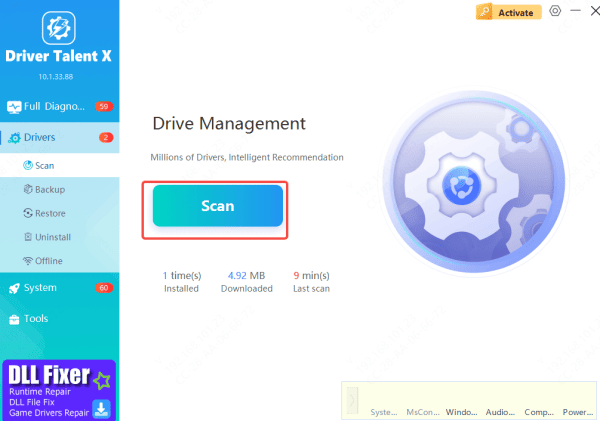
Download and install Driver Talent X
Open the program and click Scan
Review detected driver issues
Click Repair Now or Update
Restart your ThinkPad
This method is especially useful when multiple drivers are malfunctioning after a Windows update.
Method 2: Update Drivers via Lenovo Support Website
This method gives you full manual control over driver selection.
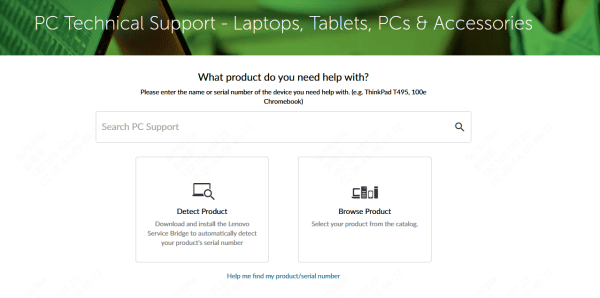
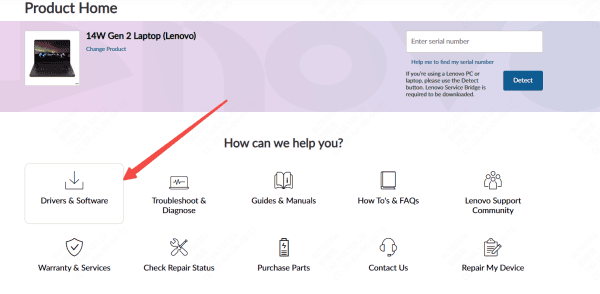
Go to Lenovo Support
Enter your ThinkPad model or serial number
Select Drivers & Software
Choose your Windows version
Download drivers by category: Chipset & Power Management, Graphics (Intel / NVIDIA / AMD), Audio, Network (Wi-Fi, Ethernet, Bluetooth), Touchpad & Input Devices
Install drivers one by one
Restart after installation
Method 3: Update Drivers Using Device Manager
Device Manager is useful for quick fixes or reinstalling problematic drivers.
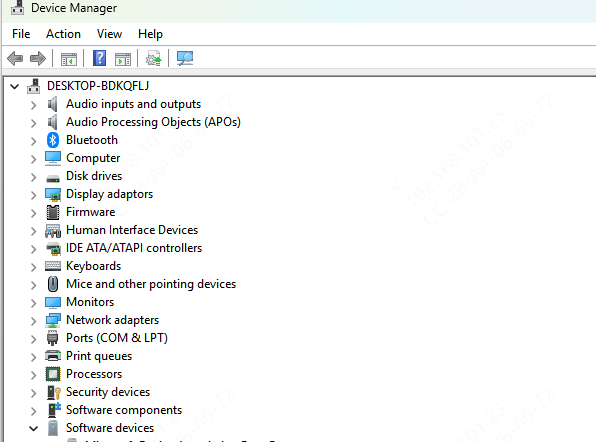
Press Windows + X → Device Manager
Expand the relevant category (Display adapters, Network adapters, etc.)
Right-click the device → Update driver
Select Search automatically for drivers
May not always find the latest Lenovo-specific driver
Best for minor driver issues, not full system updates
Method 4: Update Drivers Using Lenovo Vantage
Lenovo Vantage is the official way to update ThinkPad drivers.
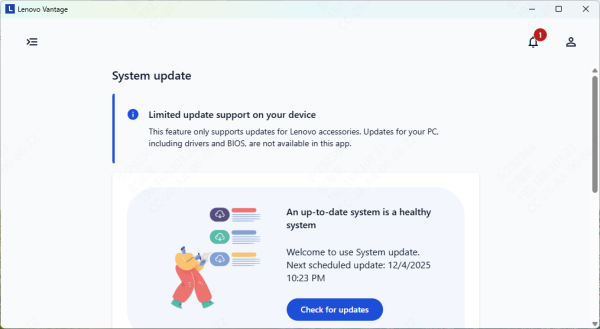
Open Lenovo Vantage
Press Windows + S, type Lenovo Vantage, and open it
If not installed, download it from the Microsoft Store
Go to System Update
Click Check for Updates
Review Available Updates
Drivers may include BIOS, chipset, graphics, audio, Wi-Fi, Bluetooth, and firmware
Click Install
Follow on-screen instructions
Restart your ThinkPad if prompted
Method 5: Update ThinkPad Drivers via Windows Update
Windows Update sometimes includes certified drivers.
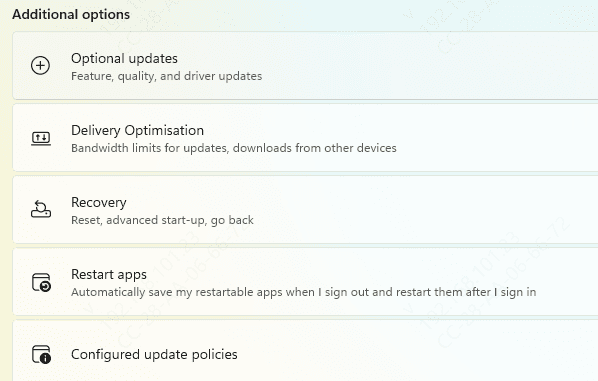
Open Settings → Windows Update
Click Check for updates
Go to Advanced options → Optional updates
Install available driver updates
Windows Update drivers may not be as optimized as Lenovo's official versions.
What to Do If Driver Updates Cause Problems
If a new driver causes issues:
Roll Back a Driver:
Open Device Manager
Right-click the device → Properties
Go to Driver tab
Click Roll Back Driver
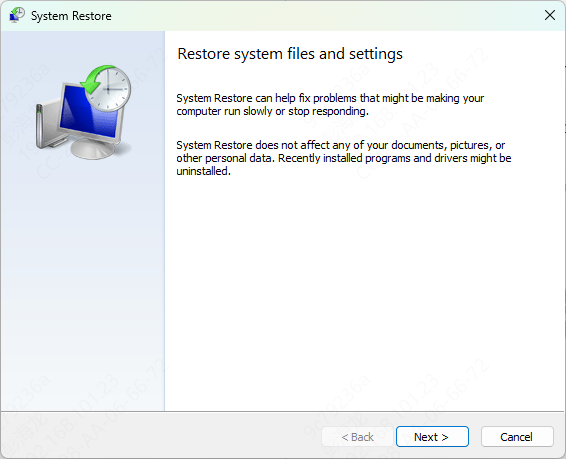
Restore System:
Use System Restore to revert your system to a previous working state
Best Practices for ThinkPad Driver Updates
Always back up important data before major updates
Keep your BIOS updated, but update it carefully
Avoid installing drivers from unofficial sources
Restart after driver installations
Update drivers regularly, especially after Windows updates
Why Updating ThinkPad Drivers Is Important
Fix hardware bugs and compatibility issues
Improve system performance and stability
Ensure compatibility with Windows updates
Enhance battery life and power management
Prevent security vulnerabilities
Enable new features for devices like Wi-Fi, Bluetooth, graphics, and touchpads
Regular driver maintenance keeps your ThinkPad running smoothly and reliably
Conclusion
Updating drivers on a Lenovo ThinkPad is one of the most effective ways to maintain performance, stability, and hardware compatibility. Whether you use Lenovo Vantage, the Lenovo Support website, Device Manager, or an automated tool, following a structured update process ensures your ThinkPad runs smoothly. By keeping your drivers current, you reduce errors, improve reliability, and extend the lifespan of your Lenovo ThinkPad—making regular driver updates a smart and essential maintenance habit.









