
A non-responsive touchpad on a Dell laptop can make basic navigation difficult, especially when no external mouse is available. This issue is commonly caused by outdated or corrupted drivers, disabled touchpad settings, Windows update conflicts, or hardware-related problems.
This guide starts with detailed steps to update drivers using Driver Talent X, followed by multiple proven methods to fix a Dell laptop touchpad that is not working.
Update System Drivers with Driver Talent X
Keeping drivers up to date ensures that the Dell touchpad, chipset, and input devices function correctly with Windows.
Download and Install:
Use an external working mouse or the keyboard (use the Tab key and arrow keys for navigation) to download the installer.
Run the installer file and follow the on-screen instructions to complete the installation.
Run a Full Driver Scan:
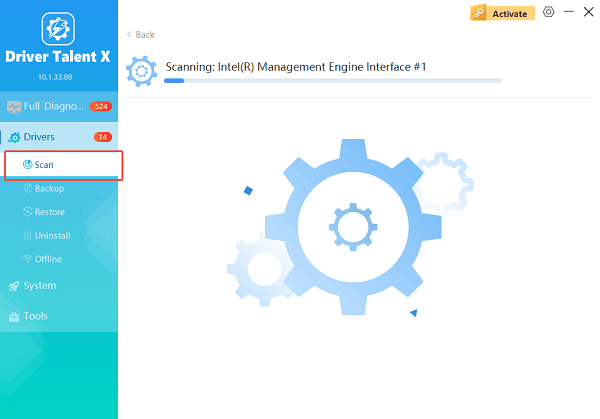
Launch the application and go to "Drivers" > "Scan", click "Scan".
Driver Talent X will detect outdated, missing, or corrupted drivers, including touchpad, chipset, and HID drivers.
Update All Drivers:
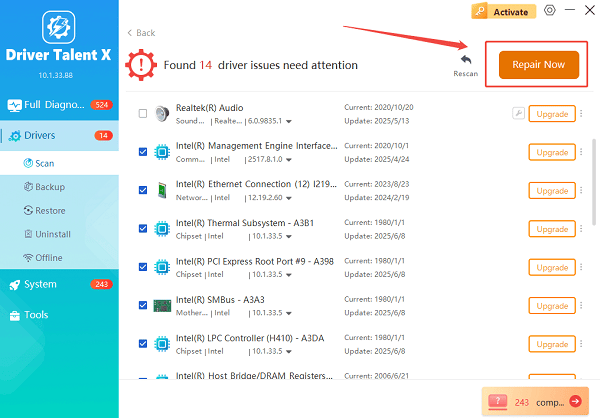
After the scan is complete, the software will display a list of all drivers that need attention.
Select the necessary drivers and click the "Repair Now" button. Driver Talent X will download the latest, certified versions specific to your Dell model.
Restart Your Laptop:
Reboot the system to ensure all driver updates are fully applied.
After updating drivers, check whether the touchpad works. If the issue persists, proceed with the fixes below.
Common Causes of Dell Touchpad Not Working
Touchpad driver is outdated or corrupted
Touchpad is disabled using keyboard shortcuts
Touchpad disabled in BIOS or Windows settings
Windows update conflicts
Hardware or firmware issues
How to Fix Touchpad Not Working on a Dell Laptop
Method 1: Enable Touchpad Using Keyboard Shortcut
Locate the Fn key on your Dell keyboard.
Press Fn + F5, Fn + F7, or the key with a touchpad icon.
Test the touchpad to see if it responds.
Method 2: Enable Touchpad in Windows Settings
Press Windows + I to open Settings.
Go to "Devices" > "Touchpad".
Make sure the touchpad toggle is turned on.
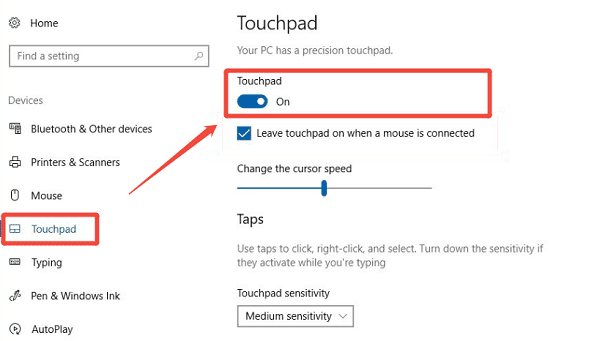
Adjust sensitivity settings if needed.
Method 3: Enable Touchpad in Device Manager
Press Windows + X and select Device Manager.
Expand "Mice and other pointing devices" or "Human Interface Devices".
Right-click the touchpad device and choose "Enable device", if unavailable, select "Update device".
Method 4: Check Dell Touchpad Settings
Open Control Panel.
Go to Mouse > Dell Touchpad or Touchpad Settings.
Ensure the touchpad is enabled and gestures are configured correctly.
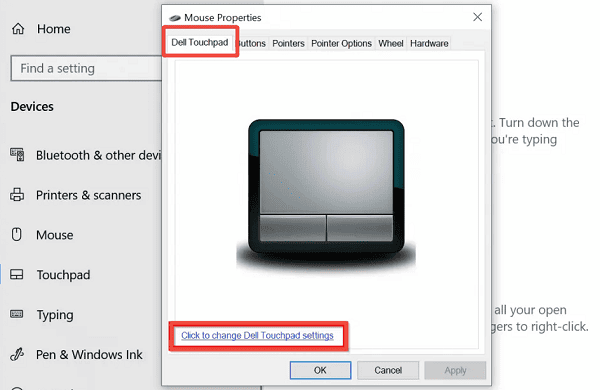
Apply changes and restart your laptop.
Method 5: Check BIOS Touchpad Settings
Restart your Dell laptop.
Press F2 during startup to enter BIOS.
Navigate to "System Configuration" > "Touchpad/Internal Pointing Device".
Ensure the touchpad/Internal Pointing Device is set to "Enabled" or "Advanced".
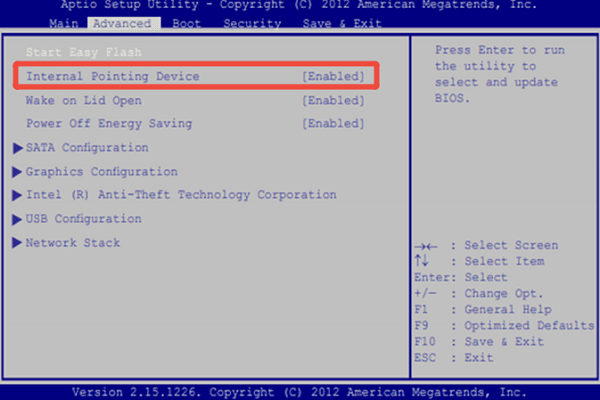
Save changes and exit BIOS.
Method 6: Disable Tablet Mode (If Applicable)
Press Windows + A to open Action Center.
Make sure Tablet Mode is turned off.
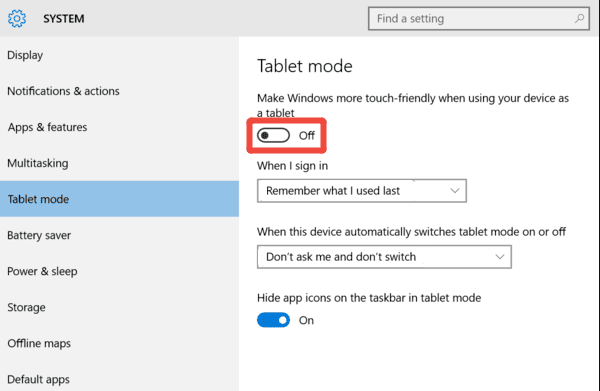
Test the touchpad again.
Additional Troubleshooting Tips
Disconnect external mouse to rule out conflicts.
Ensure Windows is fully updated via Windows Update.
Run Dell SupportAssist to check for firmware issues.
Use Driver Talent X regularly to maintain updated drivers.
Conclusion
A Dell laptop touchpad not working is usually caused by driver problems or disabled settings rather than hardware failure. By updating all drivers first using Driver Talent X and applying the troubleshooting methods outlined above, you can restore touchpad functionality quickly and effectively. Regular driver maintenance helps prevent future input issues and ensures smooth system performance.
See also:
Solutions to Fix Monster Hunter Wilds Crashes
How to Fix Split Fiction Not Launching on Windows
[Fixed] Whoa! Cyberpunk 2077 Flatlined Error
Solutions for 'DirectX 12 Not Supported' Error on Windows 10









