
A malfunctioning microphone can disrupt video calls, online meetings, gaming, streaming, and voice recordings. If your microphone isn't working properly, driver-related problems are often the cause. This comprehensive guide walks you through step-by-step solutions to diagnose and fix microphone driver issues on Windows 11, with special considerations for Lenovo laptops.
Verify Hardware Connections
Before troubleshooting software or drivers, make sure the microphone hardware is functioning:
External Microphones: Ensure USB or 3.5mm connections are secure. Try different ports or cables if available
Internal Microphones: Make sure nothing is obstructing the microphone. Some Lenovo laptops have a small pinhole; avoid blocking it with stickers or cases
Test on Another Device: If possible, plug the microphone into another computer to confirm that the hardware works
For USB microphones, try connecting to a port directly on the laptop instead of a hub, as hubs can sometimes cause detection issues
Adjust Windows 11 Microphone Settings
Incorrect system settings can prevent your microphone from functioning:
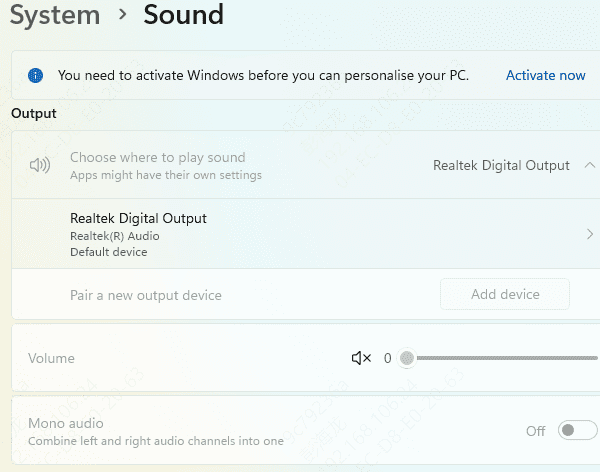
Press Win + I → System → Sound → Input
Make sure the correct microphone is selected. Lenovo laptops may have multiple devices listed, including "Internal Microphone Array"
Adjust Input Volume and check the input meter while speaking
Click Test your microphone to verify proper operation
Check App Permissions: Go to Settings → Privacy & Security → Microphone, and ensure apps like Teams, Zoom, and Voice Recorder have access
Disable Exclusive Mode: Go to Sound Control Panel → Recording → Properties → Advanced, and uncheck "Allow applications to take exclusive control of this device"
Run the Windows Troubleshooter
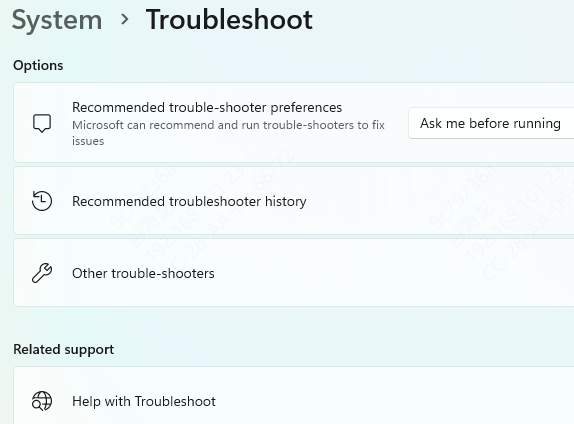
Windows 11 includes a built-in troubleshooter that can automatically detect and fix microphone
Settings → System → Troubleshoot → Other troubleshooters
Locate Recording Audio and click Run
Follow the on-screen prompts to resolve common driver or configuration issues
Run the troubleshooter multiple times if you notice intermittent issues
Update Microphone Drivers
Outdated or corrupted drivers are the most frequent cause of microphone malfunctions:
Manual Update via Device Manager
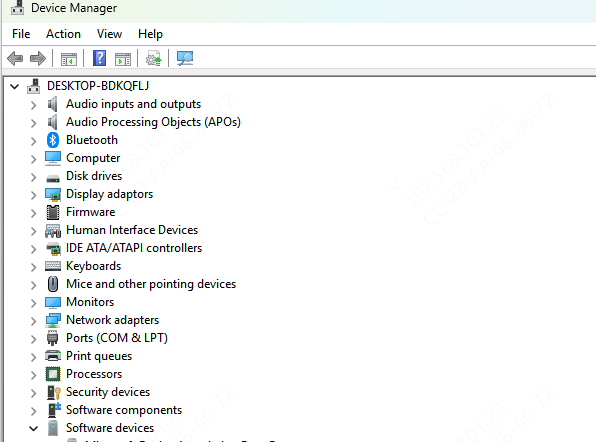
Press Win + X → Device Manager
Expand Audio inputs and outputs
Right-click your microphone → Update driver → Search automatically for drivers
Automated Update Using Driver Talent X
Download and install Driver Talent X
Launch the program → Drivers → Scan. The software will detect missing, corrupted, or outdated microphone drivers
Click Repair Now or Update to automatically install the correct driver compatible with Windows 11 and your Lenovo model
This avoids compatibility issues and saves time compared to manual updates

Reinstall Microphone Drivers
If updating doesn't work, reinstalling maybe resolve driver corruption:
Open Device Manager → Audio inputs and outputs
Right-click the microphone → Uninstall device
Restart your computer. Windows 11 will automatically reinstall the default driver

Check Windows Updates
Sometimes, microphone problems arise from outdated system components:
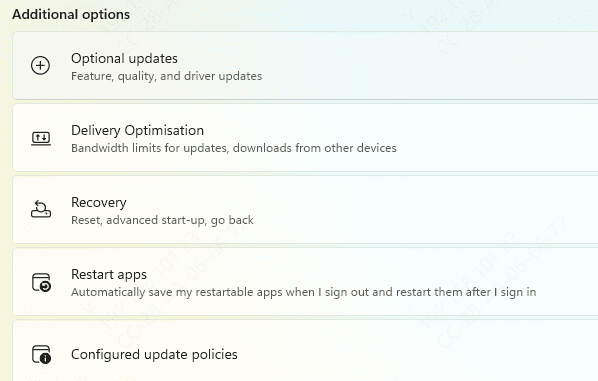
Go to Settings → Windows Update → Check for updates
Install all pending updates and restart your PC
Windows updates often include patches that improve audio device compatibility and driver stability
Disable Conflicting Applications
Third-party applications may block or interfere with microphone usage:
Temporarily close applications that use audio, such as DAWs, voice changers, or gaming overlays
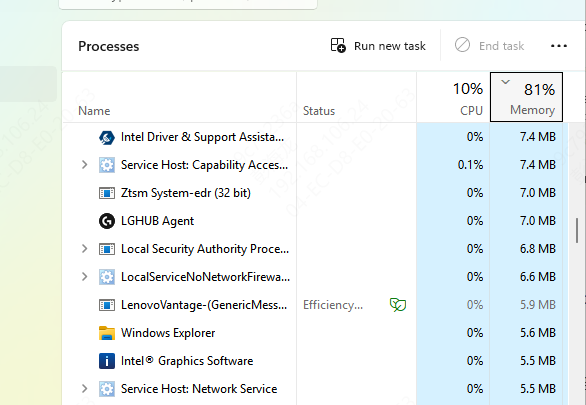
Check Task Manager for any background audio utilities that may have exclusive control of your microphone
Advanced Solutions
If standard methods fail, consider advanced troubleshooting:
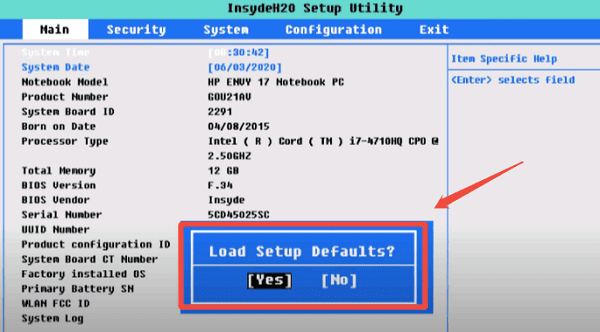
Reset BIOS/UEFI Settings: If the internal microphone is not detected, restore BIOS defaults to re-enable built-in audio devices
Check for Hardware Damage: On rare occasions, internal microphones may fail due to physical damage. Professional repair may be necessary
Tips to Prevent Future Microphone Issues
Regularly update drivers using Driver Talent X
Avoid installing multiple audio management programs that conflict
Check microphone permissions after Windows updates
Periodically test your microphone to catch issues early
Conclusion
Microphone driver issues are common on Windows 11, especially after updates, system changes, or driver corruption. By following this guide, you can: Verify hardware and settings, Run troubleshooting tools, Update, reinstall, or repair drivers,or Perform advanced fixes if necessary. For Lenovo users, leveraging Lenovo Vantage or automated driver utilities like Driver Talent X simplifies maintenance, ensures compatibility, and prevents future problems.









