
Properly uninstalling your AMD Radeon graphics drivers is a crucial step for maintaining system health, especially before performing an upgrade or resolving persistent graphics issues.
Simply deleting the files can leave behind conflicting remnants in the system registry, leading to installation failures, blue screens (BSODs), or performance problems.
This comprehensive guide walks you through the best methods for completely and cleanly uninstalling AMD drivers, starting with the most efficient automated process.
Part I: Automated Clean Uninstall
The safest way to remove all traces of an old AMD driver—including registry entries and support files—is by using a specialized utility that automates the complex cleanup process.
Driver Uninstallation and Reinstallation with Driver Talent X
Driver Talent X can identify the precise AMD driver files and perform a deep-level uninstall, ensuring a clean slate before installing a new driver or simply repairing a corrupted one.
Download and Install:
Click the "Download" button to download the software package.
Install it on your Windows PC.
Execute Clean Uninstall:
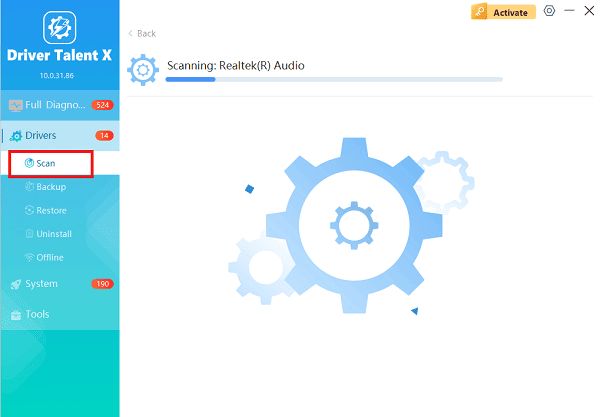
Open the application, navigate to "Drivers" > "Uninstall", run a scan, locate the AMD driver, and click "Uninstall".
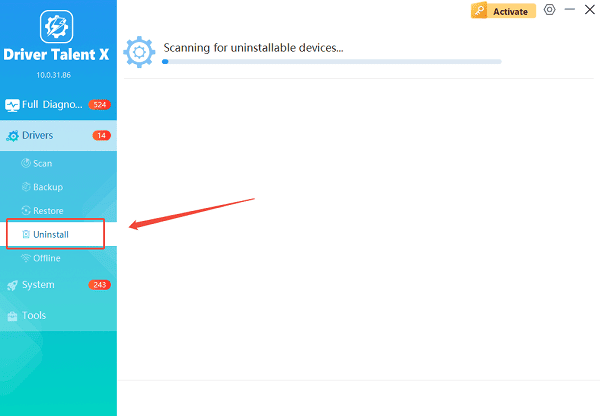
Driver Talent X can often perform a more thorough, automated cleanup than manual methods, preparing your system for a fresh installation.
Restart Your PC:
Allow the software to complete the process. The system will typically prompt you to restart your PC into a generic low-resolution display mode.
Install New Driver:
After the reboot, you can either use Driver Talent X to install the latest recommended AMD driver, or proceed to install a driver for a new GPU brand.
Part II: Official AMD and Windows Manual Methods
These methods rely on tools provided by the manufacturer or built into the Windows operating system.
Method 1: Using the Official AMD Cleanup Utility
AMD provides its own tool specifically designed to thoroughly remove AMD driver components.
Download Cleanup Utility: Go to the official AMD Drivers and Support website and download the AMD Cleanup Utility tool.
Run in Safe Mode (Recommended): To prevent Windows from loading essential files during the uninstall, reboot your computer into Safe Mode.
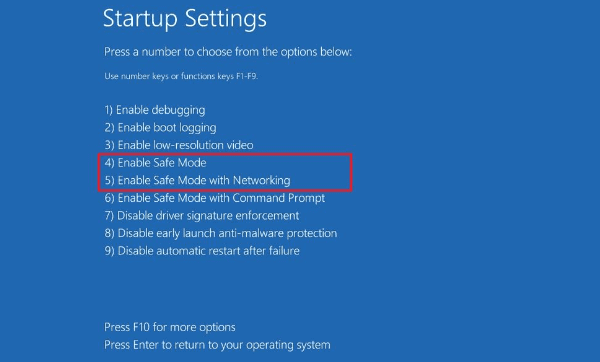
Execute Utility: Run the downloaded AMD Cleanup Utility file.
Confirm Removal: Click "Yes" to confirm that you want to remove all AMD driver and application components. The process may take several minutes.
Final Reboot: Click "Finish" and restart your PC to complete the driver removal. Your screen resolution will be very low after this restart.
Method 2: Uninstall via Windows Control Panel
This method removes the main AMD software application but may leave minor registry entries behind.
Press Windows Key + R, type "appwiz.cpl", and press Enter to open Programs and Features.
Find the entry named "AMD Software", "AMD Display Driver" or "AMD Catalyst Install Manager".
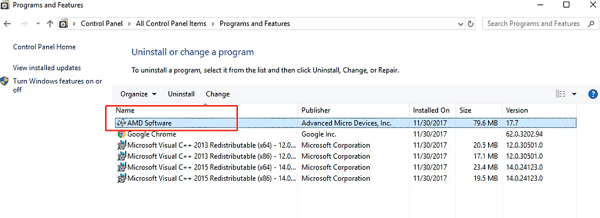
Right-click the entry and select "Uninstall".
Follow the prompts in the AMD Uninstall Manager, choosing to remove all AMD components.
Restart your PC when prompted.
Part III: Advanced Troubleshooting Cleanup
For extremely stubborn driver files, a third-party tool is necessary to ensure every trace is gone.
Deep Cleanup with Display Driver Uninstaller (DDU)
DDU is a popular, powerful third-party utility widely used to perform an absolutely thorough, low-level removal of graphics drivers (AMD, NVIDIA, and Intel).
Download DDU: Download the Display Driver Uninstaller (DDU) utility.
Boot into Safe Mode: It is MANDATORY to run DDU from Safe Mode. Search your Windows version for instructions on how to access Safe Mode.
Execute DDU: Run the DDU program.
Select Device: Select "GPU" as the device type and "AMD" as the manufacturer.
Choose Action: Click "Clean and restart". DDU will perform a complete sweep of all AMD files and registry entries.
Finalize: The PC will reboot into normal mode with only the basic Windows display driver loaded.
Conclusion
Successfully uninstalling AMD drivers is a critical maintenance task. By using Driver Talent X or the official AMD Cleanup Utility, you ensure that corrupted or conflicting files are completely removed.
For the most thorough cleanup, running DDU in Safe Mode guarantees a clean slate, paving the way for a stable new driver installation or a seamless switch to a new graphics card.
See also:
Qualcomm Atheros QCA61x4A Driver Download and Installation Guide
Network Adapter Not Working on Windows? Try These Fixes









