
Updating the BIOS on your Lenovo ThinkPad can improve system stability, enhance hardware compatibility, fix bugs, and sometimes boost performance. However, because BIOS updates directly affect your system firmware, they must be done carefully. This guide explains when you should update your BIOS, how to do it safely, and the different methods Lenovo provides.
Method 1: Download BIOS from Lenovo Suopport
Updating the BIOS through Windows using Lenovo's official executable file is one of the most common and convenient methods, especially if your system is still able to boot normally.
Open your web browser and go to Lenovo Support
Enter your ThinkPad model name, serial number, or machine type in the search box and select the correct device
Navigate to Drivers & Software
Choose your operating system from the drop-down menu
Set the Component filter to BIOS / UEFI
Download the latest BIOS update available for your model
Connect your ThinkPad to a stable power source
Interruptions during a BIOS update may corrupt the firmware and render the system unusable
Restart your laptop when prompted to finalize the BIOS installation

Method 2: Update BIOS Using Lenovo System Update
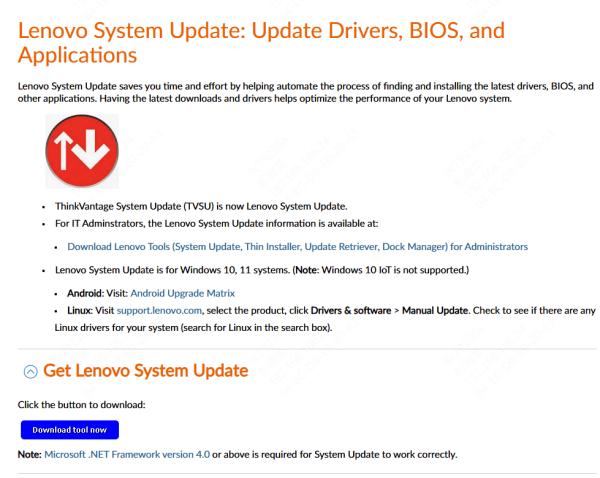
Lenovo System Update is an official tool that automatically detects and installs recommended BIOS, driver, and firmware updates for your ThinkPad
Visit Lenovo Support and search for your ThinkPad model
Go to Drivers & Software, select your operating system, and locate Lenovo System Update
Download and install the tool
Restart your computer if required
(Recommended) Run Windows Update first to ensure system compatibility
Launch Lenovo System Update and allow it to scan your system
Select the available BIOS update from the results
Install the update and restart your ThinkPad when prompted
Method 3: Update BIOS via Lenovo Vantage
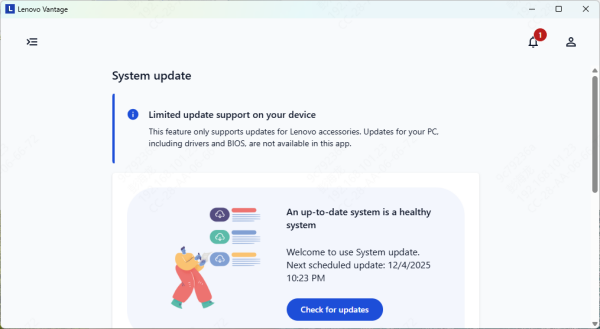
Lenovo Vantage is preinstalled on most ThinkPad laptops and provides an easy interface for system updates
Open Lenovo Vantage
Go to System Update (or access it from Quick Settings)
Click Check for Updates
After scanning, locate the BIOS update in the list
Select it and click Install Selected Updates
Confirm the reboot request
During restart, follow the on-screen BIOS Flash Utility instructions
Allow the update to complete without interruption
Your ThinkPad will reboot automatically once the BIOS update is finished
After Updating the BIOS
Once the BIOS update is complete, it's important to take a few additional steps to ensure your Lenovo system runs smoothly and remains stable. A BIOS update can reset certain settings or expose existing driver issues, so post-update checks are essential.
Verify System Stability
After the reboot, allow Windows to load fully and confirm that the system starts normally
Check for any unusual behavior such as startup delays, error messages, or hardware not being detected
Update and Recheck Drivers
A BIOS update may require updated chipset, MEI, storage, or power management drivers to work correctly with the new firmware
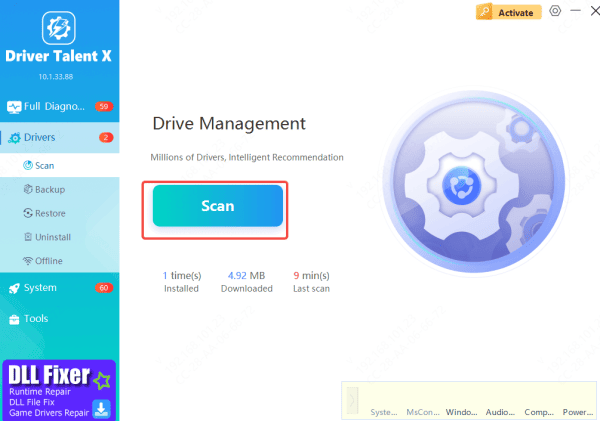
Using a driver management tool like Driver Talent X can help quickly scan your system and ensure all critical drivers are up to date and fully compatible with the new BIOS version
Restore or Adjust BIOS Settings
Some BIOS updates reset settings to default
Enter the BIOS setup if necessary and reconfigure options such as boot mode, virtualization, fan control, or security features according to your needs
What Is BIOS and Why Update It?
BIOS (Basic Input/Output System) is firmware stored on your motherboard that initializes hardware and starts the operating system. Lenovo periodically releases BIOS updates to:
Fix security vulnerabilities
Improve system stability
Add support for new hardware
Resolve power, battery, or boot issues
Enhance compatibility with Windows updates
Conclusion
Updating the BIOS on a Lenovo ThinkPad is a powerful way to fix system issues and improve compatibility—but it must be done carefully. For most users, Lenovo System Update is the safest and easiest option. Always prepare properly, follow instructions closely, and avoid interrupting the process.









