
Bluetooth connectivity is an essential feature for many devices, such as wireless headphones, keyboards, and mice. However, Bluetooth drivers on Windows 11 can sometimes stop working correctly, causing issues like devices not connecting, slow data transfer, or Bluetooth failing to turn on. Keeping your Bluetooth driver up to date is critical to ensuring stable and smooth performance. This guide provides several methods to help you update the Bluetooth driver on your Windows 11 laptop or desktop.
Method 1: Update Bluetooth Driver via Device Manager
One of the quickest ways to update your Bluetooth driver is through Device Manager. Here's how:
Open Device Manager: Right-click the Start button and select Device Manager, or type "Device Manager" in the search box and select it from the results
Locate Bluetooth Adapter: In the Device Manager window, scroll down to find the Bluetooth section. Click the arrow to expand the list of Bluetooth devices
Update Bluetooth Driver: Right-click your Bluetooth adapter (e.g., Intel Wireless Bluetooth) and select Update driver
Choose Search automatically for drivers: Windows will check for the latest driver updates online and install them automatically
Restart Your Computer: After the driver update completes, restart your computer to ensure the new drivers take effect

Method 2: Update Bluetooth Driver Using Windows Update
If the above method doesn't work or no updates are found, you can try updating the driver via Windows Update.
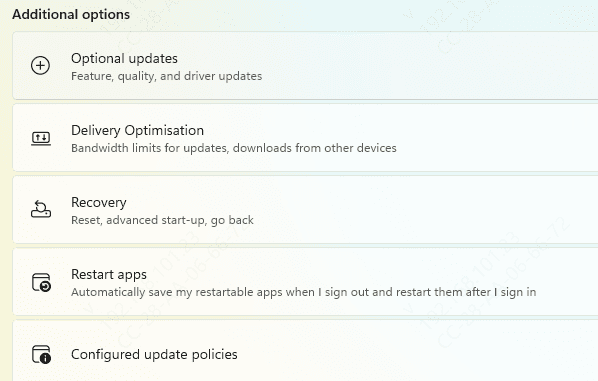
Access Windows Settings: Open Settings by pressing Windows + I or right-clicking the Start button and selecting Settings.
Go to Windows Update: In the Settings window, navigate to Update & Security and select Windows Update from the sidebar
Check for Updates: Click on Check for updates. If there are any Bluetooth driver updates available, Windows will automatically download and install them
Restart Your Computer: Once the update is installed, restart your computer to complete the process
Method 3: Use Driver Update Software (Driver Talent X)
If you prefer a fast and automated solution, Driver Talent X can help you update your Bluetooth driver without any manual intervention. Here's how to use it:
Download and Install Driver Talent X
Go to the Driver Talent X website and download the installation package
Once downloaded, open the setup file and follow the on-screen instructions to install the software
Run a Full Driver Scan
Launch Driver Talent X from your desktop or Start menu
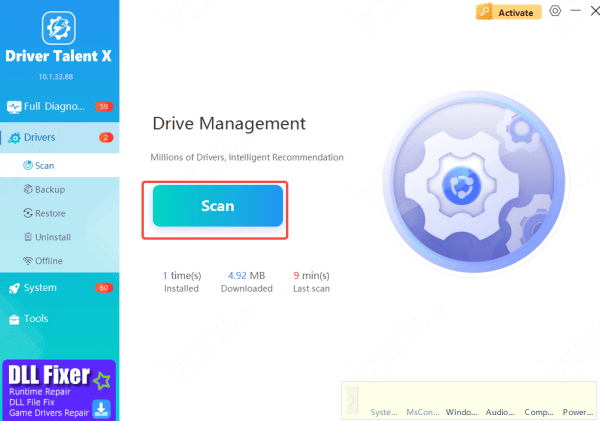
Go to Drivers → Scan and click Scan
Driver Talent X will scan your system for outdated or missing drivers, including Bluetooth drivers
Update Your Lenovo WiFi Driver
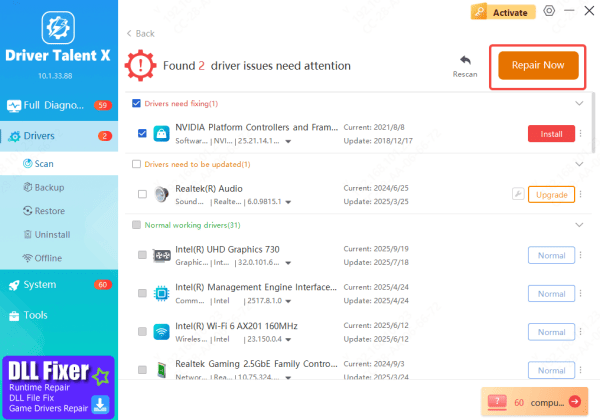
After the scan completes, the software will show a list of drivers that need attention
Find the Bluetooth Network Adapter in the list and click Upgrade or Repair Now to download and install the latest driver
Restart Your PC
Once the driver installation finishes, restart your computer to activate the new Bluetooth driver
Troubleshoot Bluetooth Driver Issues Manually
If the above methods do not resolve the issue, you can try the following troubleshooting steps:
Reinstall the Bluetooth Driver: Go to Device Manager, right-click on your Bluetooth adapter, and select Uninstall device. After uninstalling, restart your computer, and Windows should automatically reinstall the driver
Run the Bluetooth Troubleshooter: Open Settings > Update & Security > Troubleshoot > Additional troubleshooters. Select Bluetooth, then click Run the troubleshooter. This will help diagnose and fix Bluetooth-related issues
Check for Interfering Software or Hardware: If your Bluetooth still isn't working, consider any new software or hardware installed recently that may be causing conflicts

Common Bluetooth Driver Issues
Outdated Bluetooth Drivers: As with any hardware, Bluetooth drivers can become outdated over time, especially after system updates
Missing Bluetooth Drivers: Sometimes, Bluetooth drivers are missing, especially after a system upgrade or a fresh install of Windows
Bluetooth Not Working After Installation of New Hardware/Software: Newly installed software or hardware can conflict with Bluetooth drivers, causing them to malfunction or disappear from the system
Conclusion
Updating Bluetooth drivers in Windows 11 is a straightforward process with several available methods. Whether you use Device Manager, Windows Update, or third-party driver update tools like Driver Talent X, keeping your Bluetooth drivers up to date ensures stable wireless connections for all your Bluetooth devices. By following these steps, you can restore your Bluetooth functionality and enjoy smooth device connectivity.









