
Keeping your Lenovo device's drivers up to date is crucial for maintaining system stability, optimizing hardware performance, and ensuring compatibility with the latest software updates. Outdated drivers can lead to hardware malfunctions, poor performance, and errors in the system, especially after major Windows updates. Regular driver updates help your Lenovo laptop or desktop run smoothly, avoiding issues like slow performance, unresponsive peripherals, or display problems.
Method 1: Update Lenovo Drivers Automatically
For most users, the easiest and most effective way to update Lenovo drivers is through an automated driver update tool like Driver Talent X. It can scan your system for outdated or missing drivers and automatically download and install the latest versions.
Download and Install
Click the "Download" button to start downloading the installation package, and then run it to install it on your computer.
Run a System Scan
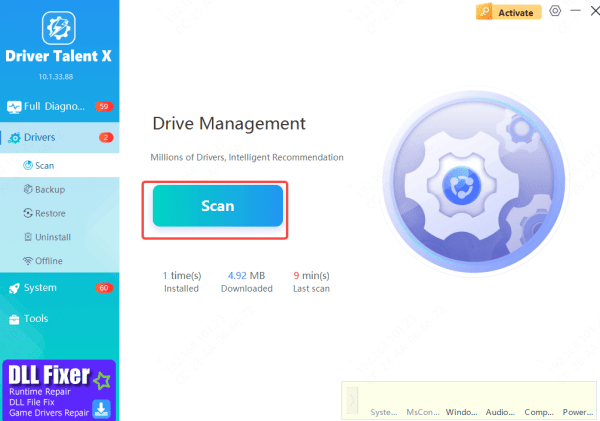
Launch the application and navigate to the "Drivers" tab. Click Scan to allow the tool to inspect your Lenovo device for outdated or incompatible drivers.
Update Drivers
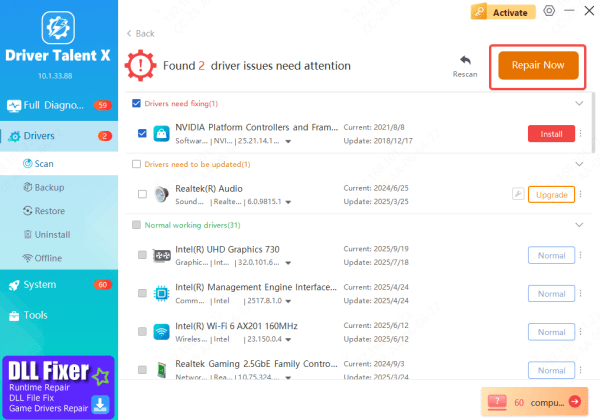
Once the scan completes, Driver Talent X will provide a list of drivers that need updates. Select the drivers you want to update and click Upgrade or Repair Now.
Restart Your Computer
After the updates have been installed, restart your system to ensure the new drivers are fully integrated.
This method is highly recommended for those who want a quick and hassle-free update process.
Method 2: Update Drivers Using Lenovo Vantage
Lenovo Vantage is an official tool provided by Lenovo to help you manage and update your system, including driver updates, BIOS, and software.
Install Lenovo Vantage: If you don't already have it, download Lenovo Vantage from the Microsoft Store
Open Lenovo Vantage: After installation, open the app and go to the Device section
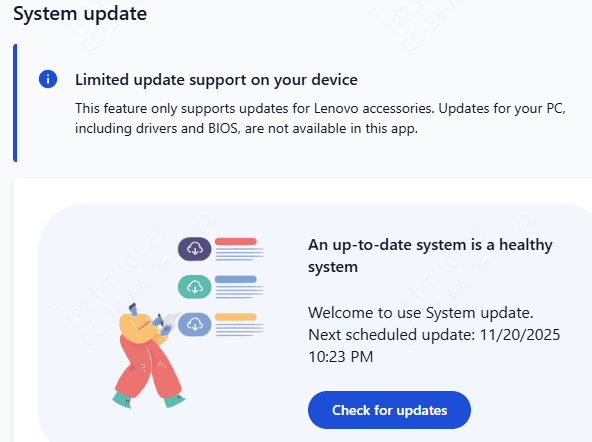
Check for Updates: Click on System Update, and Lenovo Vantage will automatically check for available updates for your drivers, BIOS, and other system software
Install Updates: If any updates are available, select them and follow the prompts to install. Restart your computer once the update is completed
Method 3: Download Drivers from Lenovo Support Website
If you prefer to manually download and install drivers or need a specific version, the Lenovo Support website is the best place to find all the latest driver updates for your model.
Go to Lenovo Support Website: Visit the Lenovo Support page (support.lenovo.com)
Search for Your Model: Use the search bar to find your exact model. Select the correct version of your device and operating system (Windows 10)
Download the Drivers: Under the Drivers & Software section, locate and download the necessary drivers (e.g., Audio Drivers, Chipset Drivers, Graphics Drivers)
Install the Drivers: Once downloaded, run the installer files and follow the prompts to install each driver. Restart your computer as needed
This method ensures you get the correct driver versions, especially for advanced users who need to control specific driver installations.
.png "lenovo-support")
Method 4: Update Drivers Using Windows Device Manager
Windows Device Manager provides a simple way to manually update or troubleshoot drivers directly from the operating system.
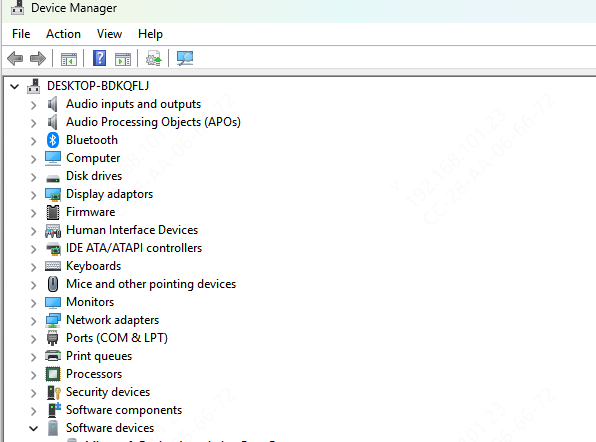
Open Device Manager: Press Windows + X and select Device Manager from the menu
Find the Device: Expand the categories to locate the device you want to update (e.g., Display Adapters, Sound, Video and Game Controllers, Network Adapters)
Update Driver: Right-click on the device and select Update Driver
Search for Updates: Choose Search automatically for updated driver software. Windows will search online for the latest driver
Install the Driver: If an update is found, follow the prompts to install the new driver and restart your computer if required
Device Manager is a good option for manually checking driver status and updating specific components.
Conclusion
Updating your Lenovo drivers on Windows 10 is an essential step in keeping your system running smoothly. Whether you choose to update drivers automatically with tools like Driver Talent X, use Lenovo Vantage for a hassle-free experience, or manually download drivers from the Lenovo Support site, there are multiple ways to ensure your laptop or desktop is up-to-date. Regular driver updates help maintain hardware compatibility, improve performance, and fix various system issues, so make sure to stay on top of updates for a stable, optimized Lenovo device.









