
Network problems such as slow internet speed, frequent disconnections, limited access, or no network detected are often caused by outdated or corrupted Intel Ethernet drivers. Keeping Ethernet driver updated is one of the most effective ways to restore a stable connection and improve performance.
Below is a complete guide that starts with the fastest and most reliable solution: updating Intel Ethernet drivers using Driver Talent X. Here also provide multiple additional fixes to fully resolve network issues on Windows.
Update Intel Ethernet Drivers Using Driver Talent X
Updating drivers manually can be time-consuming and error-prone, especially if you install an incompatible version. Driver Talent X simplifies the process by automatically detecting your Intel Ethernet adapter and installing the correct, stable driver.
Preparation:
Use a temporary internet connection (e.g., Wi-Fi adapter or mobile phone USB tether) if your PC is completely offline.
Download and install the Driver Talent X application on your Windows PC.
Run Scan:
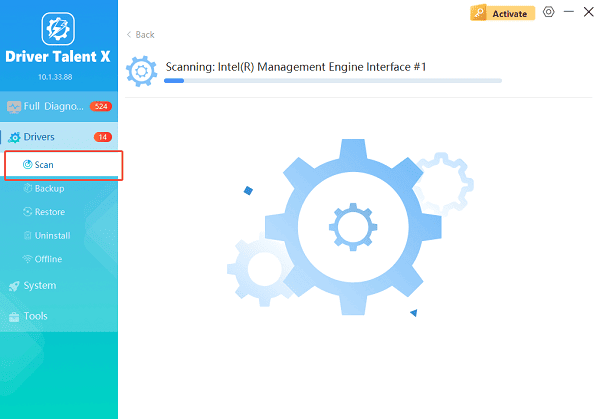
Launch the application and go to "Drivers" > "Scan", click "Scan".
The software will perform a deep analysis of your system, focusing on network and core system components.
Execute Update:
After the scan is complete, the software will display a list of all drivers that need attention. Select the necessary drivers and click the "Upgrade" or "Repair Now" button.
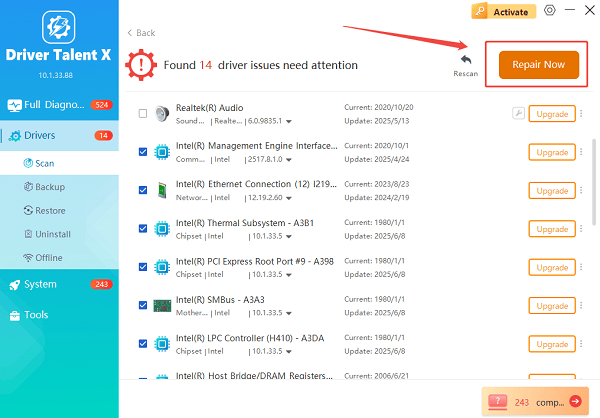
Driver Talent X will download the latest, certified versions specific to your Intel Ethernet controller, crucial for reliable connectivity.
Finalize:
Restart your computer to apply the changes.
This method ensures driver compatibility, avoids corrupted installations, and is ideal for users who want a quick and reliable fix for network issues.
Common Network Issues Caused by Driver Problems
Before moving on to other fixes, it helps to understand what driver-related issues look like:
Ethernet connected but no internet access.
Network cable unplugged error when cable is connected.
Slow or unstable wired internet connection.
Ethernet adapter missing from Device Manager.
Network works after restart but fails again later.
If updating the driver does not fully solve the issue, try the additional solutions below.
Fix 1: Restart Network Adapter
Sometimes the adapter itself becomes stuck due to system conflicts.
Steps:
Press Windows + R, type "ncpa.cpl", and press Enter.
Right-click your Ethernet adapter and select "Disable".
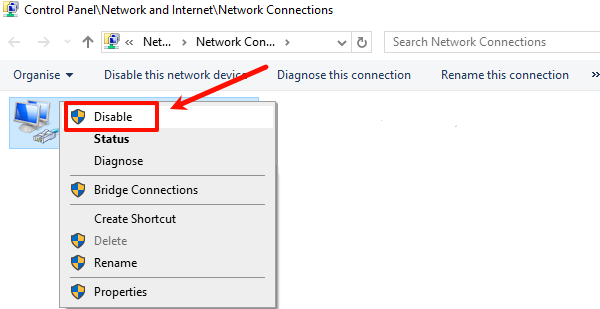
Wait 10 seconds, then right-click again and select "Enable".
This refreshes the network connection without restarting the system.
Fix 2: Reset Network Settings in Windows
Resetting network settings can clear corrupted configurations that drivers alone cannot fix.
Steps:
Open Settings.
Go to Network & Internet > Status.
Click "Network reset" under Advanced network settings part.
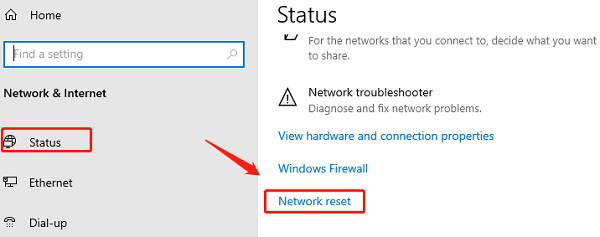
Restart your PC after the reset completes.
Note that this will remove saved WiFi networks and VPN settings.
Fix 3: Reinstall Intel Ethernet Driver Manually
If the driver is corrupted, reinstalling it can help.
Steps:
Press Windows + X and select Device Manager.
Expand "Network adapters", right-click your Intel Ethernet adapter and choose "Uninstall device".
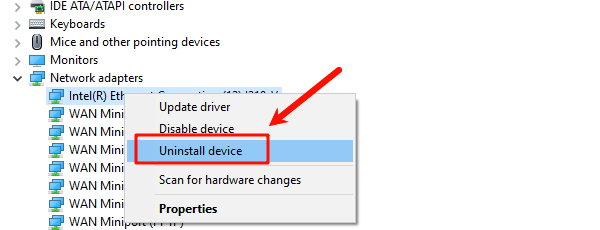
Check "Delete the driver software for this device" if available.
Restart your computer.
Windows will automatically reinstall a basic driver.
For best performance, update again using Driver Talent X after reinstallation.
Fix 4: Check Power Management Settings
Windows may disable the Ethernet adapter to save power.
Steps:
Open Device Manager.
Right-click your Intel Ethernet adapter and select "Properties".
Go to the "Power Management" tab, uncheck "Allow the computer to turn off this device to save power".
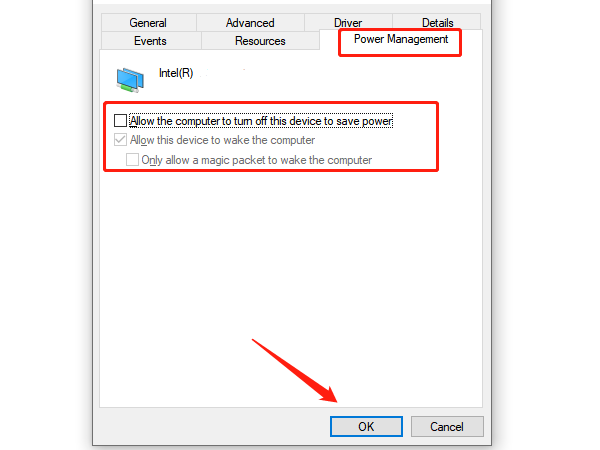
Click OK and restart your PC.
Fix 5: Update Windows System Files
Outdated system components can conflict with network drivers.
Steps:
Open Settings.
Go to Update & Security > Windows Update.
Click "Check for updates".

Install all available updates and restart your computer.
Fix 6: Replace Ethernet Cable or Port
Hardware issues can mimic driver problems.
Try a different Ethernet cable.
Plug the cable into a different router or modem port.
Test the connection on another computer.
If the network works on another device, the issue is likely driver or system-related.
Why Keeping Intel Ethernet Drivers Updated Matters
Regular driver updates provide:
Improved network stability
Better compatibility with Windows updates
Faster and more reliable internet speeds
Fixes for known bugs and security vulnerabilities
Using Driver Talent X ensures your Intel Ethernet drivers stay current without manual searching or installation errors.
Conclusion
Intel Ethernet driver issues are one of the most common causes of wired network problems on Windows. The fastest and safest solution is updating your driver using Driver Talent X, which automatically finds and installs the correct version for your system. If problems persist, combining driver updates with network resets, adapter reinstallation, and system checks will resolve most connection issues.
See also:
How to Fix CoD Vanguard Not Launching on PC
How to Resolve Crashing Issues in Warframe









