
Seeing your Lenovo laptop suddenly stop charging can be frustrating—especially when you rely on it for work, school, or gaming. The issue may appear as "Plugged in, not charging," the battery stuck at a certain percentage, or the laptop not recognizing the charger at all. Fortunately, most charging problems can be fixed at home by checking a few key components. This complete guide explains all the common causes and gives you step-by-step solutions to get your Lenovo laptop charging again.
Check Basic Hardware Connections
Before assuming there is a hardware failure, start with the simplest checks:
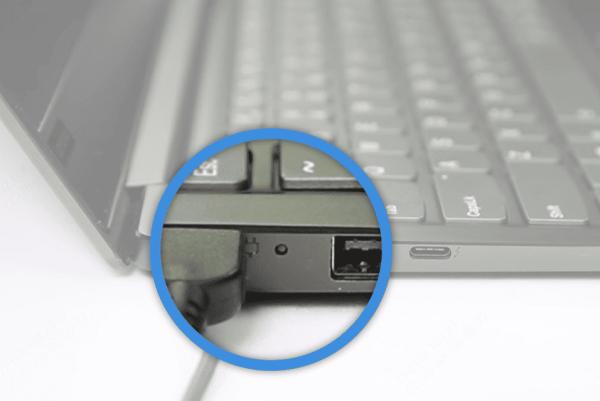
Make sure the charger is firmly plugged into both the wall outlet and your laptop
Verify the power cable is not loose, bent, or partially unplugged
Try plugging the charger into a different outlet
If you are using a surge protector or power strip, test the charger directly on a wall socket
Loose or unstable power sources are one of the most common reasons a laptop stops charging.
Examine the Power Adapter
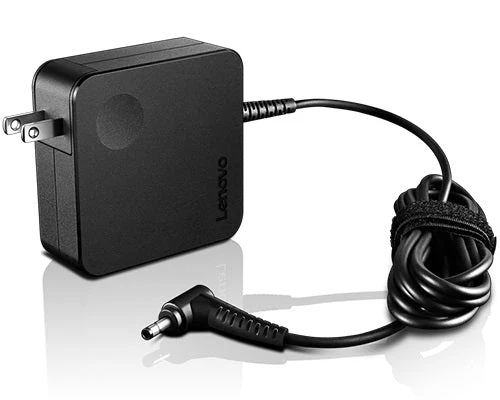
Your Lenovo laptop may stop charging if the adapter is damaged or not providing enough power.
Check the following:
Ensure you are using the original Lenovo charger or a certified replacement
Inspect the power brick for signs of overheating or buzzing noises
Make sure the removable cable between the brick and outlet is properly connected
If possible, try a different compatible Lenovo charger
A faulty or underpowered adapter can easily prevent the laptop from charging.
Perform a Power Reset
A power reset clears internal hardware states and can fix charging detection issues.
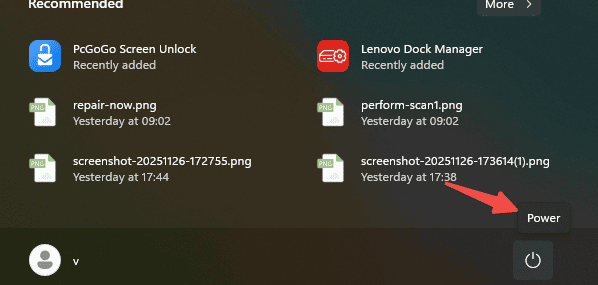
Turn off your laptop
Disconnect the charger
Hold the power button for 15–20 seconds
Reconnect the charger and turn on the device
This often restores normal charging behavior.
Update Battery Drivers
Driver-related problems are a common cause of charging failures on Lenovo laptops. If your power management, battery, USB, or chipset drivers are corrupted or outdated, the system may fail to detect the charger correctly or stop charging altogether. Driver Talent X offers an automated way to identify and repair these issues with just a few clicks.
Download and Install Driver Talent X
Click the Download button to get the installer
Run the setup file and follow the on-screen steps to complete installation
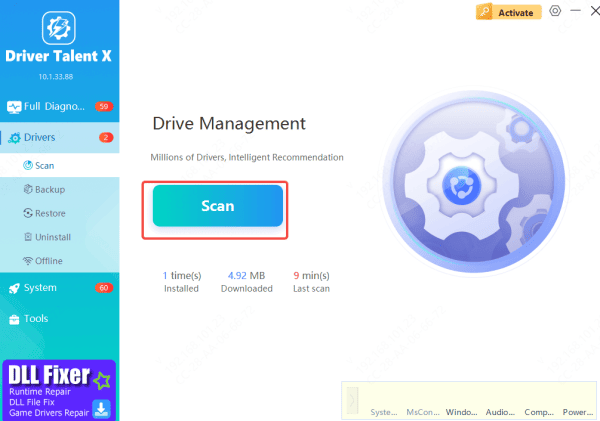
Run a Full Power Driver Scan
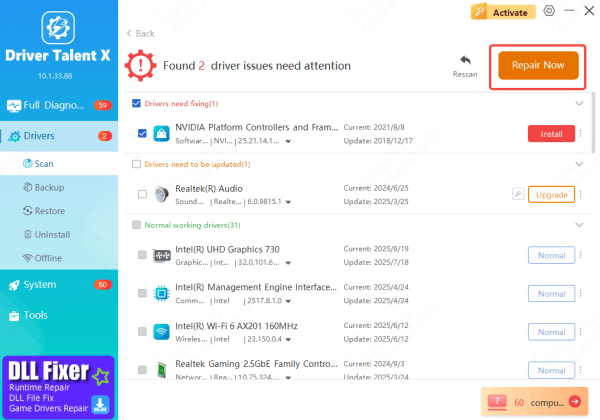
Open Driver Talent X and go to Drivers → Scan
The program will check all charging-related components
Update Drivers
Select all recommended updates or repairs
Driver Talent X will automatically download and install the correct driver versions needed to restore stable charging functionality
Restart Your Laptop
Once updates are complete, restart your Lenovo laptop
A fresh reboot ensures Windows properly loads the new power drivers and often resolves charging detection issues immediately
Test the Battery Health
A failing battery will show symptoms such as:
Rapid power drain
Laptop powering off suddenly
Battery percentage jumping up or down
Battery swelling (dangerous—replace immediately)
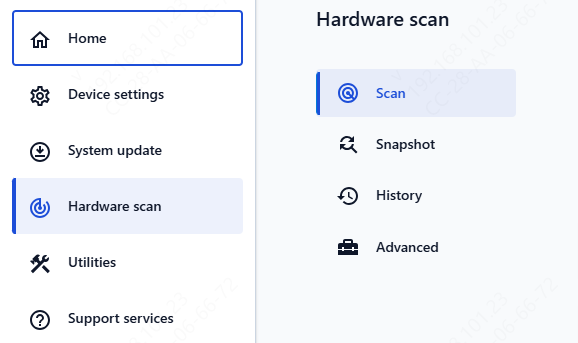
Use Lenovo Vantage → Hareware-scan→ Scan
If health is severely degraded, replacement is required.
Conclusion
Charging issues on a Lenovo laptop can be caused by anything from simple cable problems to incorrect settings, outdated drivers, or a failing battery. By checking hardware connections, verifying the charger, adjusting Windows and Lenovo power settings, updating drivers, and testing battery health, most problems can be identified and resolved at home. With proper troubleshooting, you can quickly restore normal charging and keep your Lenovo laptop running reliably.









