
If your Lenovo laptop suddenly cannot detect WiFi networks or the WiFi driver disappears after a Windows 11 update, it can disrupt your work, online meetings, and daily tasks. This problem can be caused by missing or corrupted drivers, Windows updates, disabled adapters, network misconfigurations, or even hardware faults. In this comprehensive guide, we'll cover every reliable solution, including advanced troubleshooting steps and preventive measures to avoid future WiFi issues.
Verify Wireless Settings in Windows 11
Sometimes the WiFi adapter is present but disabled in Windows. Ensure that all network settings are correctly configured.
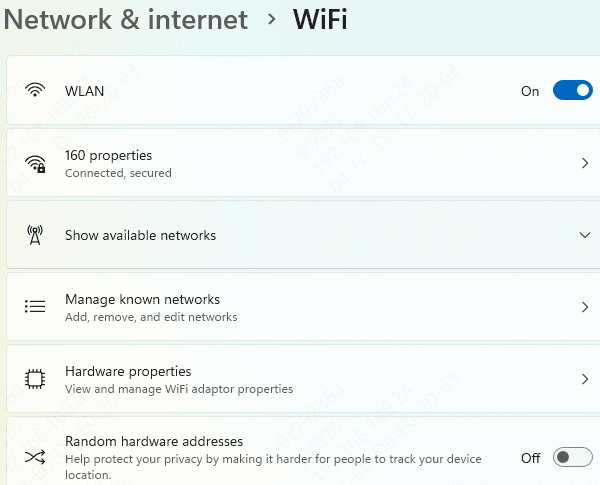
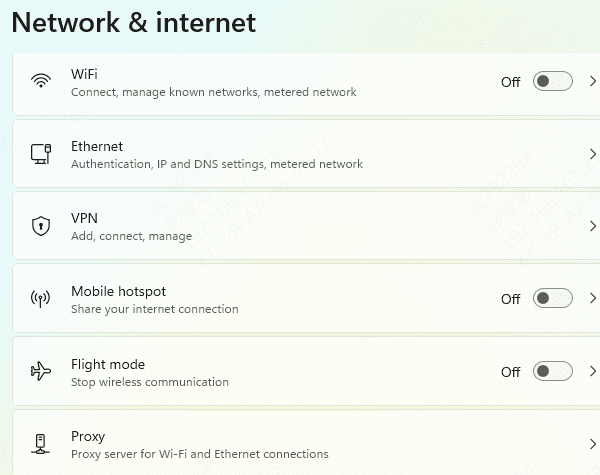
Open Settings → Network & Internet → WiFi
Toggle WiFi On
Click Advanced network settings → Network troubleshooter
Run the Network Adapter Troubleshooter to automatically detect and fix issues
Also check Airplane mode in Settings → Network & Internet; if it's enabled, WiFi won't work
Update the WiFi Driver
For the quickest and easiest way to install or update your Lenovo WiFi driver on Windows 11, using an automated tool like Driver Talent X is highly recommended. Instead of manually hunting for the correct driver, the software scans your system, identifies your wireless adapter, and installs the exact driver version you need.
Step 1: Download and Install Driver Talent X
Click the Download button to get the Driver Talent X
Run the setup file and follow the on-screen instructions to complete installation on your Lenovo laptop
Step 2: Run a Full Driver Scan
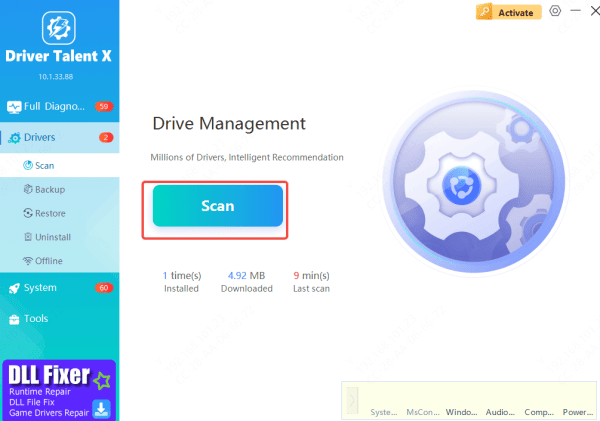
Open Driver Talent X and navigate to the Drivers section
Click Scan to let the tool check for outdated, missing, or corrupted drivers, including your WiFi network adapter
Step 3: Update Your Lenovo WiFi Driver
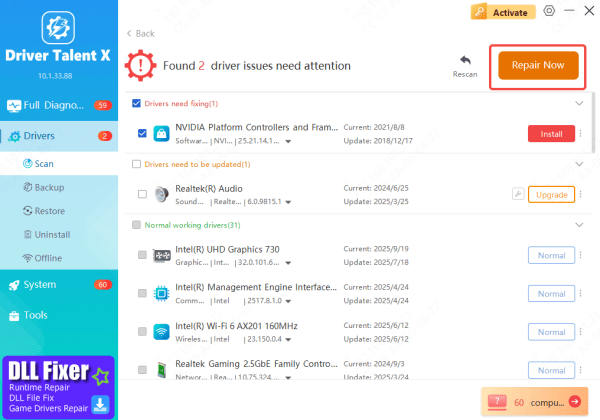
After the scan finishes, locate your WiFi network adapter in the list of detected issues
Click Upgrade or Repair Now to automatically download and install the correct Windows 11 driver for your Lenovo device
Step 4: Restart Your Laptop
Once the update is complete, restart your computer to apply the new driver
After reboot, your WiFi should work reliably, restoring fast and stable wireless connectivity
Roll Back or Remove Problematic Windows Updates
Windows updates can occasionally break WiFi functionality by removing or replacing drivers.
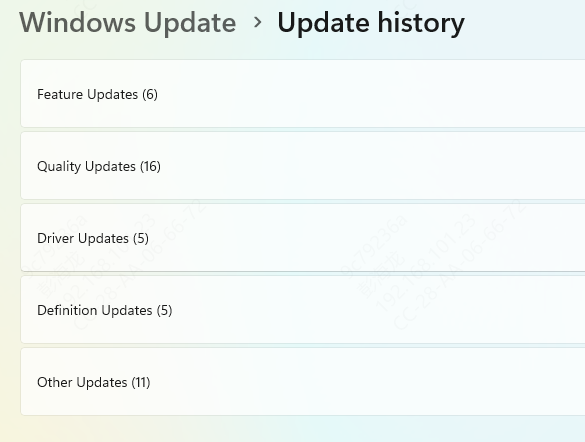
Open Settings → Windows Update → Update History
Click Uninstall updates
Remove the most recent update that may have caused the WiFi issue
Restart your laptop and check WiFi functionality
Update BIOS and Chipset Drivers
An outdated BIOS or chipset driver can cause WiFi detection problems.
Go to Lenovo Support
Search your model
Download BIOS
Install BIOS
Restart the laptop to apply changes
Ensure your laptop is plugged into a reliable power source when updating BIOS

Reset Network Settings
If drivers are correct but WiFi still isn't working, resetting network settings can help.
Go to Settings → Network & Internet → Advanced network settings → Network reset
Click Reset now and confirm
Restart the laptop; this removes all saved networks and restores default settings
Check for Conflicting Security or VPN Software
Sometimes, third-party firewall, antivirus, or VPN software can block WiFi adapters.
Temporarily disable security software
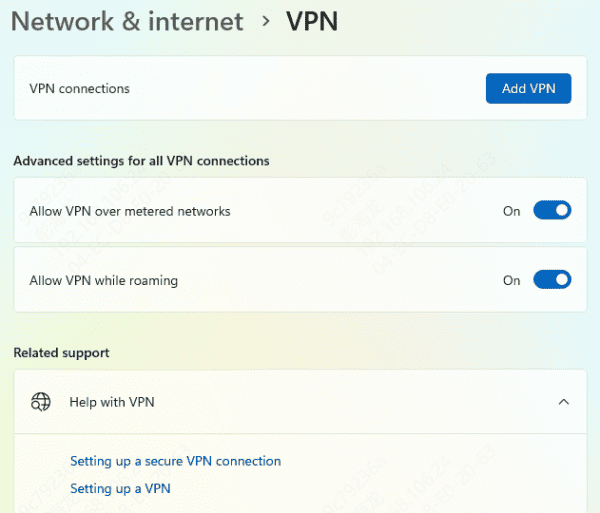
Disconnect from any VPNs
Check if WiFi functionality returns
If it does, adjust firewall/VPN settings to allow your wireless adapter
Advanced Hardware Troubleshooting
If none of the software solutions work, the WiFi card or antenna might be faulty.
Test with a USB WiFi adapter to confirm it's not a system-wide problem
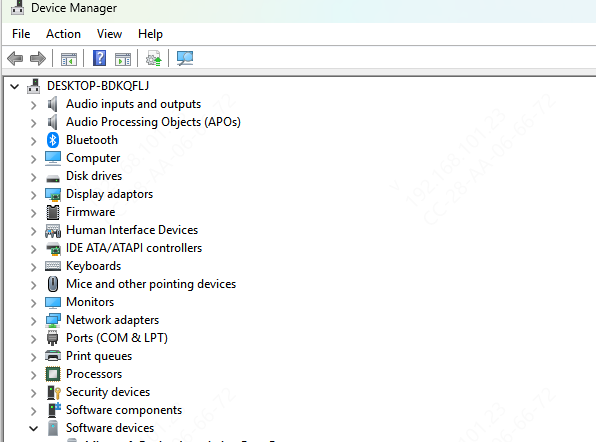
Open Device Manager and check if Network adapters → Properties → Device status shows any error codes
If hardware issues are suspected, contact Lenovo service center for inspection or replacement
Preventive Tips for Future WiFi Issues
Keep drivers updated using Lenovo Vantage or Driver Talent X
Always back up your system before major Windows updates
Avoid abrupt power-offs during updates
Enable system restore points for quick recovery
Conclusion
WiFi driver disappearance on Lenovo laptops running Windows 11 can result from multiple causes, including driver corruption, Windows updates, disabled adapters, or hardware faults. By following these steps—checking switches, verifying settings, reinstalling or updating drivers, rolling back updates, updating BIOS/chipset, resetting network settings, and performing hardware checks—you can usually restore WiFi functionality quickly. Using automated tools like Driver Talent X ensures your drivers remain up to date and minimizes future connectivity issues.









