
The Alienware AW768 is a premium mechanical gaming keyboard, but connection issues, outdated drivers, or firmware problems can cause it to stop responding. Whether the keyboard is completely dead, certain keys are unresponsive, or the lighting does not turn on, this guide provides effective solutions to restore full functionality. This troubleshooting guide begins with updating all related drivers using Driver Talent X, followed by multiple alternative fixes.
Update Keyboard Drivers First Using Driver Talent X
Driver failures are one of the most common causes of Alienware AW768 keyboard issues. Updating drivers ensures proper communication between Windows, the USB controller, and Alienware peripherals.
Download and Install:
Click the "Download" button to download the software package.
Follow the on-screen instructions to complete installation.
Install it by following the on-screen instructions.
Perform a Full System Scan:
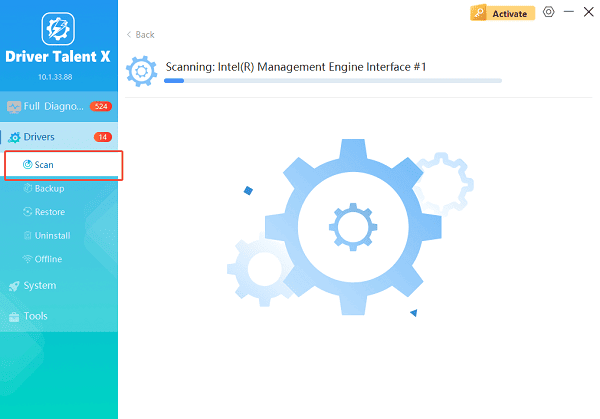
Open the software from your desktop or Start menu, go to "Drivers" > "Scan", click "Scan".
Wait for Driver Talent X to detect outdated, missing, or corrupted keyboard, chipset, HID, or system drivers.
Update All Drivers:
After the scan is complete, the software will display a list of all drivers that need attention. Select the necessary drivers and click the "Repair Now" button.
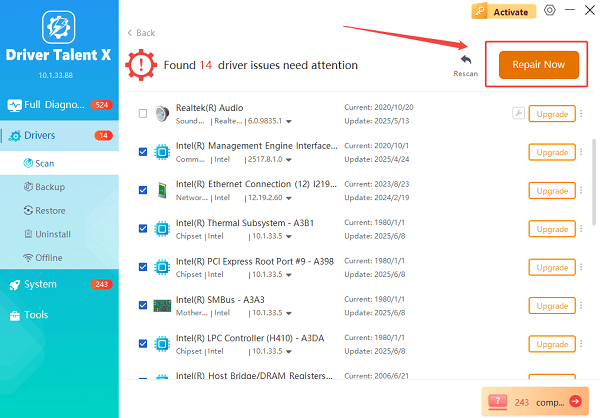
Driver Talent X will reliably download the correct, latest certified driver for your pc, and execute a completely clean installation automatically.
Restart your PC:
Reboot to apply the updated drivers and test whether the AW768 keyboard starts working.
If the keyboard still fails to respond, continue with the additional solutions below.
Additional Fixes for the Keyboard Not Working
1. Check USB Port and Cable Connection
A loose or damaged connection can prevent the keyboard from powering on.
Steps:
Unplug the keyboard completely.
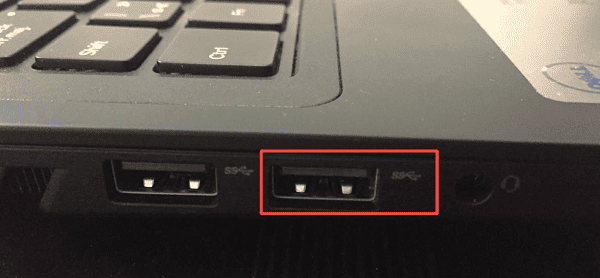
Plug it into a different USB port on your PC.
Use a USB 3.0 port instead of USB 2.0 if available.
Test it on another computer to check for hardware failure.
If it works on another device, the issue lies within your computer's drivers or settings.
2. Reset the Alienware AW768 Keyboard
The AW768 supports hardware resets.
Steps:
Disconnect the keyboard from your PC.
Wait 20 seconds.
Reconnect it and hold Fn + F12 for several seconds (reset key combination for many Alienware models).
Test the keyboard again.
This clears temporary firmware glitches.
3. Reinstall the Keyboard Driver Manually
Press Win + X and choose Device Manager.
Expand "Keyboards", right-click "HID Keyboard Device" and select "Uninstall device".
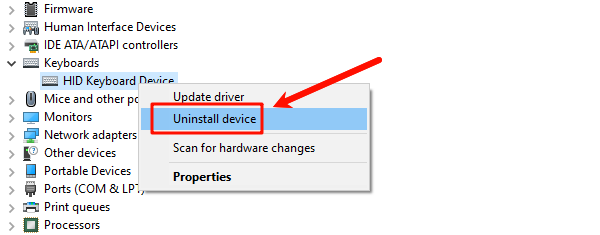
Expand "Human Interface Devices" and uninstall HID-compliant vendor-defined device.
Restart your PC and let Windows reinstall the drivers automatically.
4. Update Alienware Control/Command Center
Alienware peripherals require the Command Center to manage macros and lighting.
Steps:
Go to Dell's support site.
Search for Alienware Command Center.
Download and install the latest version.
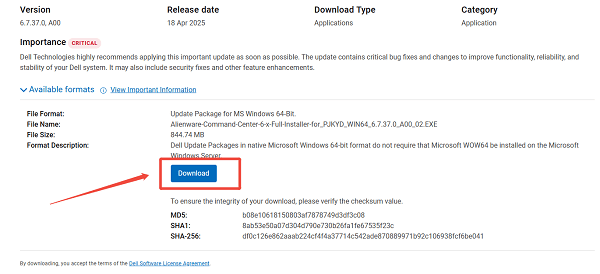
Restart your PC and check if the keyboard is detected.
5. Disable USB Power Saving in Windows
Windows may shut off USB ports to save power.
Open Device Manager.
Expand "Universal Serial Bus Controllers", right-click each USB Root Hub > Properties.
Open "Power Management".
Uncheck "Allow the computer to turn off this device to save power".

Restart Windows and test the keyboard.
6. Update BIOS and Chipset Drivers
Incorrect motherboard communication can cause peripheral detection issues.
Steps:
Go to the Dell/Alienware support website.
Enter your PC model.
Download the newest BIOS and chipset drivers.
Install them carefully and restart.
7. Check for Windows Updates
Missing system components can break HID device support.
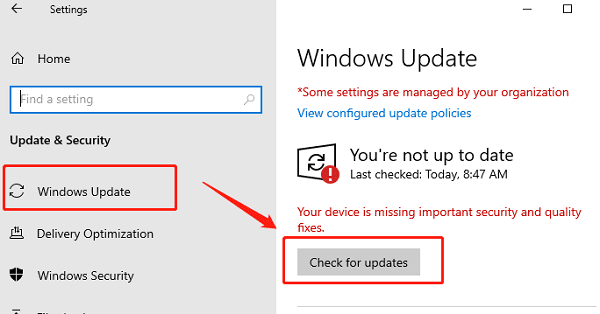
Press Win + I.
Choose "Update & Security" > "Windows Update".
Select "Check for updates" and install everything available.
8. Factory-Reset Windows HID Services
Restarting HID services often restores keyboard recognition.
1). Press Win + R, type "services.msc", and press Enter.
2). Loate the following and restart each:
Human Interface Device Service
Device Install Service
Device Association Service
9. Test the Keyboard in BIOS
If the keyboard does not work even in BIOS, it is likely a hardware issue.
Steps:
Restart your PC.
Press F2 or Delete repeatedly during boot to enter BIOS.
Try using the keyboard inside the BIOS interface.
If keys still do not respond, contact Dell support for hardware diagnostics.
Conclusion
The Alienware AW768 keyboard may stop working due to outdated drivers, USB conflicts, firmware glitches, power-saving settings, or Windows HID service failures. Updating all relevant drivers using Driver Talent X offers the fastest and most reliable fix. If the issue persists, applying the additional solutions in this guide should restore full functionality.
See also:
Solutions to Fix Monster Hunter Wilds Crashes
How to Fix Split Fiction Not Launching on Windows
[Fixed] Whoa! Cyberpunk 2077 Flatlined Error
Solutions for 'DirectX 12 Not Supported' Error on Windows 10









