
Logitech speakers are known for delivering great sound quality, whether you're gaming, watching movies, or listening to music. Connecting Logitech speakers to your computer is a straightforward process, but depending on whether you're using wired, wireless, or Bluetooth speakers, the steps may vary. This guide will walk you through the process of connecting your Logitech speakers to your computer, along with troubleshooting tips to fix any issues that may arise.
Connecting Logitech Wired Speakers to a Computer
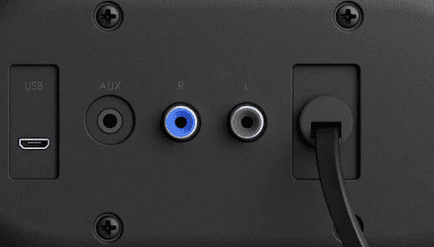
Prepare the Equipment: Before connecting, make sure you have everything you need: Logitech speakers and the necessary cables (usually a 3.5mm audio jack or RCA cable)
Plugging the Audio Cable into the Computer: For 3.5mm jack: Locate the green audio-out port on your computer. It's usually found on the back of the PC or the side of a laptop
Plug the 3.5mm audio cable into this port. For RCA cable: If your Logitech speakers use an RCA cable, use an audio-to-RCA adapter to connect to the 3.5mm headphone jack on your computer
Power On the Speakers: Turn on your Logitech speakers using the power button, which is typically located on the side or rear of the speaker
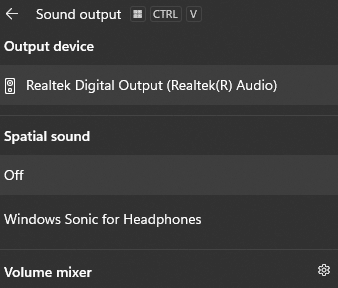
Configure Audio Settings on Your Computer: Under the Sound settings, make sure the speakers are selected as the default audio output device
Connecting Logitech Wireless Speakers to a Computer
Connecting via USB Receiver: Many wireless Logitech speakers come with a USB receiver. Plug this receiver into an available USB port on your computer. Once plugged in, the computer should automatically detect the speakers. The speakers should be ready to use once the USB receiver is recognized
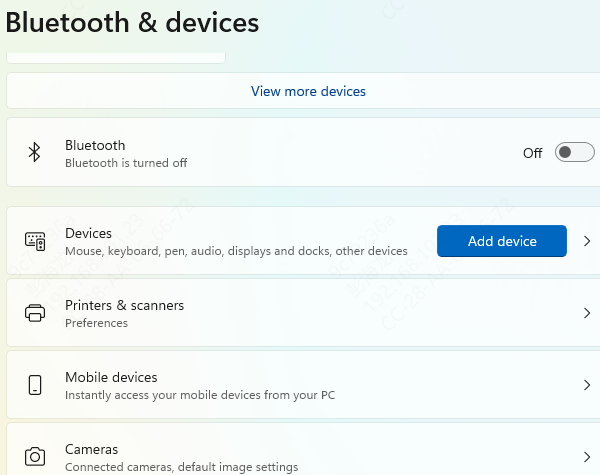
Connecting via Bluetooth: Enable Bluetooth on your computer. Go to Settings → Devices → Bluetooth and turn on Bluetooth if it isn't already
Press the pairing button on your Logitech wireless speakers. The button is typically located on the speakers and may be labeled as "pairing" or a Bluetooth icon
Once your speakers enter pairing mode, go to Bluetooth settings on your computer, search for your Logitech speakers, and select them to pair
Troubleshooting Common Issues
No Sound from the Speakers
Check Volume: Ensure the volume is turned up both on the speakers and on your computer
Audio Settings: Make sure the Logitech speakers are set as the default output device
Cables: For wired speakers, make sure the audio cable is securely plugged into both the computer and the speakers
Test the Speakers on Another Device: To rule out issues with your computer, try connecting the speakers to another device (such as a smartphone or tablet) and check if they work
Wireless or Bluetooth Speakers Not Connecting
Reboot the Speakers: Try turning the speakers off and on again to reset the connection
Check Bluetooth Range: Ensure that the Bluetooth speakers are within the range of your computer and that there is no interference (e.g., other wireless devices or physical obstructions)
Try Re-pairing: If the speakers aren't connecting, remove the device from your Bluetooth settings, and attempt to pair them again
Speakers Not Showing in Audio Settings
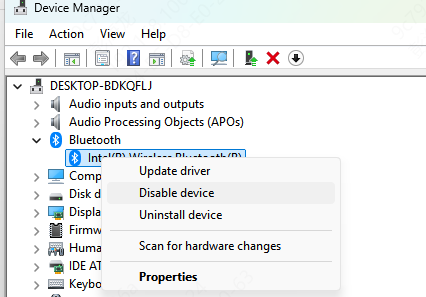
If your Logitech speakers are not showing up in your computer's sound settings, it could be due to outdated drivers
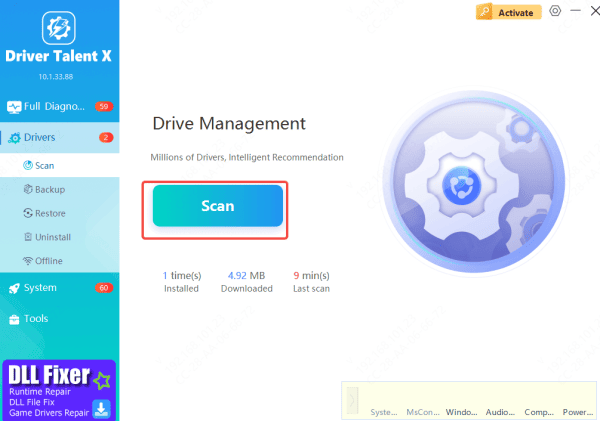
Driver Talent X can help automatically detect and fix any outdated or corrupted drivers related to your Logitech speakers, ensuring they function correctly
Conclusion
Connecting your Logitech speakers to your computer should be a simple process, whether you're using wired, wireless, or Bluetooth models. By following the steps outlined in this guide, you can ensure a smooth and efficient setup. If issues persist, check for common problems like incorrect audio settings, driver issues, or wireless interference. With these solutions, you'll be back to enjoying great sound in no time.









