
Dell docking stations are essential peripherals that expand the functionality of your laptop, allowing you to connect additional displays, external storage devices, and other peripherals with ease. Just like any other device, keeping the firmware of your Dell docking station up to date is crucial for ensuring that it functions at its best. Firmware updates can bring improvements in performance, new features, and ensure compatibility with the latest laptops and devices. This guide will walk you through why updating your Dell docking station firmware is important, how to perform the update, and what to do if you encounter any issues.
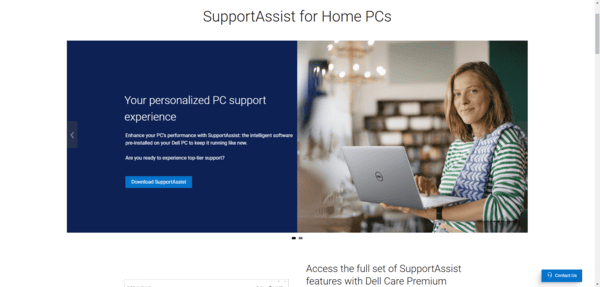
Using Dell SupportAssist
Download and Install Dell SupportAssist: If you don't have Dell SupportAssist installed, download it from Dell's official website
Run the Program: Open SupportAssist and it will automatically scan for available updates
Check for Firmware Updates: SupportAssist will detect updates available for your docking station and provide an option to install them
Install the Update: Click the option to install the firmware update, and follow any prompts to complete the process
Restart Your System: After the update is installed, restart your laptop to apply changes
Using Dell Command | Update
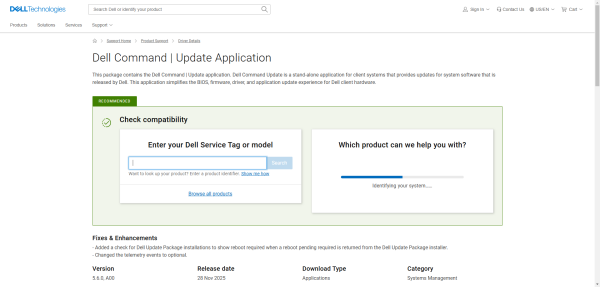
Download and Install Dell Command | Update: If you don't have it already, download Dell Command | Update from Dell's official site
Open Dell Command | Update: Once installed, launch the program
Scan for Updates: Select the option to scan your system for available updates. It will check for firmware updates for both your docking station and other hardware components
Update the Firmware: Select the firmware update for your docking station and install it. The software will guide you through the update process
Reboot Your Laptop: Once the update is installed, restart your laptop to complete the installation
Manual Update via Dell Website
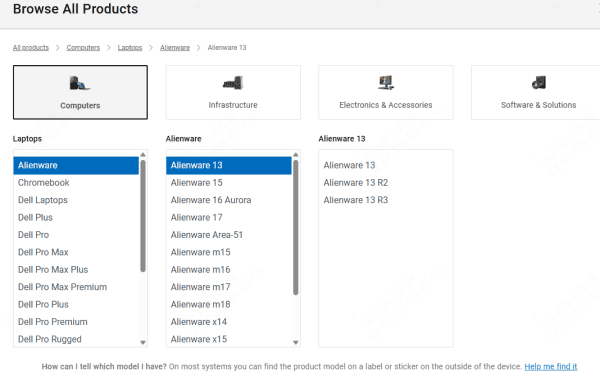
Go to Dell Support Website: Navigate to the Dell support website and enter your docking station's model number
Find the Firmware Update: Look for the firmware section, find the latest firmware update for your model, and download it
Install the Update: Follow the instructions on the website to manually install the firmware update
Verify Installation: After installing, check the firmware version to ensure that the update was successful
Keep Your Dell Docking Station Up to Date with Driver Talent X
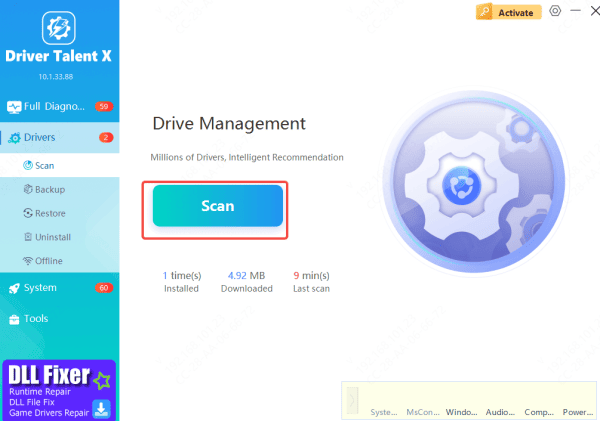
Updating your Dell docking station firmware is essential, but managing all your drivers can be time-consuming. Driver Talent X simplifies this process by automatically scanning for outdated drivers and offering one-click updates, ensuring your docking station and other hardware run optimally. With Driver Talent X:
Automatic Scanning & Updates: Easily find and update outdated drivers, including your Dell docking station firmware
Efficiency & Time-Saving: Skip manual searches and let the software handle updates for you
Keep your Dell docking station and entire system in top shape with Driver Talent X, saving you time and avoiding compatibility issues
Troubleshooting Common Issues
Even after a successful update, you may encounter issues. Here's how to troubleshoot common problems:
Firmware Update Fails
If the update fails, make sure your laptop is connected to the internet and that there are no interruptions during the update process
Try running the update again, or use a different update method
Docking Station Not Recognized After Update
If your docking station is not recognized after the update, restart your laptop and reconnect the docking station
Check Device Manager to see if the docking station is listed under "Universal Serial Bus controllers" or "Imaging Devices"
Peripheral Devices Not Working After Update
If peripherals connected to the docking station aren't working, ensure all drivers are up to date
You can also disconnect and reconnect the peripherals or try using different ports on the docking station
Conclusion
Updating the firmware on your Dell docking station is essential for keeping it running smoothly and ensuring compatibility with new devices and operating systems. Whether you use Dell SupportAssist, Dell Command | Update, or a manual update, following the steps in this guide will help you ensure that your docking station is always up-to-date. If you encounter any issues, the troubleshooting tips provided will help you resolve them quickly. Regular updates will also enhance the performance and longevity of your docking station, allowing you to get the most out of your device.









