
The Dell Latitude 5550 is prized for its reliability and robust performance. However, it may develop issues like intermittent freezes, poor battery life, Wi-Fi dropouts, or peripheral malfunctions. In nearly all cases where hardware performance degrades, the root cause is outdated, corrupted, or conflicting system drivers, particularly those related to the motherboard chipset, power management (ACPI), and specific Dell components.
To restore your Latitude 5550 to its intended peak performance, a methodical approach to driver management is essential. This guide provides comprehensive, step-by-step solutions for updating and fixing your Dell Latitude 5550 drivers, starting with the most efficient method for system synchronization.
Part I: Driver Integrity and System Synchronization
The Latitude 5550 relies on tightly integrated, Dell-specific system drivers for critical functions. Conflicts in the core drivers are the primary cause of system instability and unexpected behavior.
Automated Driver Update with Driver Talent X
Manually searching for and updating the dozens of drivers required for a business-class laptop (Chipset, ACPI, BIOS, Thunderbolt, etc.) is complex and risks installing generic or incorrect versions. A specialized utility streamlines this by identifying and installing the correct, OEM-specific driver versions customized for your Latitude 5550 model.
Download and Install:
Click the "Download" button to download the software package.
Install it on your Dell Latitude 5550.
Run Scan:
Launch the application and go to "Drivers" > "Scan", click "Scan".
The software will perform a deep analysis of your system, focusing on all core components vital to business laptop performance.
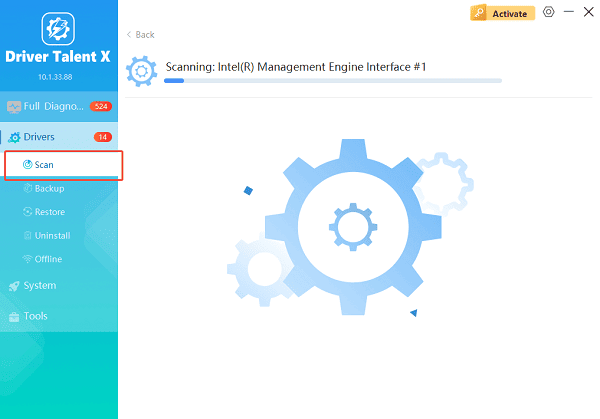
Execute Clean Update:
After the scan is complete, the software will display a list of all drivers that need attention. Select the necessary drivers and click the "Upgrade" or "Repair Now" button.
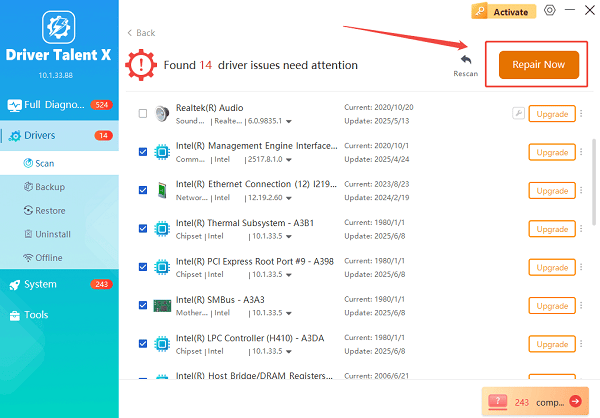
Driver Talent X will download the latest, certified drivers that are customized for your specific Latitude 5550, which is critical for restoring system stability and battery efficiency.
Finalize:
After the installation is complete, restart your computer to integrate the new drivers fully.
Part II: Official Dell Download and Installation Methods
Once your core system foundation is stable, use Dell's official channels to ensure all unique hardware and firmware components are up-to-date.
Method 1: Use the Dell SupportAssist Application
Dell provides the SupportAssist tool, which automatically identifies your specific Latitude 5550 model via its Service Tag and delivers only Dell-approved, tested updates.
1. Launch Utility: Search for and open the pre-installed Dell SupportAssist application.
2. Check for Updates: Navigate to the "Drivers & Downloads" section and click "Run All".
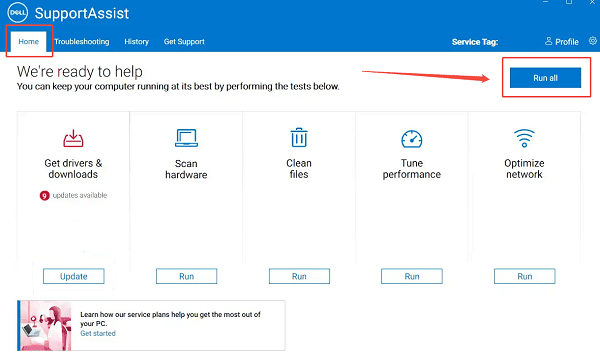
3. Install Critical Updates: The tool will check Dell servers for updates, including:
BIOS/UEFI Firmware (Crucial for hardware compatibility).
Dell Power Manager Driver (Essential for thermal and battery control).
Thunderbolt Controller Driver.
4. Install and Restart: Select the recommended updates, install them, and follow all prompts to restart your PC to finalize the installations.
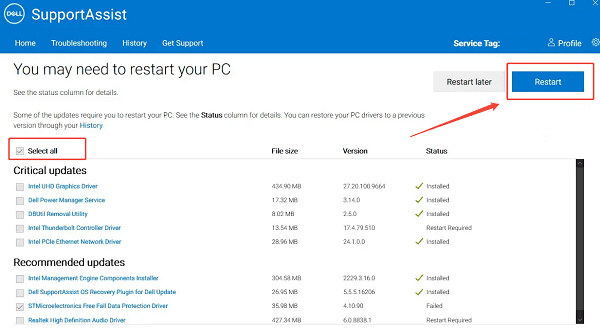
Method 2: Manual Download from Dell Support Website
This method provides precise control and is ideal for major updates or troubleshooting specific components.
Find Service Tag: Locate the Service Tag sticker on the bottom of your Latitude 5550.
Go to Support: Visit the official Dell Support website and enter your Service Tag.
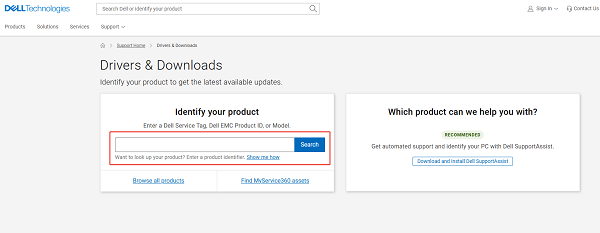
Select Drivers: Navigate to the "Drivers & Downloads" section and select your operating system (Windows 10 or 11).
Prioritize: Download drivers by category. Always prioritize installing the Chipset and BIOS updates first before installing Graphics, Audio, or Network drivers.
Part III: Troubleshooting and Configuration Fixes
These steps address common conflicts that lead to non-functioning features or system instability.
Method 1: Reinstallation of the Network Adapter
If you are experiencing persistent Wi-Fi or Bluetooth dropouts, a complete removal and reinstallation of the network adapter driver is often the fix.
Press Windows Key + X and select "Device Manager".
Expand the "Network adapters" category.
Right-click on your "Intel/Broadcom Wireless adapter" and select "Uninstall device".
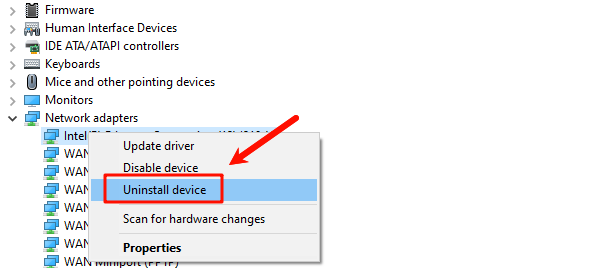
Check the box to delete the driver software.
Restart your PC. Windows will automatically detect the hardware and reinstall a fresh, default driver. Then, use Method 1 in Part I to install the latest Dell-approved driver.
Method 2: Disable Power Management for the Network Card
Aggressive power-saving features can put the Wi-Fi adapter to sleep, causing it to randomly disconnect or fail to detect networks.
Press Windows Key + X and select "Device Manager".
Expand the "Network adapters" category.
Right-click on your Dell Wireless adapter and select "Properties".
Go to the "Power Management" tab.
Uncheck the box that says "Allow the computer to turn off this device to save power".
Conclusion
Restoring the smooth, reliable operation of your Dell Latitude 5550 depends fundamentally on correct driver management. The most reliable strategy is to first ensure system-wide driver synchronization and stability with Driver Talent X.
By combining this essential fix with the use of the Dell SupportAssist application for firmware updates and disabling power management on critical components, you can guarantee a stable, efficient, and fully functional business computing experience.
See also:
Epson L3250 Driver Download & Installation Guide for Windows 10/11
How to Update BIOS on MSI Motherboard – Step-by-Step Guide









