
Many users experience sudden monitor blackouts, USB device drops, Ethernet interruptions, or full dock disconnections. These issues often stem from compatibility limitations, unstable USB-C power delivery, outdated drivers, firmware glitches, or a faulty cable. This guide provides every effective solution to help you stabilize your Lenovo IdeaPad docking station and prevent further random disconnections.
Confirm Power Delivery and Charging Stability
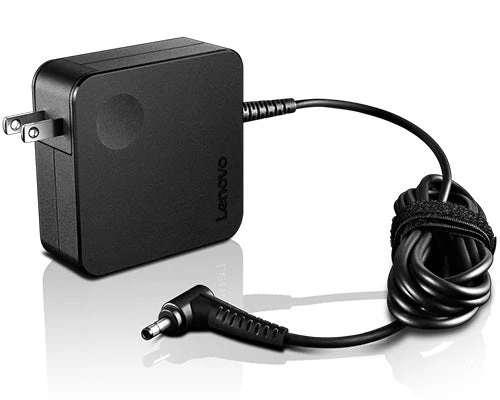
Many IdeaPad models require sufficient wattage to maintain stable docking. If your dock's power adapter is too weak, the system may repeatedly disconnect.
Ensure the dock is using the original power adapter
Most Lenovo docks require 65W–135W, depending on the model
Do not power the dock through USB-C without a proper AC adapter
Avoid daisy-chaining high-power devices via the dock
Low power = random disconnects, especially during heavy use
Update Drivers on Your IdeaPad
Outdated drivers often cause unstable docking behavior. Driver Talent X can help stabilize your Lenovo IdeaPad docking station by automatically detecting outdated, corrupted, or incompatible drivers that commonly cause random disconnections. Since dock stability depends on graphics drivers, USB-C controllers, Thunderbolt drivers, and chipset firmware, keeping these components updated is essential to prevent sudden dropouts.
Download and Install Driver Talent X
Click the Download button to get the installer
Run the setup file and follow the on-screen steps to complete installation
Run a Full System Driver Scan
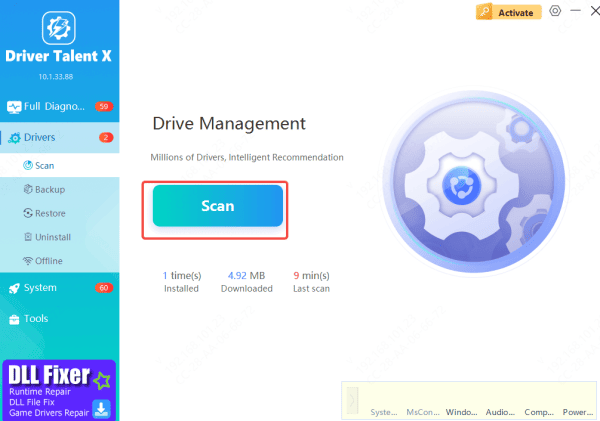
Launch Driver Talent X and click Scan
The tool will analyze key components that impact dock stability—such as GPU drivers, USB-C/Thunderbolt controllers, USB hubs, and chipset packages
Update or Repair Problematic Drivers
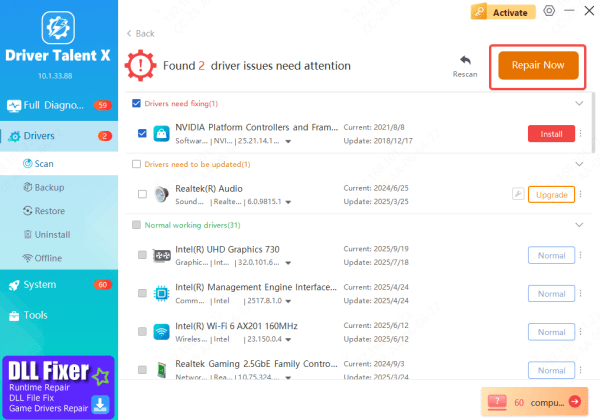
Once the scan finishes, Driver Talent X will display outdated, unstable, or malfunctioning drivers that may be causing your docking station to disconnect
Click Repair Now or Update, and the program will automatically download and install the correct, optimized versions for your Lenovo IdeaPad
Restart Your PC
After updates are applied, restart your computer
Rebooting ensures Windows loads the new drivers correctly, often restoring stable dock performance and preventing future disconnections
Install Docking Station Firmware Updates
Firmware issues commonly cause monitor flickering and random USB disconnections.
Download the latest firmware from Lenovo Support
Or use Lenovo Dock Manager
Follow on-screen instructions to install updates
A simple firmware update often fully resolves instability.
.png "download-firmware-files")
Change Windows Power Management Settings
Windows may turn off USB devices to save power, causing the dock to disconnect.
Fix USB Selective Suspend
Open Control Panel
Go to Power Options
Choose your power plan → Change advanced settings
Expand USB settings
Set USB selective suspend → Disabled
.png "power-management-settings")
After this change, USB ports will stay powered and more stable.
Power Cycle the Docking Station
A simple reset often resolves temporary firmware or power issues.
Unplug the dock from AC power
Disconnect the USB-C cable from your laptop
Wait 30 seconds
Plug everything back in
This refreshes internal circuits and often restores stable operation.
Conclusion
A Lenovo IdeaPad docking station that keeps disconnecting can be incredibly frustrating, especially when it interrupts your external displays, USB devices, or wired network connection. By confirming your dock's power requirements, updating system and dock-related drivers with tools like Driver Talent X, installing the latest firmware, adjusting power management settings, and performing a simple power cycle, you can significantly improve docking stability. After applying these steps, your IdeaPad should maintain a consistent connection with your docking station, ensuring smooth, reliable performance throughout daily use.









