
The Logitech G515 Lightspeed TKL is a fantastic low-profile mechanical gaming keyboard. However, users sometimes encounter issues such as keys not responding, noticeable input delay, specific keys failing, or the entire keyboard becoming unresponsive. The good news: over 90% of these problems are NOT hardware failures and can usually be fixed with the steps below. We start with the simplest solutions and progress to more advanced ones.
Basic Checks & Power/Connection
Flip the keyboard over and check if the battery indicator light is on
If using wireless mode for a long time without activity → replace the battery, or simply plug in the Type-C cable to switch to wired mode (highly recommended first step)
Try a different USB port (preferably a direct rear port on your PC — avoid front ports and USB hubs)
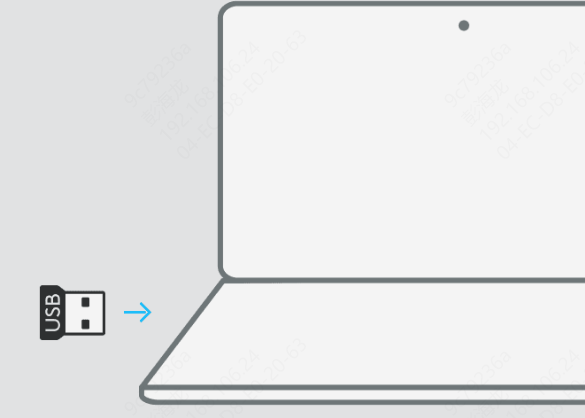
Plug usb receiver to pc
Test the keyboard on another computer (quickest way to determine if the issue is with the keyboard or your PC)

Wireless Connection & Pairing Troubleshooting
Unplug and replug the LIGHTSPEED receiver
Keep the receiver within 30 cm of the keyboard and away from Wi-Fi routers, phone chargers, and other 2.4 GHz devices
To re-pair: Press and hold the connection mode key (usually the 1/2/BT key in the top-right corner) for 3–5 seconds until the LED flashes rapidly, then re-add the keyboard in Logitech G HUB
Check Logitech G Hub Settings
Logitech G Hub is essential for managing profiles, macros, and key assignments—but incorrect settings can disable keys
Open Logitech G Hub
Make sure the G515 is detected properly
Check active profiles and switch to the default profile
Look for reassigned keys, macros, or disabled buttons
Remove custom mappings temporarily to test
After saving changes, unplug and reconnect the keyboard

Disable Windows Keyboard Accessibility Features
Windows accessibility features can interfere with normal keyboard input
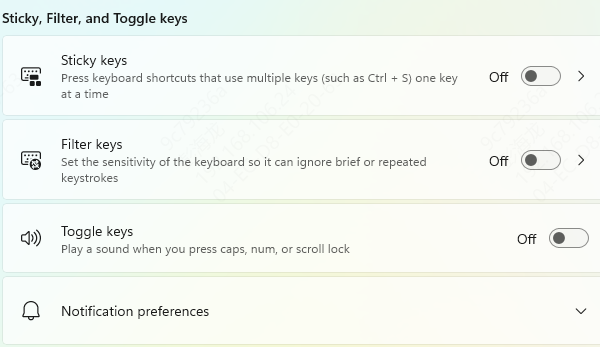
Turn Off Sticky Keys and Filter Keys:
Go to Settings → Accessibility → Keyboard
Disable: Sticky Keys, Filter Keys, and Toggle Keys
Restart your computer
These features are often enabled accidentally and can make keys seem unresponsive
Update or Reinstall Keyboard Drivers (Recommended)
Outdated or corrupted drivers are one of the most common causes of keyboard issues.
Option 1: Update Drivers via Device Manager
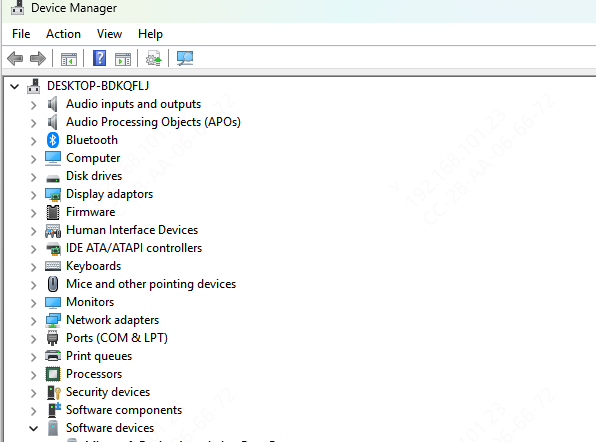
Open Device Manager
Expand Keyboards
Right-click your Logitech keyboard and select Update driver
Restart your PC after updating
Option 2: Use Driver Talent X (Recommended)
If you want a faster and safer solution, Driver Talent X can automatically detect and fix driver problems
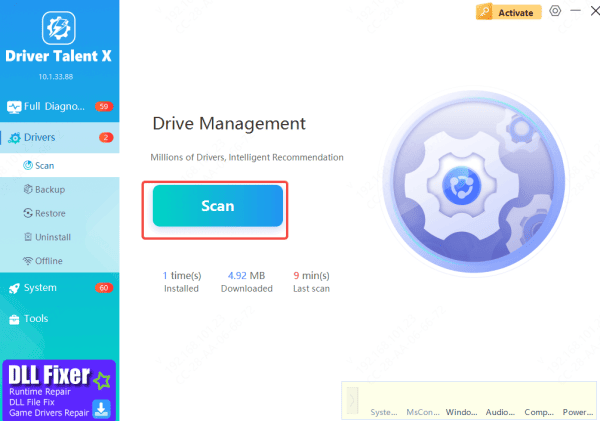
Install and launch Driver Talent X
Go to Drivers → Scan
Let the tool detect outdated or missing keyboard drivers
Click Repair Now to update them automatically
Restart your computer
This method helps avoid compatibility issues and saves time
Update Logitech G515 Firmware
Firmware updates can fix key response bugs and improve stability
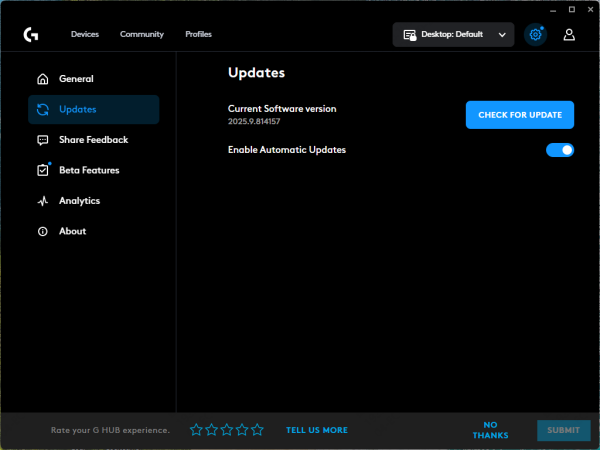
Open Logitech G Hub
Select the G515 keyboard
Check for available firmware updates
Follow on-screen instructions carefully
Do not disconnect the keyboard during firmware updates, as this can cause permanent issues
Cleaning Keyboard
The G515's low-profile switches have very narrow gaps, making them prone to collecting dust, hair, crumbs, and drink residue.
Turn the keyboard upside down and gently tap it several times to dislodge loose debris
Use compressed air to blow out dust from between all keys
For stubborn dirt → carefully remove keycaps one by one using a plastic keycap puller
Lightly dampen a cotton swab with 75%–99% isopropyl alcohol and gently clean the switch contacts and keycap stems
Allow everything to dry completely (at least 10–15 minutes) before reassembling
Many users report that keys start working perfectly again after this step alone
.png "clean-keyboard")
Conclusion
When your Logitech G515 keys stop responding, it's usually due to software settings, driver issues, or configuration conflicts—not permanent damage. By systematically checking connections, adjusting G Hub settings, disabling Windows accessibility features, and updating drivers or firmware, you can resolve most problems quickly. For long-term stability, keep your drivers and Logitech G Hub up to date, and avoid sudden disconnects during updates. With the right setup, your Logitech G515 should deliver the smooth, responsive performance it's known for.









