
Having a gaming headset like Logitech's on your head should immerse you in the action, but if you're facing sound issues, it can ruin your entire experience. If your Logitech gaming headset isn't producing any sound, there are several things you can check to get it working again. Here's a step-by-step guide to help you resolve the issue.
Check Physical Connections
Before diving into software and settings, make sure that the basic physical connections are intact. The cause of the issue could be as simple as a loose or disconnected cable.
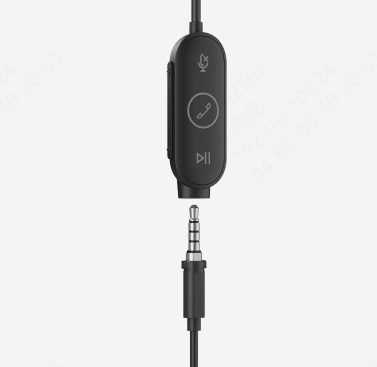
For Wired Headsets
Ensure that the headset is securely plugged into the correct audio jack (typically green for headphones and pink for the microphone)
Check the cable for any visible damage or fraying. Even small breaks in the wiring can cause sound issues
Test the headset with another device (like a smartphone or another computer) to see if the issue lies with the headset or your PC
For Wireless Headsets
Check that your headset is properly charged. If it's low on battery, it might not produce sound.
For Bluetooth headsets, make sure it's paired correctly with your device
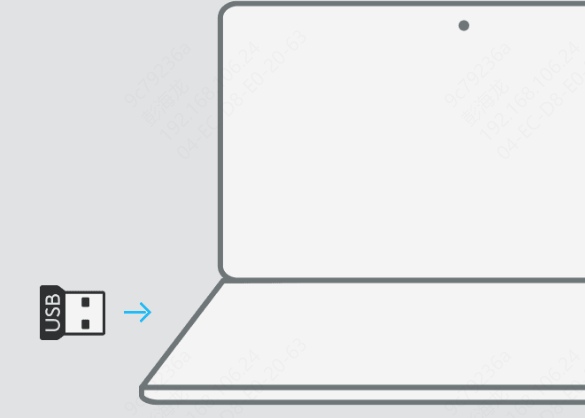
If you're using a USB dongle, ensure it's securely plugged into your computer
Ensure Correct Audio Output Settings
Sometimes, the issue might not be the headset, but the audio output settings on your device
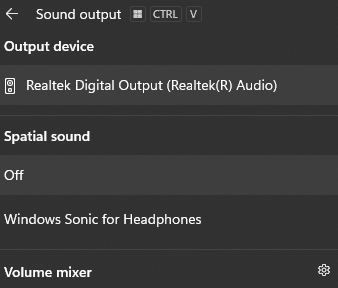
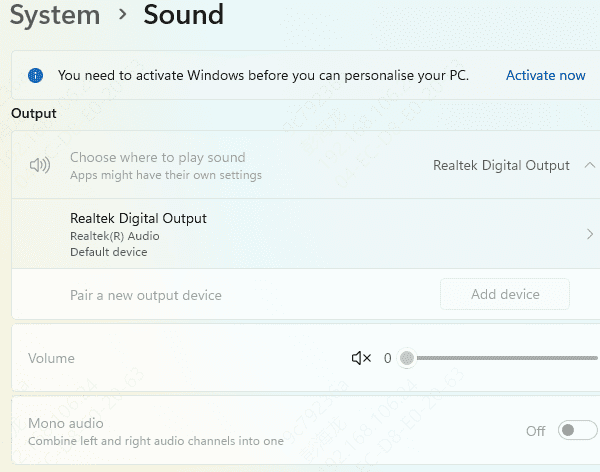
Right-click on the sound icon in your taskbar and select "Open Sound Settings"
Under the "Output" section, check if your Logitech headset is selected as the default audio device. If it's not, select it manually
You can also check the sound settings by going to Settings > System > Sound and ensuring that your headset is listed as the default device
Update Headset Drivers
Outdated or corrupted drivers can cause audio problems. Updating or reinstalling the drivers may fix the sound issue.
Method 1: Update Drivers via Device Manager
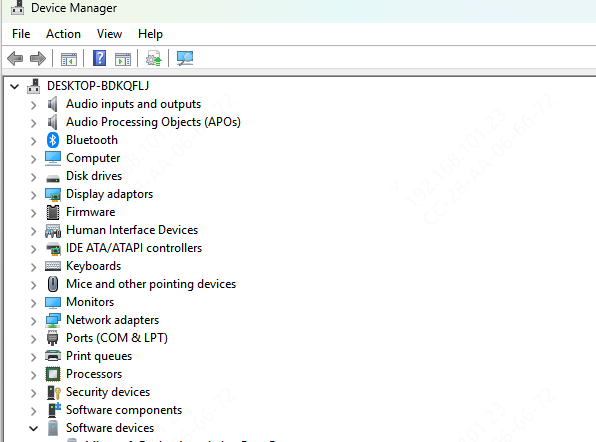
Open Device Manager (Press Windows + X, then select Device Manager)
Find your Logitech headset under "Audio inputs and outputs"
Right-click the headset and choose Update Driver. Select Search automatically for updated driver software to let Windows search for updates
If the drivers are up-to-date, try uninstalling and reinstalling them to fix any corrupt files
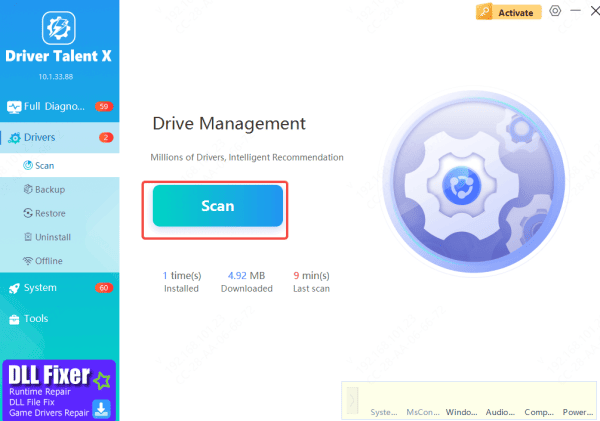
Method 2: Update Drivers with Driver Talent X
Download and Install Driver Talent X
After downloading, install and open the application on your computer
Scan for Outdated or Missing audio Drivers
Update the Driver
Restart Your Computer
Using Driver Talent X ensures that your drivers are always up to date and compatible with your system, helping you avoid sound problems and improving overall headset performance
Check for Mute Settings and Volume Levels
Double-check that neither your headset nor the device you're connected to is muted
Check the mute switch on the side of the headset (if applicable)
On your PC or console, make sure the volume is turned up and not muted
Look for any in-app or game-specific mute options that might be preventing sound from coming through
Perform a Hard Reset of the Headset
If all else fails, try performing a hard reset of the headset. This can fix any minor software or firmware glitches that might be causing the issue
For Wired Logitech Headsets
Unplug the headset and leave it disconnected for about 30 seconds
Plug it back in and test the sound
For Wireless Logitech Headsets
Power off the headset.
Hold down the power button for 15 seconds to perform a factory reset (consult the user manual for specific reset instructions)
After the reset, reconnect the headset and check for sound
.png "reset-headset")
Check for Hardware Issues
If you've followed all the troubleshooting steps and the sound still doesn't work, it might be a hardware issue
Inspect the headset for physical damage. Look for any fraying cables, broken connectors, or cracked parts
Test the headset with another device to see if the issue is with the headset itself or with the original device
If the headset doesn't work with any device, it might be time to reach out to Logitech for a replacement or repair
Conclusion
No sound coming from your Logitech gaming headset can be frustrating, but with the steps outlined above, you should be able to get it working again. Whether the issue lies in physical connections, software settings, or hardware malfunctions, troubleshooting can restore your headset's audio functionality in no time.









