
Logitech THX speakers are known for delivering high-quality sound, whether you're gaming, watching movies, or listening to music. However, like any other electronic device, they can sometimes run into issues. One of the most common problems is when the speakers stop working or fail to produce sound. In this guide, we'll walk you through troubleshooting steps to get your Logitech THX speakers up and running again.
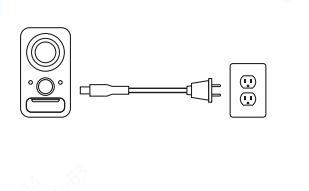
Check the Power Supply
Before diving into more complex solutions, it's important to rule out simple issues
Ensure the speakers are properly plugged into the power source: Check if the speakers are correctly connected to the electrical outlet or power strip
Verify the power switch: Many Logitech speakers have a physical power switch. Make sure it's turned on
Check the power cable: Inspect the power cable for any visible damage, like fraying or cuts. If damaged, try using another cable (if available)
Verify the Audio Source
If your speakers are powered on but you still don't hear any sound, the issue might be with your audio source
Confirm the device connected to the speakers is outputting audio: Test your speakers with a different device, like a smartphone, to see if it's an issue with your computer or laptop
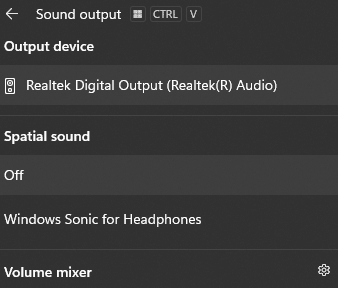
Set Logitech speakers as the default output: If you're using a PC, make sure your Logitech THX speakers are selected as the default output device in your sound settings
Right-click the volume icon in the taskbar and select Open Sound settings
Under Output, choose Logitech THX speakers
Inspect the Audio Cables
Sometimes the issue lies in the audio cables themselves
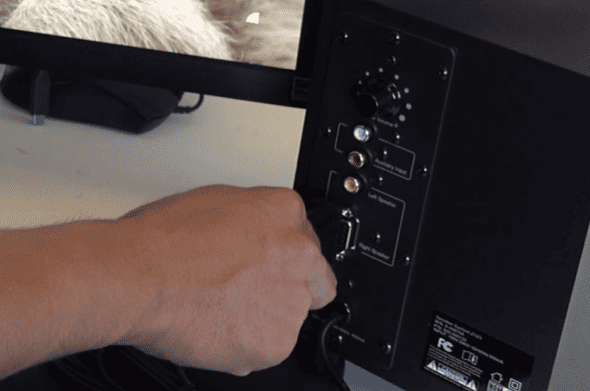
Check the connection: Ensure that the 3.5mm jack or optical cable is securely plugged into both the speakers and the device
Test with another cable: If you have a spare cable, try using it to rule out a faulty cable
Update or Reinstall Audio Drivers
Outdated or corrupted audio drivers can cause issues with audio output to your speakers.
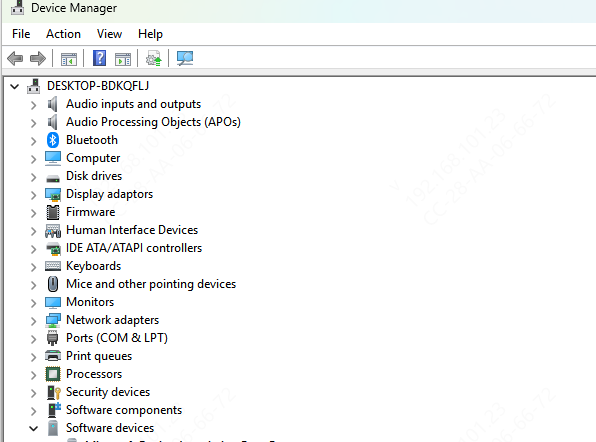
Method 1: Update Drivers via Device Manager
Press Windows + X and select Device Manager
Expand the Sound, video and game controllers section
Right-click your audio device and choose Update driver
Select Search automatically for updated driver software
If your drivers are up-to-date but issues persist, you might need to reinstall them
Method 2: Use Driver Talent X
For an easier and automated solution, you can use Driver Talent X to update or fix your drivers
Download and install Driver Talent X from the official website
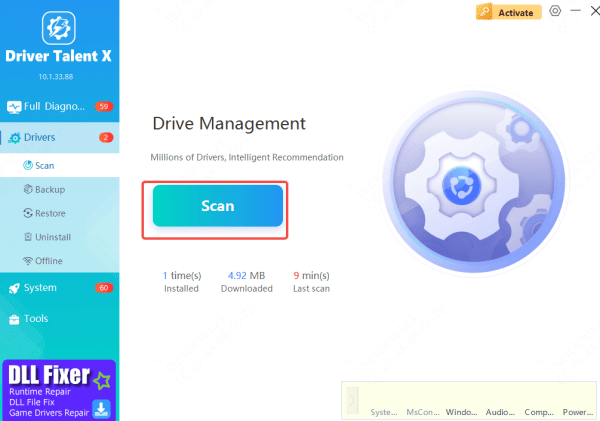
Launch the software and go to the Drivers tab
Click Scan to check for outdated, missing, or corrupted drivers
Select the drivers related to your audio system and click Repair Now to update or reinstall them
Driver Talent X automatically installs the latest, compatible drivers for your system, ensuring that the Logitech THX speakers receive proper audio signals
Check Sound Settings and Balance
The issue might be related to the sound settings on your system
Volume levels: Make sure the volume is not muted or set too low, both on your computer and the speakers
Balance: Check if the balance is set correctly. Sometimes, one side of the speaker may be too quiet if the balance is skewed
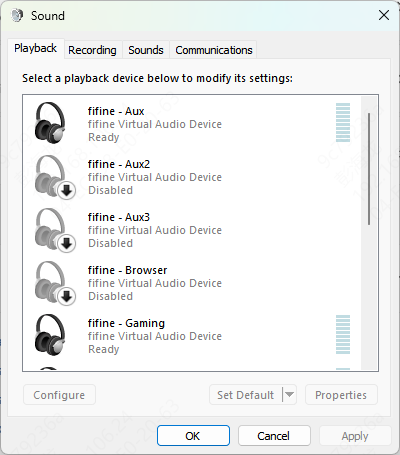
Right-click the volume icon and select Sounds
Under the Playback tab, select Logitech THX Speakers, then click Properties
Go to the Levels tab and adjust the balance
Reset the Speakers
Sometimes a reset is all it takes to fix minor issues
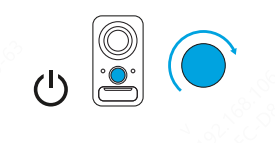
Power cycle the speakers: Unplug the speakers from both the power source and the audio source. Wait for about 30 seconds and plug everything back in
Check for a reset button: Some Logitech speakers have a reset button located on the back or bottom of the device. Press it (if available) and follow the manufacturer's instructions to reset the speakers
Inspect for Hardware Issues
Finally, inspect your Logitech THX speakers for any potential hardware problems
Look for visible damage: Check the speakers for any physical damage, such as cracks, exposed wires, or damaged components
Internal components: If the speakers have been exposed to moisture or other environmental factors, this could cause issues. Unfortunately, if there's internal damage, professional repair or replacement may be needed
Conclusion
If your Logitech THX speakers aren't working, the issue could range from a simple cable problem to a more complex driver or hardware failure. By following the troubleshooting steps outlined in this guide, you should be able to identify and fix most common issues.









