
If your Lenovo laptop is not charging and there is no charging indicator light, it can be alarming. The problem may come from the charger, battery, firmware, power settings, or even internal hardware. This guide provides all the effective methods to diagnose and fix a Lenovo laptop that won't charge and shows no charging light.
Check the Power Source and Charger
Before assuming a hardware fault, verify the basics:
Test the wall outlet
Plug another device into the same outlet
Try a different outlet to rule out electrical issues
Inspect the Lenovo charger
Ensure the power brick LED (if available) is on
Check the cable for cuts, bends, or burnt smell
Confirm you're using an original Lenovo charger
Try a different power adapter
Using a compatible Lenovo charger can quickly identify if the charger is faulty
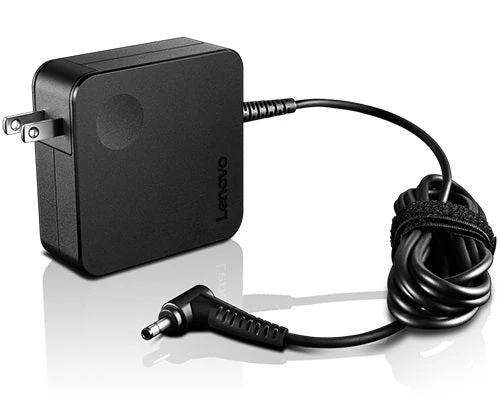
Perform a Power Reset
A power reset can fix charging issues caused by residual static power.
For laptops with a removable battery
Power off the laptop
Remove the battery
Hold the Power button for 15–20 seconds
Reinsert the battery and connect the charger
For laptops with an internal battery
Power off the laptop.
Press and hold the Novo / Reset pinhole button (usually at the bottom or side) for 10 seconds
Reconnect the charger and check the charging light
(1).png "reset-battery")
Update Lenovo Power & System Drivers
Outdated power, chipset, and AC adapter drivers are common reasons a Lenovo laptop won't charge or show a charging LED. Updating them ensures your system recognizes the charger correctly.
Download and Install Driver Talent X
Click the Download button to obtain the installer
After it finishes downloading, open the setup file and follow the on-screen instructions to complete the installation
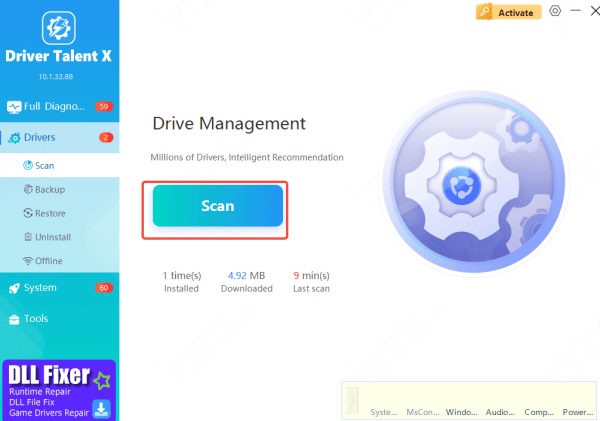
Perform a Full Power-Related Driver Scan
Launch Driver Talent X and navigate to Drivers → Scan
The tool will analyze all system components tied to power management and charging
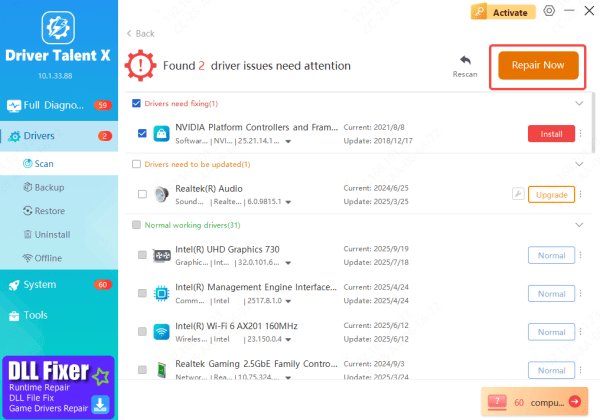
Update Required Drivers
Review the list of recommended fixes and updates, then select them
Driver Talent X will automatically fetch and install the appropriate driver versions needed to restore proper charging behavior
Restart Your Laptop
After the updates are applied, reboot your Lenovo laptop
Restarting ensures the new power drivers load correctly, which often resolves charging detection problems right away
Update BIOS
A corrupted BIOS can prevent battery charging
Visit Lenovo Support
Download the latest BIOS for your model
Plug in your charger (if the battery still has power)
Install the BIOS update and reboot
Do not interrupt a BIOS update

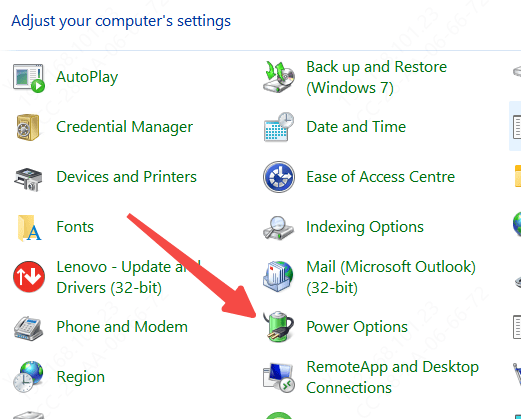
Check Power Settings in Windows
Go to Settings > System > Power & Battery
Ensure the laptop is set to a balanced or recommended power plan
Try disabling Battery Saver mode temporarily
Perform a full shutdown, unplug the charger, wait 30 seconds, then reconnect and power on
Hardware Issues
Sometimes, charging problems are caused by physical hardware faults rather than software or drivers. If your Lenovo laptop shows no charging light, consider these possibilities:
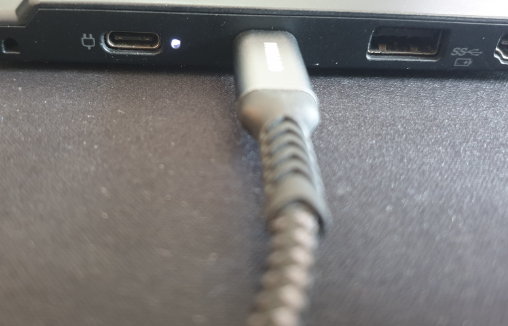
Damaged Charging Port: Examine the laptop's charging port for bent or loose pins, dirt, or debris that might block the connection. Gently clean the port using a soft brush or compressed air. If the port feels loose or wobbly, the internal connector may be damaged and require professional repair
Defective Battery: For laptops with removable batteries, remove the battery and inspect it for swelling, leakage, or damage. Reinsert the battery securely and attempt to charge again. If the battery is old or shows physical defects, consider replacing it with a genuine Lenovo battery
Motherboard or Power Circuit Failure: If the charger, cable, and battery are all functional, the problem may lie with the internal power circuitry on the motherboard. Symptoms can include no charging light, the laptop not powering on, or intermittent power issues. Repairing motherboard or power circuit issues usually requires professional service from Lenovo or a certified technician.
Conclusion
In conclusion, a Lenovo laptop that is not charging and shows no indicator light can stem from a variety of issues, ranging from simple power source or charger problems to outdated drivers, BIOS settings, or serious hardware faults. By systematically checking the power outlet, charger, performing a power reset, updating drivers and BIOS, adjusting Windows power settings, and inspecting for hardware failures, most charging problems can be identified and resolved.









