
Setting up a Lenovo desktop monitor on Windows should be a straightforward process, but incorrect drivers, connection issues, or improper display settings can lead to problems such as no signal, wrong resolution, flickering, or the monitor not being detected. This guide provides detailed steps, starting with updating drivers using Driver Talent X, followed by multiple proven setup and troubleshooting methods.
Update Display Drivers Using Driver Talent X
Before adjusting cables or Windows settings, it is strongly recommended to update your graphics card and monitor drivers. Outdated or incompatible drivers are the most common reason Lenovo monitors fail to work correctly on Windows.
Download and Install:
Click the "Download" button to download the software package.
Run the installer and follow the on-screen prompts. Choose your preferred installation directory and complete the setup.
Start a System Scan:
Open the program from the desktop shortcut or Windows Start menu, go to "Drivers" > "Scan", click "Scan".
Driver Talent X will analyze all hardware drivers including graphics drivers, display adapters, monitor drivers, and chipset drivers.
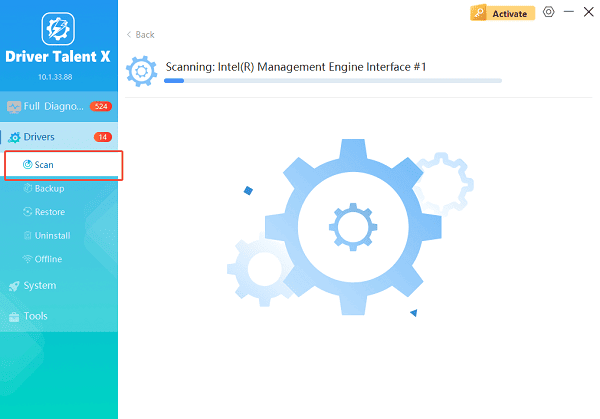
Update All Drivers:
Identify outdated, missing, or corrupted drivers. Pay attention to graphics card drivers (NVIDIA, AMD, Intel), monitor drivers, and system chipset drivers.
Select the "Upgrade" or "Repair Now" button to automatically download and install all recommended versions.
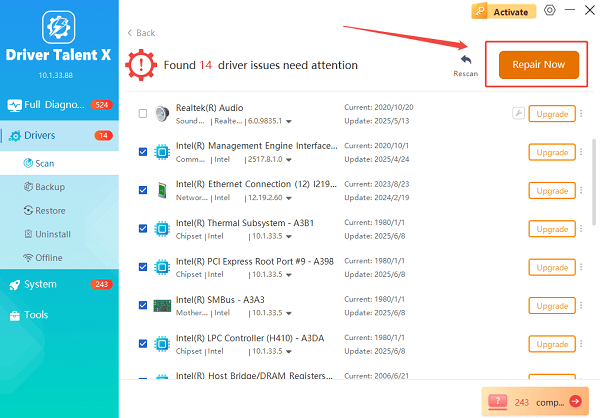
Restart Your PC:
Wait for the download and installation process to complete.
Restart your computer to apply the updated drivers.
Updating drivers first ensures Windows can properly recognize the Lenovo monitor and unlock full resolution, refresh rate, and color options.
Properly Connect the Lenovo Monitor to Your Windows PC
Incorrect cable selection or loose connections can prevent the monitor from displaying anything.
Check Cable Type and Ports:
Identify the ports on both the Lenovo monitor and your desktop PC.
Use compatible cables such as HDMI, DisplayPort, USB-C, or VGA based on supported ports.
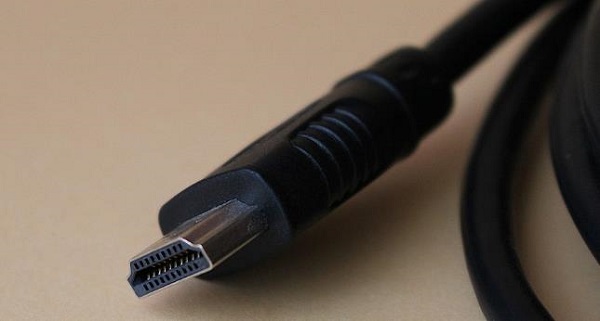
Avoid adapters if possible, as they may limit resolution or cause signal issues.
Firmly reconnect both ends of the cable.
Select the Correct Input Source:
Press the physical Menu button on the Lenovo monitor.
Navigate to Input Source or Source.
Manually select HDMI, DP, or USB-C matching the connected cable.
Configure Display Settings in Windows
Even if the monitor is physically connected, Windows may not automatically activate it.
Detect the Monitor Manually:
Right-click on the desktop and select "Display settings".
Scroll down and click "Detect".
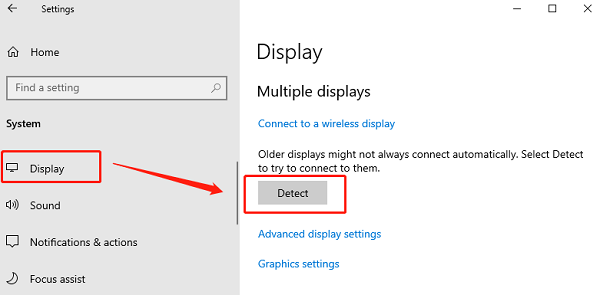
Wait for Windows to search for the Lenovo monitor.
Adjust Display Mode:
1. In Display settings, locate "Multiple displays".
2. Choose one of the following options:
Extend these displays for dual-screen use.
Duplicate these displays to mirror the screen.
Show only on 2 to use the Lenovo monitor as the main display.
3. Click "Apply" to save changes.
Set the Correct Resolution and Refresh Rate
Incorrect resolution settings can cause blurry images or black screens.
Change Resolution:
Open Display settings.
Select the Lenovo monitor from the display diagram.
Under "Display" resolution, choose the recommended resolution.
Click Keep changes when prompted.
Adjust Refresh Rate:
Scroll down and click "Advanced display settings".
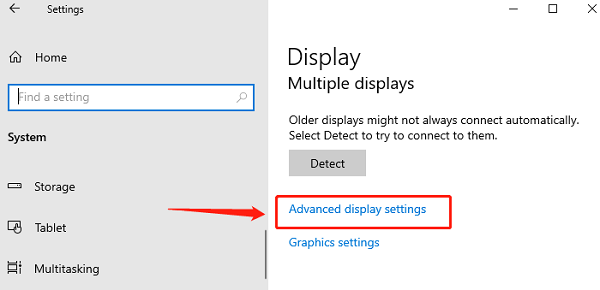
Select the Lenovo monitor.
Choose the highest supported refresh rate.
Apply the changes.
Set the Lenovo Monitor as the Primary Display
If you want to use the Lenovo monitor as your main screen:
Go to Display settings.
Click the Lenovo monitor.
Enable "Make this my main display".
Apply the settings.
This is useful for desktop setups where the Lenovo monitor replaces a laptop or secondary screen.
Update Windows System Components
System updates often include display compatibility improvements.
Open Settings.
Go to Update & Security > Windows Update.
Click "Check for updates".
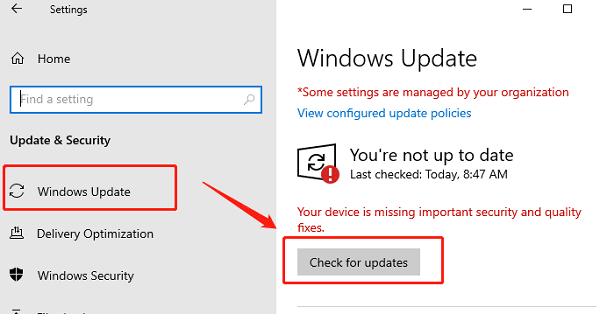
Install all available updates and restart the PC.
Check Graphics Control Panel Settings
Graphics software can override Windows display settings.
NVIDIA, AMD, or Intel Graphics:
Right-click on the desktop.
Open NVIDIA Control Panel, AMD Software, or Intel Graphics Command Center.
Confirm the Lenovo monitor is detected.
Set proper resolution, scaling mode, and color depth.
Apply and save the settings.
Test the Monitor on Another Device
To rule out hardware failure:
Connect the Lenovo monitor to another computer or laptop.
Use a different cable if available.
If the monitor works elsewhere, the issue is likely driver or Windows-related.
If it does not work, the monitor itself may be defective.
Final Thoughts
Setting up a Lenovo desktop monitor on Windows requires more than just plugging in a cable. Updating drivers with Driver Talent X should always be the first step, followed by correct cable selection, proper display configuration, and system-level checks. By following the detailed steps above, you can ensure stable connectivity, optimal resolution, and smooth performance from your Lenovo monitor on Windows.
See also:
How to Update Graphics Driver Intel on Windows PC
HP Drivers Download – Official and Safe Methods for Windows









