
The official Logitech configuration software (whether you are using Logitech Options, Logi Options+, or the older Logitech G HUB) is essential for unlocking the full potential of your advanced Logitech mouse (such as the MX Master, Pro Wireless, or G502). When the app fails to recognize or configure your device, it renders custom button assignments and sensitivity adjustments useless.
This detection failure is almost always a software communication breakdown caused by driver corruption, Windows service conflicts, or software installation errors. To systematically troubleshoot and ensure your Logitech app detects your mouse, this guide provides detailed, step-by-step solutions, starting with the most critical factor: system driver integrity.
Part I: Driver Integrity and System Synchronization
The Logitech app relies on stable drivers for the mouse hardware, the USB receiver, and the underlying system components. If these are outdated or corrupted, the app cannot communicate effectively with the device.
Automated Driver Update with Driver Talent X
Manually troubleshooting and updating the various input, USB Controller, and Chipset drivers can be complex. A specialized utility automates this process, ensuring that all necessary components are perfectly synchronized, often resolving deep-seated connectivity issues that block the Logitech software.
Preparation:
Ensure your Logitech mouse receiver (Unifying/Logi Bolt) is plugged in or the Bluetooth connection is active.
Download and install the Driver Talent X application onto your Windows PC.
Run Scan:
Launch the application and go to "Drivers" > "Scan", click "Scan".
The software will perform a deep analysis of your system, focusing on peripheral and controller drivers.
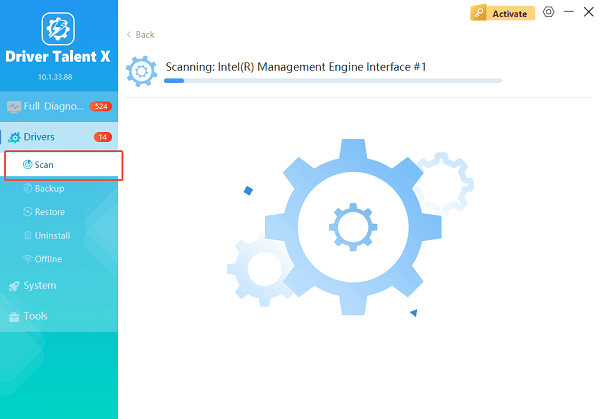
Execute Update:
After the scan is complete, the software will display a list of all drivers that need attention. Select the necessary drivers and click the "Repair Now" button.
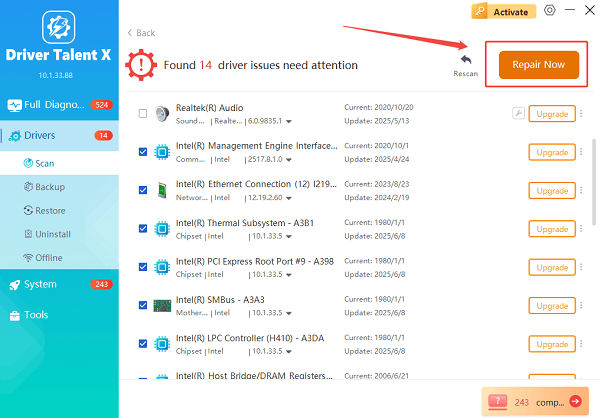
Driver Talent X will download the latest, certified versions specific to your Logitech device and Windows version.
Finalize:
After the installation is complete, restart your computer and try launching the Logitech application again.
Part II: Software and Service Fixes
These solutions address conflicts within Windows or the Logitech application itself that prevent successful detection.
Method 1: Clean Reinstallation of the Logitech Application
A fresh, clean installation is the best way to fix corrupted configuration files that prevent the application from detecting the mouse.
Uninstall: Go to "Settings" > "Apps" > "Installed apps" (or "Apps & features") and uninstall the specific Logitech app you are using (Logitech Options/Options+ or G HUB).
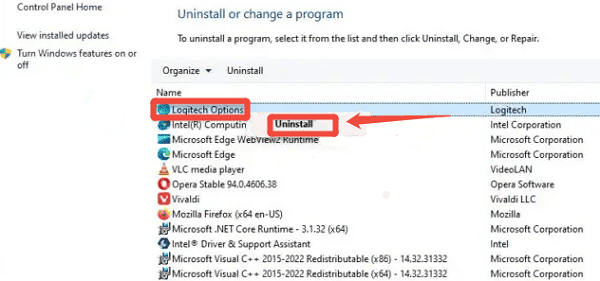
Clean Up: Manually check and delete any leftover files or folders related to the application in the C:\Program Files and C:\ProgramData directories.
Restart: Restart your PC completely.
Reinstall: Download the latest version of the application from the official Logitech website and install it.
Method 2: Verify Necessary Windows Services are Running
Logitech software often relies on specific background services to communicate with the hardware.
Press Windows Key + R and type "services.msc".
Locate services related to the software (e.g., Logi Options Service or Logitech G HUB Agent).
Right-click the service and select "Restart".
Ensure the "Startup type" is set to "Automatic".
Method 3: Check for Conflicting Software
Other peripheral utilities or older Logitech software can block the current app's detection process.
Open Task Manager: Press Ctrl + Shift + Esc.
End Conflicting Processes: Look for any running software related to other peripherals (e.g., Razer Synapse, Corsair iCUE) or older Logitech utilities (like SetPoint). Right-click the process and select "End task".
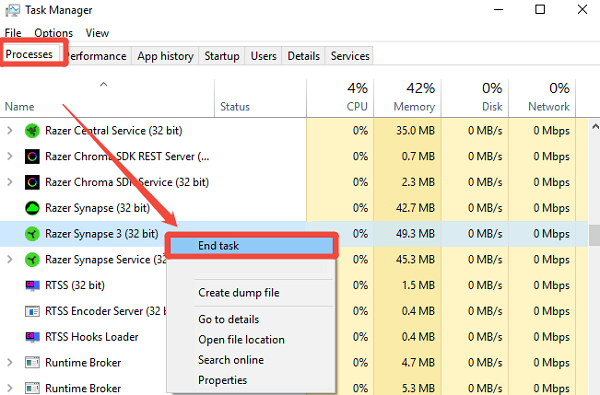
Test: Try launching the Logitech app immediately after ending the conflicting process.
Part III: Connection and Power Troubleshooting
These steps address physical and connectivity issues that lead to detection failure.
Method 1: Disable Power Saving
If using a USB receiver, ensure the connection is stable and the port isn't being put to sleep by Windows.
Change Port: Unplug the USB receiver (Unifying/Logi Bolt) and plug it into a different, high-speed USB port on your PC.
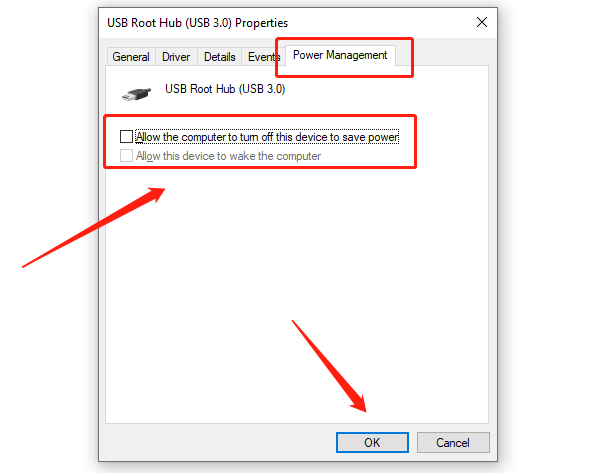
Disable Power Saving: Press Windows Key + X and select "Device Manager".
Expand "Universal Serial Bus controllers". Right-click on any "USB Root Hub" entry and select "Properties".
Go to the "Power Management" tab and Uncheck the box that says "Allow the computer to turn off this device to save power".
Method 2: Re-pair the Mouse
The connection link between the mouse and the receiver/PC may be lost or corrupted, requiring a forced re-pairing.
Download Pairing Tool: Download and install the official Logitech Unifying Software or Logi Bolt App (depending on your mouse/receiver type).
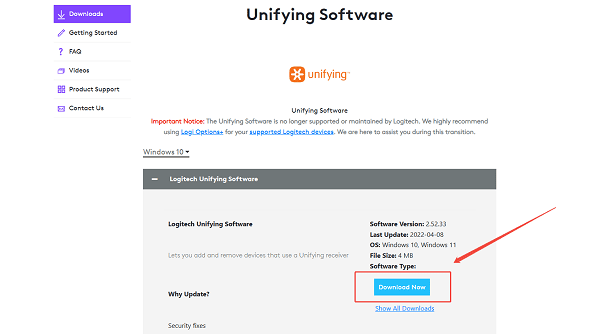
Force Pairing: Use the software to guide you through the manual process of disconnecting and reconnecting your mouse to its receiver or the PC's Bluetooth adapter.
Check Batteries: Ensure the mouse has fresh batteries or is fully charged before attempting re-pairing.
Conclusion
The failure of your Logitech app to detect your mouse is a highly fixable communication problem rooted in software conflicts and driver instability. The most reliable solution is to first ensure system-wide driver synchronization and stability with Driver Talent X.
By combining this foundational fix with a clean reinstallation of the Logitech application and disabling USB power saving, you can systematically eliminate common conflicts and restore full customization access to your device.
See also:
Canon CanoScan LiDE 100 Not Recognized? Try These Fixes
How to Fix Knup Keyboard Connection Issues – Working Driver Solutions
Canon IR2520 UFRII LT Driver Not Recognized? Try These Fixes
Can't Print with HP LaserJet M1120 MFP? Complete Troubleshooting Guide









