
Logitech mouse rely on the correct software and drivers to work properly on Windows. Whether you use Logitech Options, Logitech G HUB, or older SetPoint software, a missing or outdated driver can cause problems such as lag, unresponsiveness, or failed device detection.
This guide explains how to correctly download the Logitech mouse software and provides complete troubleshooting steps. Before you install Logitech software, it is strongly recommended to update all mouse, USB, and system drivers to avoid conflicts.
Update Drivers First with Driver Talent X
Incorrect or outdated drivers often cause Logitech software installation errors or mouse detection failures. Driver Talent X automatically scans your PC and installs the latest stable driver versions for your Logitech mouse, USB controller, and Windows components.
Download and Install:
Click the "Download" button to download the software package.
Run the installation file and follow the on-screen setup instructions.
Run a Full System Scan:
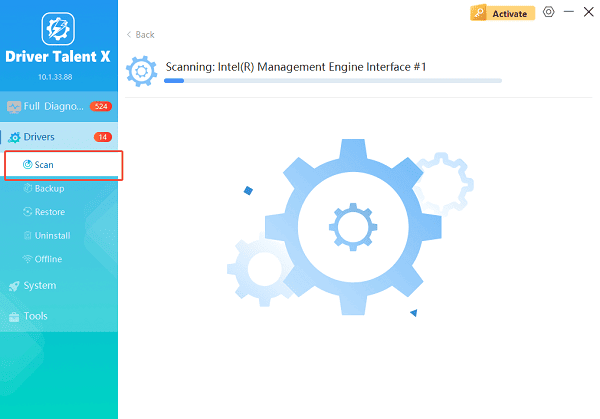
Launch the application and go to "Drivers" > "Scan", click "Scan".
Driver Talent X will check your USB controllers, mouse drivers, and system components for outdated or corrupted drivers.
Update All Related Drivers:
After the scan is complete, the software will display a list of all drivers that need attention. Select the necessary drivers and click the "Repair Now" button.
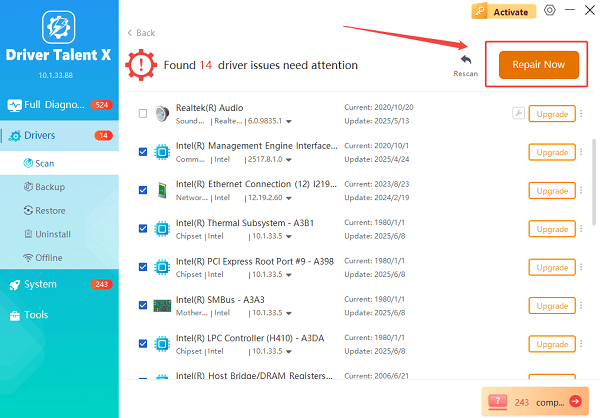
Driver Talent X will download the latest, certified versions specific to your mouse and Windows version, crucial for minimizing latency.
Reboot Your Computer:
Restart your computer after the updates are completed.
Try reconnecting your Logitech mouse and reinstalling the Logitech software.
Updating drivers first prevents installation errors and ensures your Windows system correctly recognizes your Logitech mouse.
How to Download Logitech Mouse Software on Windows
Logitech provides different software depending on the model of your mouse. Make sure you download the correct one.
1. Logitech Options or Options Plus (Most Productivity mouse)
Used for MX Master, MX Anywhere, M720, M585, and other productivity mouse.
Steps:
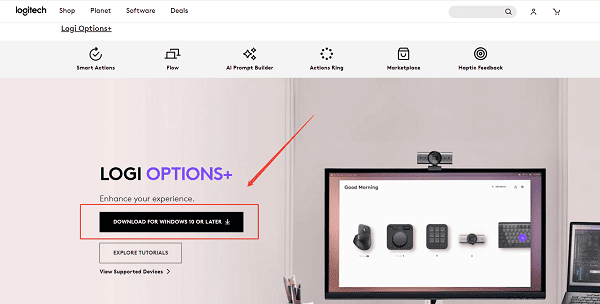
Visit the LOGI OPTIONS+ download page.
Select "DOWNLOAD FOR WINDOWS 10 OR LATER".
Download the installer file.
Double-click the installer and follow the on-screen instructions.
Restart your PC to complete the setup.
2. Logitech G HUB (Gaming mouse)
Used for G502, G203, G305, G Pro Wireless, G900, G903, and other gaming mouse.
Steps:
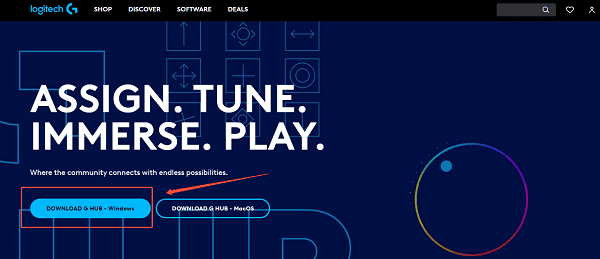
Visit the Logitech G HUB download page.
Choose Windows and download the installer.
Run the installation file.
Allow the program to install required components.
Launch G HUB and verify your mouse is detected.
3. Logitech SetPoint (Older mouse)
Used for older wireless and wired mouse such as M310, M325, M510, and M570.
Steps:
Visit the Logitech SetPoint download page.
Download the Windows installer.
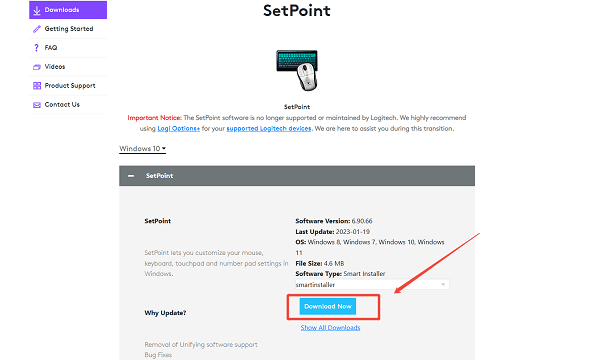
Run the file and follow the setup process.
Reboot the system after installation.
Logitech Mouse Software Not Detecting Your Device?
If the software installs but does not recognize your mouse, try the following solutions.
1. Reconnect or Re-pair the Mouse
For wireless models:
Turn the mouse off.
Remove and reconnect the USB receiver.
Turn the mouse back on.
Replace or recharge batteries if necessary.
For Bluetooth models:
Go to Windows Settings.
Open Bluetooth and devices.
Remove your mouse from the list.
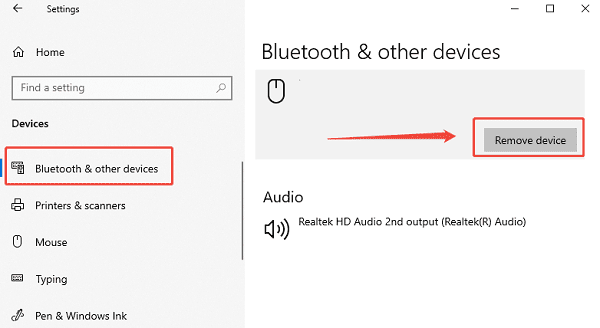
Re-pair the mouse from scratch.
2. Try a Different USB Port
USB ports may fail due to hardware conflicts or insufficient power.
Test:
Plug the receiver into a USB 2.0 port if you used USB 3.0 previously.
Avoid hubs; connect directly to the laptop or PC.
3. Disable USB Selective Suspend
Open Control Panel.
Select Power Options.
Click "Change plan settings".
Click "Change advanced power settings".
Expand USB settings, set "USB selective suspend" to "Disabled".
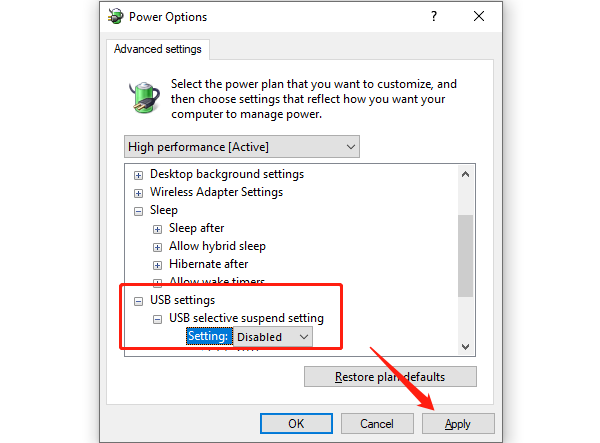
Save and reboot.
4. Reinstall the Logi HID Driver Manually
Right-click Start and open Device Manager.
Expand "Mice and other pointing devices".
Right-click the "Logitech HID-compliant mouse", select "Uninstall device".
Restart your PC and reconnect the mouse.
Logitech Software Not Installing on Windows?
If the installation stops or fails, try these fixes:
1. Run the Installer as Administrator
Right-click the installer and select "Run as administrator".
2. Disable Third-Party Antivirus Temporarily
Some antivirus tools block device drivers.
3. Ensure Windows Is Fully Updated
Open Settings.
Navigate to "Update & Security" > "Windows Update".
Click "Check for updates", install all pending updates.
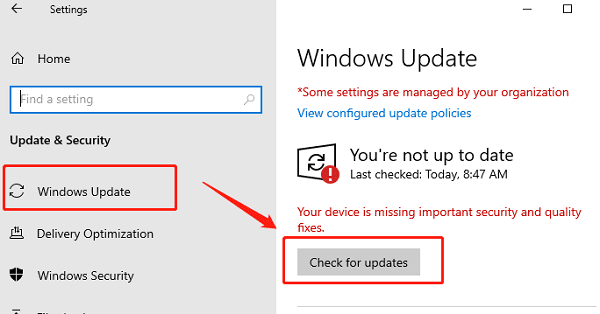
Reboot your system.
4. Clear Temporary Files
Press Win + R, type "temp", and delete files.
Repeat with "%temp%".
5. Redownload the Installer
A corrupted installer file may cause errors.
When to Reset Logitech Mouse Settings
If the mouse behaves incorrectly:
Open Logitech Options or G HUB.
Select your mouse profile.
Reset DPI, gestures, or button assignments.
Save the configuration.
For hardware reset:
Turn the mouse off.
Hold the left and right mouse buttons.
Turn the mouse back on while holding the buttons for five seconds.
Final Thoughts
Logitech mouse software is essential for customizing performance and enabling advanced features. Before installing the software, updating your drivers with Driver Talent X ensures your mouse is recognized correctly and prevents installation issues. With the correct drivers, a clean installation, and proper hardware settings, your Logitech mouse should work smoothly on Windows.
See also:
Solutions to Fix Monster Hunter Wilds Crashes
How to Fix Split Fiction Not Launching on Windows
[Fixed] Whoa! Cyberpunk 2077 Flatlined Error
Solutions for 'DirectX 12 Not Supported' Error on Windows 10









