
The Logitech G502 is one of the most popular gaming mouse, known for its precision, customizable buttons, and advanced DPI settings. However, many users encounter issues where Logitech G HUB or Logitech Gaming Software fails to detect the G502 mouse or does not work properly on Windows.
This problem is often caused by outdated drivers, USB conflicts, corrupted software, or system compatibility issues. Before trying other fixes, updating all related drivers is the most effective first step. Using Driver Talent X ensures your mouse, USB, chipset, and system drivers are fully compatible with Logitech software.
Update Drivers First with Driver Talent X
Outdated or corrupted drivers are the most common reason Logitech G502 software stops working. Driver Talent X automatically scans your system and installs the correct drivers, preventing software detection failures.
Download and Install:
Click the "Download" button to download the software package.
Run the downloaded setup file. Follow the on-screen instructions to complete the installation.
Scan Your System:
Open Driver Talent X from the desktop shortcut or Start menu, go to "Drivers" > "Scan", click "Scan".
Driver Talent X will detect outdated, missing, or corrupted drivers, including mouse drivers, USB controllers, chipset drivers, and system components.
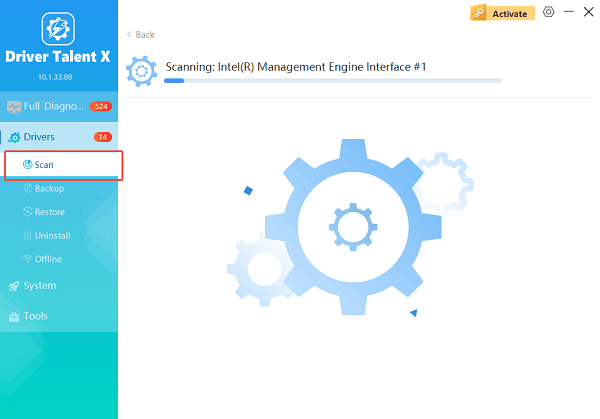
Update All Related Drivers:
After the scan is complete, the software will display a list of all drivers that need attention. Select the necessary drivers and click the "Repair Now" button.
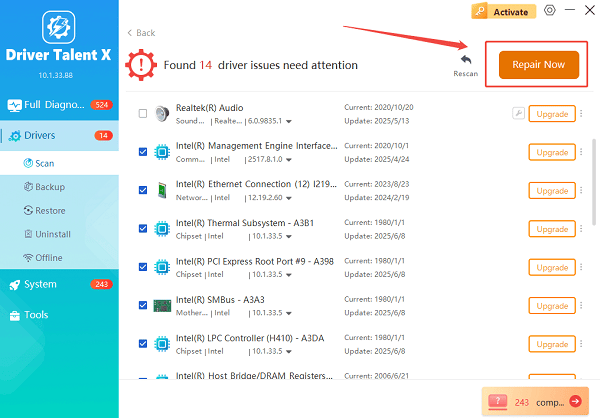
Driver Talent X will download the latest, certified versions specific to your mouse and Windows version, crucial for minimizing latency.
Restart Your Computer:
Restart Windows to ensure all updated drivers are properly applied.
After updating drivers, proceed with the fixes below.
Common Causes of Logitech G502 Software Not Working
Outdated or incompatible mouse drivers
Corrupted Logitech G HUB installation
USB power management issues
Conflicts with older Logitech software
Windows permission or service errors
Solutions to Fix Logitech G502 Mouse Software Issues
Solution 1: Reconnect the Logitech G502 Properly
Disconnect the Logitech G502 mouse from your PC.
Restart your computer.
Plug the mouse directly into a rear USB port on the motherboard.
Avoid using USB hubs or front panel ports.
This ensures stable power and data transmission.
Solution 2: Run Logitech G HUB as Administrator
Right-click the Logitech G HUB shortcut.
Select "Run as administrator".
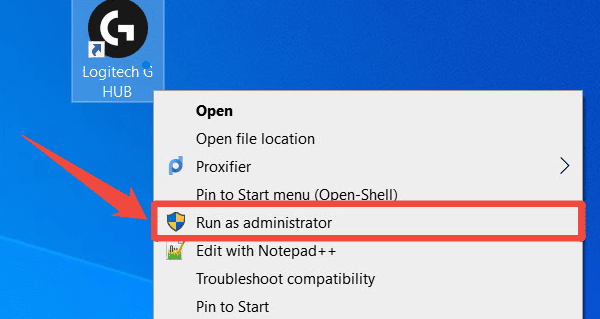
Allow permission prompts if prompted.
Running the software with elevated permissions often resolves detection issues.
Solution 3: Reinstall Logitech G HUB Completely
1. Press Windows + I and go to Apps > Apps & features.
2. Uninstall Logitech G HUB.
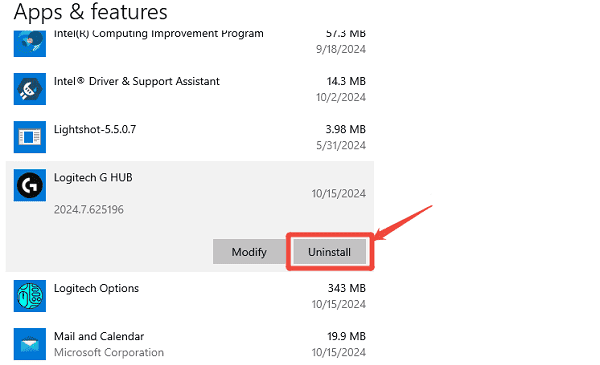
3. Press Windows + R, type "appdata", and press Enter.
4. Delete Logitech folders from:
AppData\Local
AppData\Roaming
5. Restart your PC.
6. Download and install the latest Logitech G HUB version from the official Logitech website.
Solution 4: Check Device Manager for Errors
Press Windows + X and open Device Manager.
Expand "Human Interface Devices" and "Mice and other pointing devices".
If you see warning icons, right-click the device and select "Uninstall device".
Restart your PC and let Windows reinstall the driver automatically.
Use Driver Talent X to ensure the correct driver version is installed.
Solution 5: Disable USB Power Management
Open Device Manager.
Expand "Universal Serial Bus controllers", right-click each "USB Root Hub" and select "Properties".
Go to the "Power Management" tab.
Uncheck "Allow the computer to turn off this device to save power".
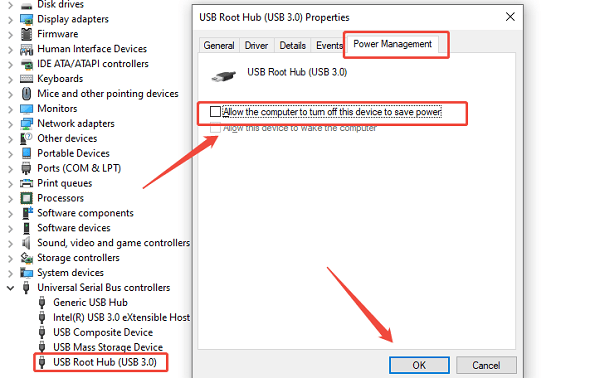
Click "OK" and restart your PC.
This prevents Windows from disconnecting the mouse unexpectedly.
Solution 6: Stop Conflicts with Older Logitech Software
If Logitech Gaming Software is installed alongside G HUB:
Uninstall Logitech Gaming Software completely.
Restart your system.
Keep only Logitech G HUB installed.
Running both programs can cause detection failures.
Additional Tips for Stable G502 Performance
Always keep mouse firmware updated via Logitech G HUB
Use Driver Talent X regularly to maintain USB and chipset drivers
Avoid third-party mouse driver tools
Keep Windows fully updated
Conclusion
When Logitech G502 mouse software is not working on Windows, the issue is usually related to outdated drivers, USB power settings, or corrupted Logitech software. Updating all system drivers first with Driver Talent X, and then following the step-by-step solutions in this guide, you can restore full control over DPI settings, macros, and performance customization for your Logitech G502 mouse.
See also:
Solutions to Fix Monster Hunter Wilds Crashes
How to Fix Split Fiction Not Launching on Windows
[Fixed] Whoa! Cyberpunk 2077 Flatlined Error
Solutions for 'DirectX 12 Not Supported' Error on Windows 10









